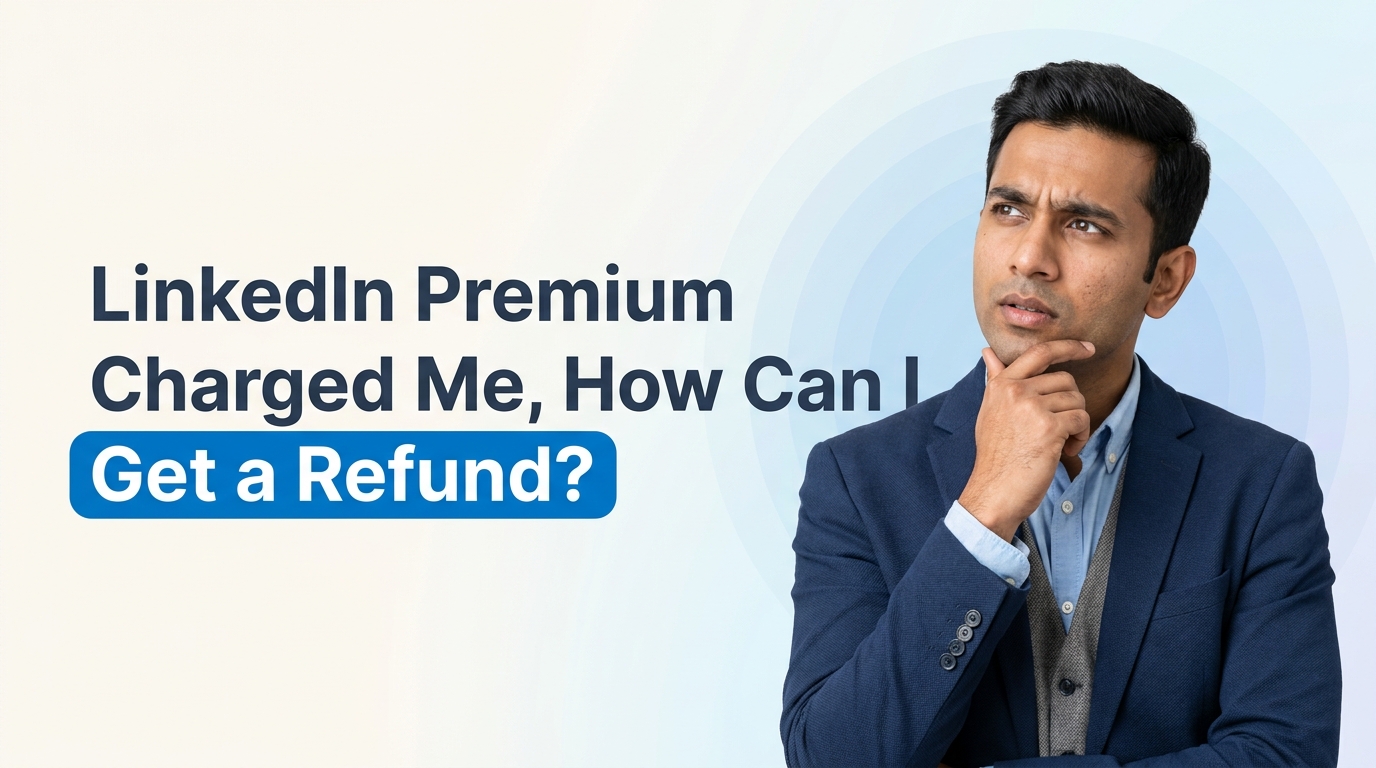
LinkedIn Premium Charged Me, How Can I Get a Refund?
Woke up to a LinkedIn Premium charge? Learn how to get a refund today. Follow our step-by-step guide and reclaim your money easily.
So you woke up, checked your bank notifications, and saw a charge from LinkedIn Premium that you completely forgot about. Maybe it was $39.99 for Career, maybe it was $119 for Sales Navigator. Either way, that sinking feeling is real, and you are definitely not alone. This happens to thousands of people every single month, especially when the free trial quietly rolls into a paid subscription.
The good news? In many cases you can get some or all of your money back. The catch is that the process depends heavily on how you paid. Paying through Apple, Google Play, or directly through LinkedIn's website are three very different roads, and knowing which one you are on changes everything.
Let's walk through it step by step, answer the most common questions, and make sure this never happens to you again.
First Things First: Cancel the Subscription Immediately
Before you even think about the refund, cancel the subscription so you do not get charged again next month. Canceling does not remove your access right away, you usually keep Premium features until the end of the billing period you already paid for.
If you subscribed through LinkedIn directly: Go to your profile photo, click Settings & Privacy, then Account preferences, then Subscriptions & payments, and cancel from there. LinkedIn has an official guide on this right here.
If you subscribed through Apple: Open Settings on your iPhone, tap your name, tap Subscriptions, find LinkedIn, and cancel. Apple explains it in detail in this support article.
If you subscribed through Google Play: Open the Play Store, tap your profile icon, go to Payments & subscriptions, then Subscriptions, and cancel LinkedIn there.
Done? Great. Now let's talk about getting your money back.
How Do I Get a Refund If I Paid Through Apple?
This is the situation the original question describes, so let's dig into it properly. When you pay through Apple, Apple handles the money, not LinkedIn. That means LinkedIn support cannot refund you even if they wanted to. Your refund request goes through Apple's system.
Here is how to request it:
Go to reportaproblem.apple.com and sign in with your Apple ID.
Find the LinkedIn Premium or Sales Navigator charge.
Choose "Request a refund" and select the reason that fits your situation, such as "I meant to cancel" or "I didn't mean to purchase this."
Submit and wait. Apple usually responds within 24 to 48 hours.
What Is a Prorated Refund and Why Did I Only Get Part of My Money Back?
Sometimes Apple approves a prorated refund instead of a full one. That means they refund the unused portion of your subscription. For example, if you were charged $119 and used a few days of the service before canceling, Apple might refund around $38, roughly matching the remaining unused time based on how they calculated it.
Is it frustrating? Yes. Is it common? Also yes. Apple's refund decisions are made case by case, and factors like whether you actually used the service, your purchase history, and how quickly you requested the refund all play a role.
If I Ask Apple to Review the Decision, Will I Lose the Prorated Refund?
This is the big worry, and it is a fair one. Here is the honest answer: requesting a review does not typically cancel an already approved refund. Apple's review process is meant to reconsider the decision, not punish you for asking. That said, Apple does not publish detailed rules about this, so nothing is 100 percent guaranteed.
A safer middle path many people take is to contact Apple Support directly through chat or phone at support.apple.com/contact instead of clicking the formal review option. A human support agent can look at your case, and if you politely explain that you forgot to cancel, canceled immediately after being charged, and barely used the service, they sometimes escalate it for a full refund. Being polite and clear genuinely helps here. Support agents deal with angry people all day, so a calm and honest explanation stands out.
How Does the Refund Money Actually Reach My Bank?
This part confuses a lot of first time Apple users, so let's clear it up:
If you paid with a debit or credit card: the refund goes back to that same card automatically. You do not need to do anything. It usually takes 3 to 10 business days to appear, sometimes longer depending on your bank.
If you paid with Apple Account balance (gift card funds): the refund goes back to your Apple balance, not your bank. Unfortunately, Apple balance generally cannot be transferred to a bank account, but you can use it for future purchases.
If you paid through carrier billing: the refund is credited back through your mobile carrier, which can take a full billing cycle.
So if you paid with your card, just be patient. The $38 (or whatever the amount is) will land back in your account without any extra steps from your side. If it has been more than 10 business days, check with your bank first, then follow up with Apple.
What If I Paid LinkedIn Directly Instead of Through Apple?
If your charge came straight from LinkedIn (you would see LinkedIn on your bank statement rather than Apple), the rules are different. LinkedIn's refund policy is fairly strict. In most regions, subscription payments are non refundable once the billing period starts, though there are exceptions depending on local consumer laws. For example, users in the EU and some other regions have stronger cancellation rights.
Your best moves in this case:
Cancel the subscription right away so it does not renew.
Contact LinkedIn Help and open a support case explaining that you forgot to cancel and have not used the paid features.
Be specific about dates: when you were charged, when you canceled, and whether you used any Premium features.
LinkedIn does grant goodwill refunds sometimes, especially for first time subscribers who reach out quickly. It is not guaranteed, but it costs nothing to ask nicely.
Quick Answers to Common Questions
Will canceling my subscription affect my LinkedIn account?
No. Canceling Premium or Sales Navigator just moves you back to the free version of LinkedIn. Your profile, connections, and messages all stay intact.
Do I lose Premium access immediately after canceling?
Usually not. You keep access until the end of the period you paid for. However, if you receive a full refund, access may be removed sooner.
How long does an Apple refund take?
The decision usually comes within 48 hours. The money itself takes 3 to 10 business days to reach your card after approval.
Can I dispute the charge with my bank instead?
You can, but treat this as a last resort. Chargebacks can lead to your Apple ID or LinkedIn account being restricted. Always try the official refund channels first.
How to Make Sure This Never Happens Again
A forgotten free trial is one of the most common ways people lose money online. A few habits that genuinely help:
Set a reminder the moment you start any free trial. Put it two days before the trial ends, not on the last day.
Cancel immediately after subscribing. With most services, including LinkedIn Premium trials through Apple, you keep the full trial period even after canceling. This is the single best trick.
Review your subscriptions monthly. On iPhone, Settings then your name then Subscriptions shows everything in one place.
Watch out for annual vs monthly billing. Sales Navigator in particular can bill in ways people do not expect, so always read the confirmation screen carefully.
If you want a broader look at how subscription traps work and how to avoid them, this FTC guide on free trial offers is a genuinely useful read.
Was Sales Navigator Even Worth $119 a Month for You?
Here is a question worth sitting with for a minute. A lot of people subscribe to Sales Navigator or Premium because they feel like they should, then realize they barely used the features. Advanced search filters and InMail credits are powerful, but only if you have a clear outreach strategy behind them.
Before you ever subscribe again, ask yourself:
Am I actively prospecting or job hunting right now, or just browsing?
Do I have a system for following up with the people I find?
Would a free month of consistent posting and engagement get me further than paid search filters?
For many people, the honest answer is that building a genuine presence on LinkedIn beats paying for premium tools they never fully use. Consistent content, smart engagement, and a well optimized profile compound over time in a way that a monthly subscription simply cannot.
A Smarter Way to Get Value From LinkedIn
This is actually why tools like exeedin exist. Instead of paying for access to search filters you might forget to use, exeedin helps you grow on LinkedIn the sustainable way, by making it easier to show up consistently, build your personal brand, and turn your profile into something that attracts opportunities instead of chasing them.
So yes, chase that refund. Follow the steps above, contact Apple Support politely, and there is a decent chance you will see more of that $119 back. But once the dust settles, think about what you actually want from LinkedIn. If the answer is real growth, real visibility, and real connections without accidental $119 charges, give exeedin a look. It might be the LinkedIn investment that actually pays for itself.