Why Does LinkedIn Disable Your Account Every Time You Create One?
LinkedIn's automated safety systems often flag signups that look like spam, repeat accounts or suspicious logins. See common triggers and what to do next.
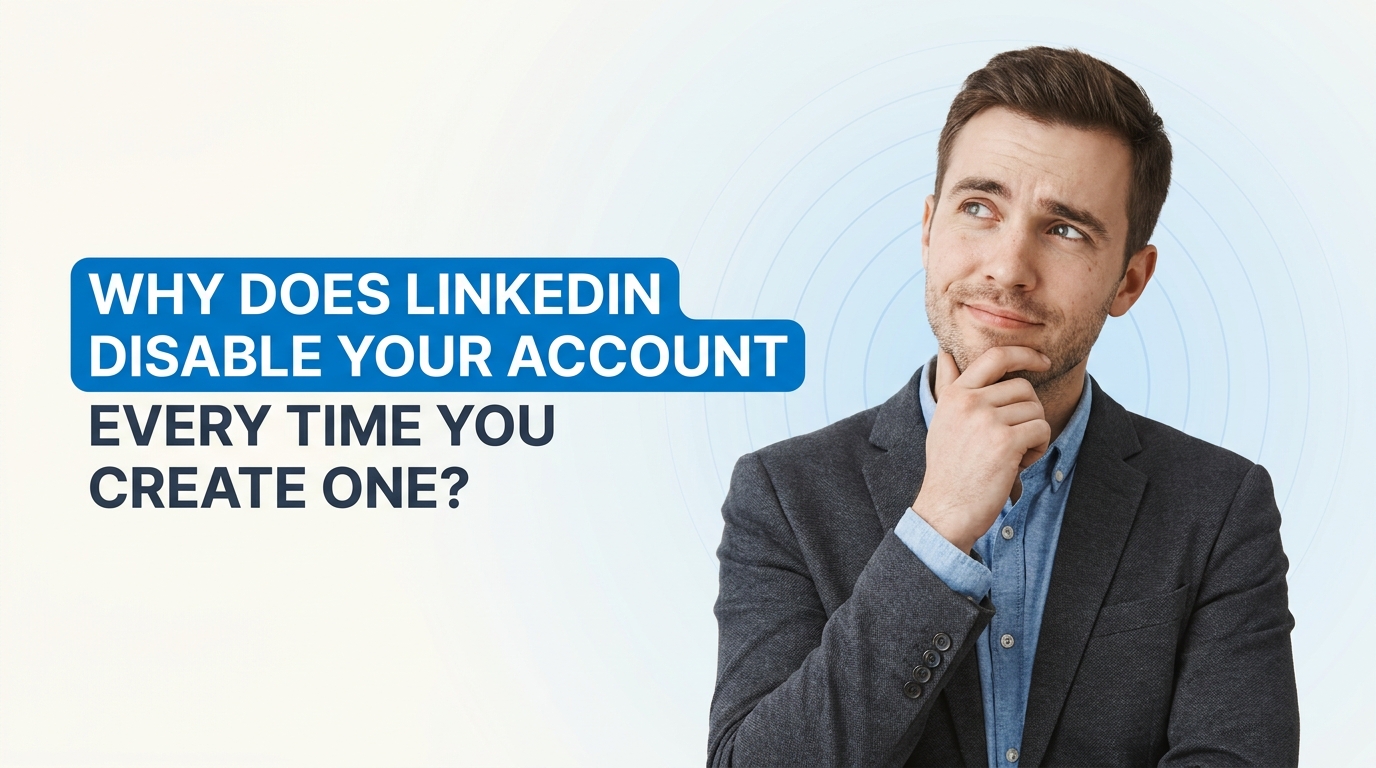
If LinkedIn keeps disabling your account every time you try to create a new one, you're not imagining it, and you're definitely not the only person dealing with this. It can feel confusing, especially when you verify your identity, follow the prompts, and still get hit with a “try again later” message.
So what’s actually going on?
Usually, LinkedIn’s safety systems are flagging something about the signup process as unusual or high risk. That does not always mean you did something wrong. It can simply mean their automated system thinks your activity looks similar to spam, fake profiles, repeat account creation, or suspicious login behavior.
Let’s break it down in a clear, practical way so you can understand why this happens and what you can do next.
What usually triggers LinkedIn to disable a new account?
LinkedIn uses automated trust and safety systems to protect the platform. These systems look for patterns that might suggest fake accounts, bots, impersonation, or policy violations. The problem is that sometimes real people get caught in those filters too.
Here are some common reasons:
- Creating multiple accounts using the same name, device, IP address, or phone number
- Using a VPN or proxy during signup, which can make your location look suspicious
- Entering profile details that seem incomplete or inconsistent, such as a random job title, no real photo, or unusual formatting
- Using a name LinkedIn thinks is not authentic or does not match your ID
- Trying to sign up again too quickly after a previous restriction
- Logging in from multiple devices or locations immediately after account creation
- Reusing an email or phone number connected to a past restricted account
LinkedIn’s official policies emphasize authentic identity and real professional presence. You can review their help and policy pages here: LinkedIn Help Center and LinkedIn User Agreement.
How strong is your LinkedIn profile?
Paste your profile link and see your score right away, with clear fixes for your headline, About section and experience. Free to start, no account needed.
Or open the free LinkedIn profile checker
Why does LinkedIn ask for photo ID and then still say “try again later”?
This is one of the most frustrating parts. You provide your ID, thinking the issue will be resolved right away, but then nothing changes.
Usually, this means one of a few things:
- Your verification is still being reviewed manually or queued in their system
- The account itself is still under a temporary restriction, even if your identity was accepted
- There is another trust signal on the account, beyond ID, still being flagged
- LinkedIn detected repeated signup attempts and applied a cooldown period
In simple terms, ID verification confirms you are a real person, but it does not automatically guarantee the account will be restored immediately. LinkedIn may still be reviewing device behavior, connection history, duplicate profile signals, or policy-related issues.
Questions worth asking yourself before trying again
If this keeps happening, pause before creating yet another account. It helps to ask a few practical questions:
- Have you had another LinkedIn account in the past that was suspended, restricted, or abandoned?
- Are you trying to create a second personal profile instead of recovering the original one?
- Are you signing up while using a VPN, shared Wi-Fi, public network, or work network?
- Does your profile name exactly match your real identity documents?
- Are you using a professional-looking email and realistic profile details?
- Did you rush through setup and trigger unusual activity too quickly?
These questions matter because LinkedIn is much more likely to trust account recovery than repeated new account creation.
What you should do instead of creating new accounts again and again
If LinkedIn disables every new profile you create, the best move is usually not to keep opening new ones. That can make things worse because it reinforces the system’s suspicion that the behavior is automated or evasive.
Here’s the better approach:
- Try to recover your original account if one exists. Use LinkedIn’s recovery and support routes instead of starting fresh.
- Submit one clear appeal with consistent information. Avoid sending multiple conflicting requests from different emails.
- Use your real legal name and make sure it matches your ID.
- Turn off VPNs or proxies before accessing LinkedIn.
- Use a stable device and network you normally use, rather than switching between phones, laptops, and locations.
- Wait out the cooldown period if LinkedIn says “try again later.” Repeated immediate attempts can extend the issue.
If you need help with account access, LinkedIn’s account restriction and verification support resources are the first place to check. You can also look at professional discussions on account trust, identity verification, and platform moderation from resources like Hootsuite’s LinkedIn guides and Sprout Social’s LinkedIn strategy resources for context on how the platform treats authenticity and profile quality.
How to make your LinkedIn profile look more trustworthy
If you do get access back, or if you’re allowed to complete the profile, it helps to set it up in a way that feels clearly authentic.
That means:
- Use a real headshot, not a logo, meme, or heavily edited image
- Add a clear headline that reflects what you actually do
- Include a real location
- Write a short but natural About section
- Add actual work or education history
- Confirm your email and phone number if requested
- Do not mass-send connection requests right away
Think of it this way: LinkedIn wants signals that a real professional is behind the account. A blank or rushed profile can look risky even if your intentions are completely normal.
What if you really need a new account?
Sometimes people need a new LinkedIn account because they lost access to an old email, changed careers, or never used their old profile properly. If that’s your situation, try to resolve the old account first if possible.
If a genuinely new account is your only option, make sure you:
- Use an email address that has not been tied to a restricted profile
- Do not copy-paste suspicious or repetitive content across profiles
- Set the account up slowly and naturally
- Avoid automation tools or browser extensions that interact with LinkedIn during the first days
- Keep all details truthful and consistent with your identification
It may also help to read broader trust and verification guidance from platform safety discussions, including videos that explain account review systems. A useful starting point is YouTube’s search results for LinkedIn account restriction topics here: LinkedIn account restriction videos on YouTube.
Could this be a technical issue instead of a policy issue?
Yes, sometimes it can be partly technical.
For example, browser issues, corrupted cookies, old cached sessions, or app glitches can interfere with login and verification. If you’re stuck in a loop, try these basic checks:
- Clear browser cache and cookies
- Try a standard browser like Chrome, Safari, or Firefox
- Use the official LinkedIn app or desktop site only
- Disable browser extensions temporarily
- Avoid public or unstable internet connections
That said, if you’re being asked for photo ID repeatedly, it usually points more toward trust review than a simple technical bug.
A simple action plan if LinkedIn keeps disabling your account
If you want the shortest practical version, here it is:
- Stop creating new accounts for now
- Recover or appeal the original one if possible
- Use your real identity details only
- Do not use VPNs, automation, or shared suspicious networks
- Wait if LinkedIn says “try again later”
- Contact support once, clearly, and consistently
That won’t guarantee instant success, but it gives you the best chance of getting through the process without triggering more restrictions.
Final thought
If LinkedIn disables your account every time, the issue is usually not random. It’s often a trust-and-safety flag caused by repeated account creation, identity mismatch, network signals, or behavior that looks unusual to an automated system. Annoying, yes. Personal, probably not. Most of the time, you’ll have better luck fixing the existing account situation than trying to start over again and again.