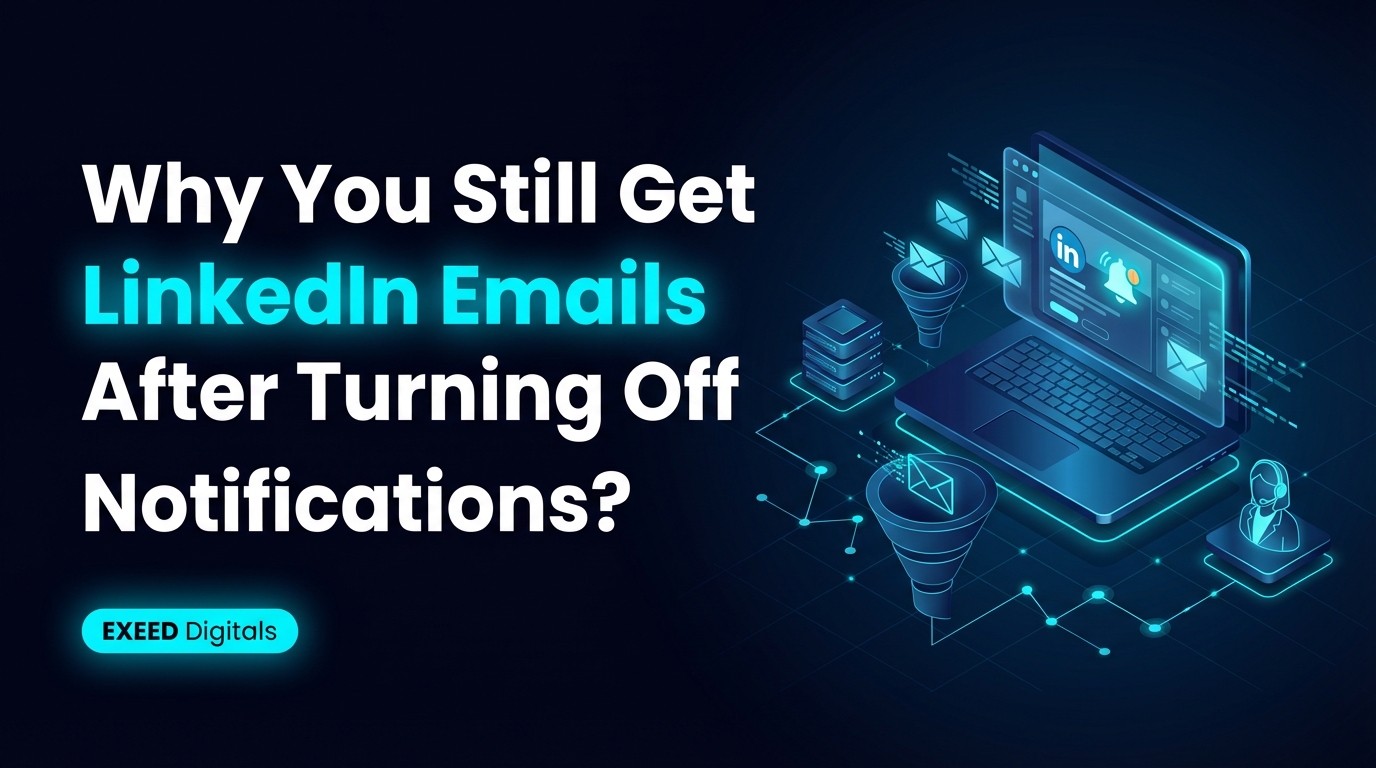
Why Does LinkedIn Send So Many Emails, and How Can You Actually Turn Them Off Without Wasting Time?
Tired of LinkedIn emails? Discover how to turn them off easily and regain control of your inbox. Read our guide now!
If you opened your trash folder and found what felt like a small mountain of LinkedIn emails, honestly, you are not the only one. A lot of people create a LinkedIn account, use it lightly, then forget about it for a while. Meanwhile, the platform keeps doing what platforms do: sending updates, prompts, reminders, job alerts, connection suggestions, and a bunch of “helpful” nudges that stop feeling helpful pretty fast.
So if your first thought was, “Why did this take me five minutes just to turn off?” that is a fair reaction. LinkedIn’s notification settings are not impossible to use, but they are spread across categories, and that makes the process feel more annoying than it should be.
Let’s break it down in a simple way: why LinkedIn sends so many emails, how to reduce them properly, what settings people usually miss, and how to keep your account useful without letting it take over your inbox.
Why does LinkedIn send so many emails in the first place?
LinkedIn is built to drive engagement. That means it wants you to come back, respond to messages, react to posts, grow your network, and apply for jobs. Email is one of the easiest ways for the platform to pull people back in.
Usually, these emails fall into a few common groups:
Network activity: connection requests, profile views, post engagement, birthdays, work anniversaries.
Jobs and opportunities: job alerts, recruiter messages, suggested roles.
Platform prompts: “people you may know,” profile completion reminders, suggested follows.
Marketing and product updates: tips, features, newsletters, and promotional emails.
The annoying part is that even if you barely use the account, these settings may still stay active by default. So the account feels inactive to you, but active enough to LinkedIn.
How strong is your LinkedIn profile?
Paste your profile link and see your score right away, with clear fixes for your headline, About section and experience. No account needed.
Or open the LinkedIn profile evaluator
Why does turning them off feel harder than it should?
Because LinkedIn splits notifications into separate sections. You are not just turning off “emails.” You are usually managing:
On-platform notifications
Email notifications
Push notifications on mobile
Notification categories for different types of activity
That means if you only switch off one category, you might still keep getting emails from another. It is not exactly intuitive, especially if you only log in once every few months.
LinkedIn explains its notification controls here: Manage your notification settings. Their help page is useful, but if you are already irritated, it can still feel like more clicking than necessary.
How to turn off LinkedIn emails more efficiently
If you want the quick version, here is the cleaner way to do it:
Log in to LinkedIn.
Go to Settings & Privacy.
Open the Notifications section.
Look specifically for Email under notification delivery methods.
Review each category and switch off the ones you do not want.
Check job alerts separately, because those often continue unless you disable them too.
If you still get emails, use the unsubscribe link at the bottom of the email as a backup.
That last point matters. Sometimes the fastest route is not deep inside account settings. It is right there in the email footer.
Questions worth asking if LinkedIn emails are getting out of hand
Sometimes the real issue is not just volume. It is whether the account is configured around what you actually want.
Do you want to keep the account active, or just stop the noise?
Are job alerts useful, or are they just adding clutter?
Do you still want direct message emails but not marketing emails?
Are you using LinkedIn personally, professionally, or barely at all?
These questions help because not everyone needs the same setup. Someone actively networking may want message alerts but not content suggestions. Someone who rarely logs in may want almost everything off.
Settings people often forget to review
If you already spent a few minutes switching things off and are worried emails will still keep coming, these are the usual missed spots:
Job alerts: these are often managed separately from general email preferences.
Group notifications: if you joined groups years ago, they may still trigger emails.
Newsletter subscriptions: some creator or company newsletters are opt-in and easy to forget.
Marketing emails: these can sit outside core activity notifications.
Security and account emails: some emails cannot and should not be fully disabled.
It is also worth checking LinkedIn’s general support center if you want a full overview: LinkedIn Help Center.
What if you still receive emails after switching things off?
That does happen sometimes, and there are a few possible reasons.
Changes may take a little time to apply.
You may have disabled one category but not another.
Some service emails are still required for account security or legal reasons.
You may be subscribed to email digests or newsletters separately.
If the problem continues, try this simple checklist:
Search your inbox for “LinkedIn” and open the most recent different types of emails.
Scroll to the bottom of each one and look for the unsubscribe option.
Revisit notification settings from desktop, not just mobile.
Check your job alert preferences directly.
Mark unwanted emails as spam only if you are sure you do not need any future account-related messages.
Google’s Gmail support page on managing unwanted messages can help if your inbox is already overloaded: Block or unsubscribe from emails in Gmail.
Should you just delete your LinkedIn account instead?
Maybe, but not always.
If you truly never use LinkedIn and do not plan to network, apply for jobs, or maintain a professional presence, closing the account may be simpler than managing notifications forever. LinkedIn has a help article on that too: Close your LinkedIn account.
But if there is even a small chance you will use it later, it is usually better to keep the profile and just clean up the settings. A quiet LinkedIn account is still useful. It can act like a digital business card, even if you are not posting every day.
How to make LinkedIn less annoying and more useful
Here is the part people skip: turning off emails is only half the fix. The other half is deciding what you actually want LinkedIn to do for you.
A more balanced setup might look like this:
Keep direct message notifications on.
Turn off most promotional and engagement emails.
Limit job alerts to a narrow set of roles or locations.
Disable unnecessary push notifications on mobile.
Review your settings once every few months, not only when you are already frustrated.
If you use LinkedIn for business, branding, recruiting, or lead generation, the platform works better when it is intentional. Random alerts are distracting. A focused profile strategy is useful.
For a practical overview of LinkedIn notification management and platform usage habits, this video may help too: YouTube search: how to turn off LinkedIn email notifications.
A quick reality check: your frustration makes sense
If it took you four or five minutes to switch everything off, that is not you being bad at LinkedIn. It is just one of those platforms where settings are a little more layered than they need to be. And when you are already annoyed from seeing hundreds or thousands of emails, even a few extra clicks feel bigger than they are.
So yes, your reaction makes sense. No one wants to spend part of their day cleaning up digital noise from a platform they barely use.
Final thought
The good news is that once you clean up your notification settings, LinkedIn becomes a lot easier to live with. You do not have to accept constant inbox clutter just to keep a professional profile online. A few careful adjustments can make the platform much quieter and more useful.