Why Are LinkedIn Connection Requests Not Showing Up, and How Can You Fix It?
Check My Network and Manage invitations first. Requests can be delayed, filtered, hit by app or browser issues, or sent to the wrong profile.
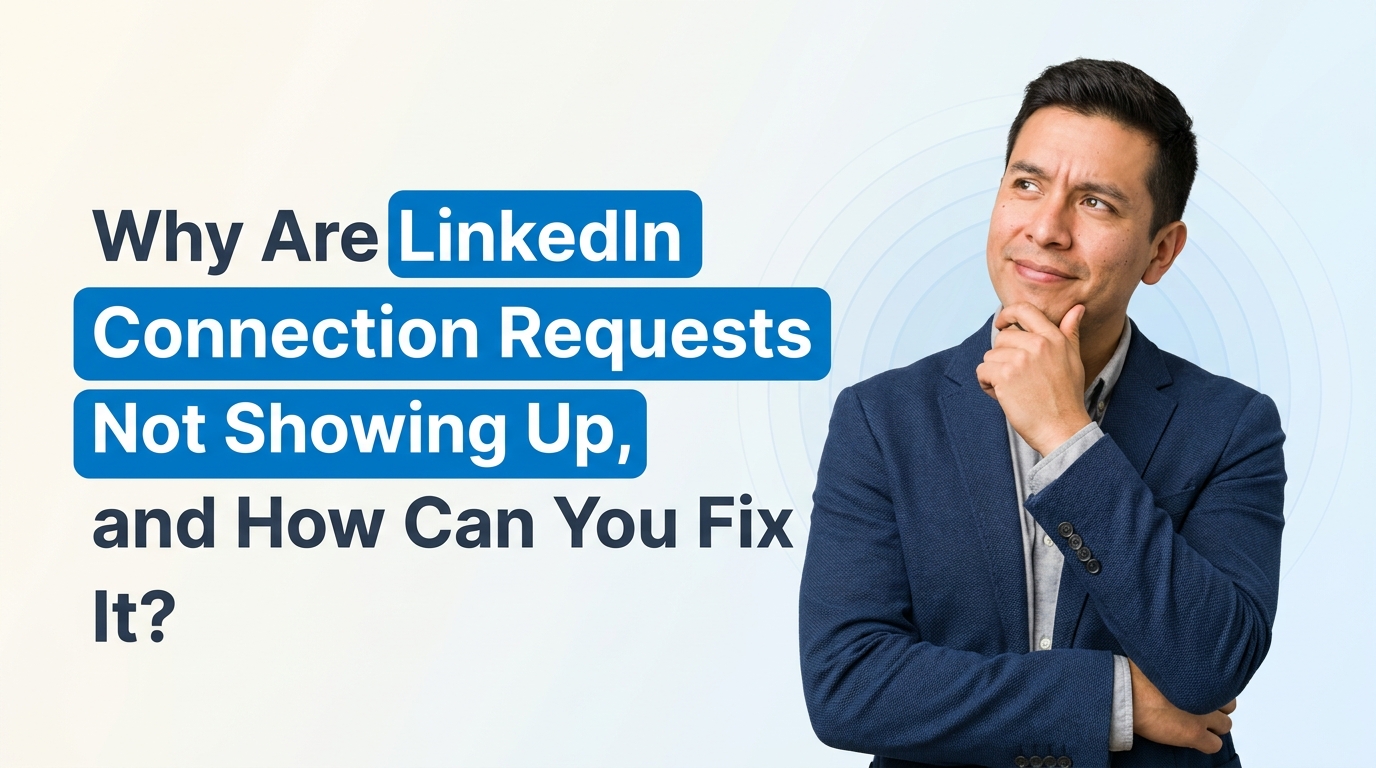
If someone sends you a LinkedIn connection request and they see it as pending, but you do not see anything on your side to accept, it can feel confusing fast. You start wondering if LinkedIn is glitching, if your account is restricted, or if you missed something in your settings.
The short answer is: this usually happens because of a syncing issue, a filtered request setting, an app/browser problem, or an account limitation. It is frustrating, but in many cases it can be fixed without doing anything too technical.
If you are dealing with this right now, here is a clear breakdown of what may be happening and what you can do next.
What does it mean when a LinkedIn request shows as pending for the sender?
When another person sees their invite to you as pending, that usually means LinkedIn has recorded the invitation on their side. But if you cannot see it in your My Network section or notifications, one of a few things may be going on:
- The request is delayed and has not fully appeared yet.
- The request is being filtered or hidden.
- Your app or browser is not loading all network activity correctly.
- Your account has a temporary bug or restriction.
- The sender invited the wrong profile, especially if your name is common.
So before assuming the request is gone forever, it helps to check the basics first.
First, where should LinkedIn connection requests normally appear?
Normally, incoming requests appear in one of these places:
- My Network tab on desktop or mobile
- Manage invitations section
- Sometimes in notifications, though not always reliably
You can go directly to LinkedIn's invitation area here: LinkedIn Invitation Manager.
If there is nothing there, even though the other person says the request is pending, keep going through the checks below.
How strong is your LinkedIn profile?
Paste your profile link and see your score right away, with clear fixes for your headline, About section and experience. Free to start, no account needed.
Or open the free LinkedIn profile checker
Common reasons LinkedIn requests are not showing up
1. The LinkedIn app is not syncing properly
This is more common than people think. Mobile apps can lag, cache old data, or fail to refresh invitation lists properly.
Try this:
- Close the LinkedIn app completely
- Log out and log back in
- Update the app to the latest version
- Clear app cache if your phone allows it
- Check the same account on desktop browser
If you only checked on mobile, there is a good chance the desktop version will show the request.
2. A browser issue is hiding requests
If you use LinkedIn on desktop, browser extensions, ad blockers, or stored cookies can sometimes interfere with page loading.
Try this:
- Open LinkedIn in an incognito/private window
- Try another browser like Chrome, Edge, Firefox, or Safari
- Clear cookies and cache
- Disable extensions temporarily
This can rule out whether the issue is your account or just your browser environment.
3. The request may have been filtered or expired
LinkedIn does not always surface every invitation in the most obvious way. In some cases, requests may not stay visible forever, especially if they are old, withdrawn, or linked to unusual account activity.
It is worth asking:
- Did the sender send the request recently or a while ago?
- Did they possibly withdraw and resend it?
- Did they send it to the correct profile?
If there is any doubt, ask them to cancel the pending invitation and send a fresh one. That simple step often solves the issue.
4. Your account may have privacy or access issues
LinkedIn accounts can sometimes experience limitations, especially if there has been unusual login activity, too many connection actions, or security flags.
Ask yourself:
- Have you recently changed your email, password, or phone number?
- Have you been locked out recently?
- Did LinkedIn ask you to verify your identity?
- Are other LinkedIn features acting strangely too?
If the answer is yes, this could point to an account-level issue rather than just a missing request.
5. The sender's account may be restricted
This one gets overlooked. Sometimes the problem is not on your side. If the sender's account is limited, flagged, or behaving unusually, their invitation may appear sent to them but not fully arrive to you.
You can test this by asking:
- Can other people receive their requests normally?
- Can you receive requests from someone else?
If you can receive other invitations, then the issue may be connected to that specific sender.
How to troubleshoot the issue step by step
If you want the fastest path, do these in order:
- Check the Invitation Manager directly instead of only notifications.
- Log in on desktop if you were using mobile only.
- Update or reinstall the LinkedIn app.
- Clear browser cache/cookies or use incognito mode.
- Ask the sender to withdraw and resend the request.
- Test with another person sending you a connection request.
- Review account security for any warnings or verification prompts.
These seven steps solve a lot of LinkedIn invitation problems in real-world cases.
Can LinkedIn settings block incoming requests?
Usually, LinkedIn does not give a simple toggle that fully turns off all incoming connection requests for a regular personal account. But some settings can affect how discoverable you are or how people reach you.
It helps to check your visibility settings here: LinkedIn Help: Visibility settings.
Look at things like:
- Profile discoverability
- Email/phone discoverability
- Whether your account appears properly in search
- Any unusual communication restrictions
These settings usually will not hide valid invitations entirely, but they are still worth reviewing if your account feels harder to reach than normal.
What if LinkedIn support is not helping?
Honestly, a lot of users feel this way. LinkedIn support can be slow, and some issues are hard to explain through generic forms. If you need to contact them, it helps to be very specific.
Include:
- The exact problem: “Others see requests as pending, but I do not see incoming invitations.”
- Whether it happens on both app and desktop
- The names of people who tested it with you
- Screenshots if possible
- Whether you already tried reinstalling, clearing cache, and using another browser
You can use LinkedIn's official help center here: LinkedIn Help Center.
If you want a general overview of invitation management from LinkedIn, this page may also help: Manage invitations on LinkedIn.
Useful questions to ask before you panic
Sometimes the easiest fixes come from slowing down and checking the right details. A few good questions are:
- Am I checking both desktop and mobile?
- Did the sender definitely invite the correct account?
- Can I receive requests from other people?
- Has my LinkedIn account shown any warning signs lately?
- Did this start after an app update or password reset?
These questions can help you narrow the issue down in minutes instead of guessing for hours.
What usually works in real life?
If we are being practical, the most common fixes are:
- Using desktop instead of the app
- Asking the sender to withdraw and resend the invitation
- Clearing cache/cookies or reinstalling the app
- Checking whether the issue is tied to one sender or all senders
That is usually where you should focus first.
If you want a video walkthrough on LinkedIn invitation basics and platform navigation, YouTube often has helpful visual guides like this search result page: YouTube: how to manage LinkedIn invitations.
Final thoughts
If LinkedIn connection requests are not showing up on your side, but other people see them as pending, the problem is usually not random. It is often tied to app sync issues, browser problems, request filtering, account glitches, or sender-side restrictions.
Start simple. Check the invitation manager directly. Test desktop and mobile. Ask the person to resend the request. Then look into account access or support if the issue keeps happening.
And if this is part of a bigger LinkedIn visibility or account performance problem, it can help to get a second set of eyes on it. At EXEED Digitals, we usually support brands and professionals with LinkedIn issues that affect outreach, credibility, lead flow, and account activity. Our team works closely on LinkedIn growth and account management, and our LinkedIn services have helped 100s of brands improve how they show up, connect, and perform on the platform. If LinkedIn is making things harder than it should, that is exactly the kind of thing EXEED Digitals helps untangle.
en