How Do You Remove “Open to Work” on LinkedIn When There’s No Delete Button?
If you’re staring at your LinkedIn profile wondering why the “Open to Work” setting won’t go away, even though every guide says there should be a delete button, you’re not imagining it. LinkedIn changes its interface often, and sometimes the option people mention in older tutorials is moved, renamed, or simply not showing for certain account views.
So if you’re thinking, “Why don’t I have the delete button everyone keeps talking about?”, this is actually a pretty common issue. The good news is that there are still a few reliable ways to remove it.
Let’s go through it step by step in a simple way.
What is the “Open to Work” feature on LinkedIn?
LinkedIn’s “Open to Work” feature lets you tell recruiters, and sometimes your wider network, that you’re open to job opportunities. Depending on your settings, it may show:
A visible green #OpenToWork photo frame
A profile section that says you’re open to certain job titles or work types
Recruiter-only visibility settings
Sometimes people add it during a job search and later want to remove it once they get hired, pause their search, or just want a cleaner profile.
Why is there no delete button?
Usually, one of these things is happening:
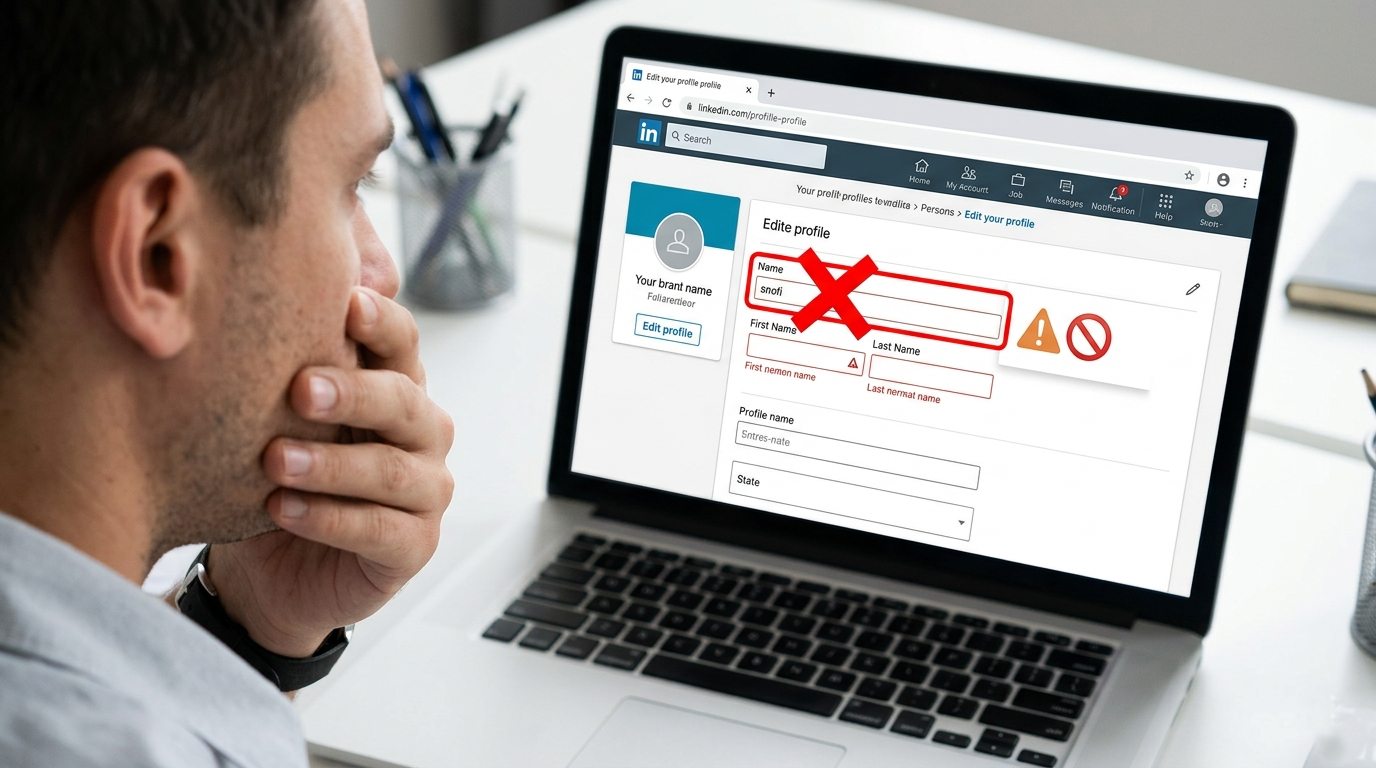
LinkedIn updated the layout and the delete option is now hidden under a different menu
You’re using the mobile app, which may show fewer controls than desktop
You only have a job preferences setting active, not the full public badge version
The option is under “edit” or “manage” instead of “delete”
A temporary LinkedIn bug or cached version is preventing the button from appearing
That’s why older Reddit threads and articles can be frustrating. They’re not always wrong, but LinkedIn may look different on your screen today.
How to remove “Open to Work” if there’s no delete button
Here are the best ways to fix it.
1. Go directly to your profile intro section
Start from your profile page, not from settings.
Open LinkedIn
Click Me and then View Profile
Look near your profile picture and headline area
Find the “Open to” section
Click the pencil/edit icon
If you don’t see a delete button here, keep going. You may still be able to remove the feature another way.
2. Look for “Manage job preferences” or “Edit job preferences”
In some versions of LinkedIn, the delete button is replaced by a settings screen where you manage the job search preferences.
Check whether you can:
Turn off job titles
Remove preferred locations
Disable start date preferences
Change visibility from All LinkedIn members to Recruiters only
If there’s an option like Remove from profile, Stop showing recruiters you’re open, or Turn off, that’s the one you want.
3. Try desktop instead of mobile
This is one of the most useful fixes. If you’re on the LinkedIn app and can’t find the right option, log in on a desktop browser. The full desktop version often shows controls that are hidden in the app.
Questions to ask yourself:
Am I only checking in the app?
Have I tried Chrome, Safari, or Firefox on a computer?
Is the app showing a simplified edit screen?
It sounds basic, but this solves the problem for a lot of people.
4. Check whether only the photo frame is active
Sometimes the visible issue is the green #OpenToWork frame, not the entire job-seeking setting.
To remove the frame:
Go to your profile photo section
Click your photo
See if the frame can be edited or removed separately
If the frame is gone but the job preferences remain, LinkedIn may still consider your account open to recruiters privately.
5. Use LinkedIn’s job seeking preferences page
Another route is to access your job preferences from the jobs area instead of your profile.
Click Jobs in the top menu
Look for Preferences or Application settings
Open any section related to job alerts or job seeking status
Turn off the “open to work” or equivalent recruiter visibility setting
In some accounts, this is where LinkedIn now stores the control rather than showing a direct delete button on your profile card.
6. Clear cache or test another browser
If LinkedIn is behaving oddly, the option may actually be there but not loading correctly.
Try this quick checklist:
Refresh the page
Log out and log back in
Clear browser cache and cookies
Try incognito mode
Use another device
Not glamorous, but worth doing if the interface seems broken.
7. Contact LinkedIn Help if the feature is stuck
If none of the above works, there may be a sync issue on your account. In that case, contacting LinkedIn support is the cleanest next step.
You can visit LinkedIn Help and search for job seeking preferences or profile visibility. LinkedIn also has official guidance on managing profile features, though the exact wording may vary over time.
A quick breakdown: what to try first
If you just want the fastest path, do this in order:
Open LinkedIn on desktop
Go to View Profile
Click the pencil icon in the “Open to” section
Look for Manage, Turn off, or Remove from profile
If nothing appears, check the Jobs tab for job-seeking preferences
If still stuck, contact LinkedIn Help
What if you only want to hide it, not fully delete it?
That’s also an option. Some people don’t want the public green banner but still want recruiters to know they’re open.
In that case, switch visibility to Recruiters only. That usually removes the public-facing badge while keeping your job search a bit more private.
This is especially useful if:
You’re employed and job searching quietly
You want a more polished public profile
You’re open to offers but don’t want to broadcast it to your network
LinkedIn has more information on profile visibility and job search settings here: LinkedIn profile visibility help.
Why this matters more than people think
Your LinkedIn profile is often your first impression. Leaving “Open to Work” on by accident isn’t the end of the world, but if it no longer reflects your situation, it’s worth fixing.
A clean profile helps you control the message you’re sending. Are you actively job hunting? Quietly exploring? Focused on building authority in your field? Those details matter, especially if recruiters, clients, coworkers, or hiring managers are checking your page.
If you want practical advice on improving your LinkedIn presence beyond this one setting, these resources are useful too:
Final thoughts
If there’s no delete button, the short answer is: don’t panic, and don’t assume you’re missing something obvious. LinkedIn likely changed where the setting lives. Most of the time, the fix is to edit the “Open to” section on desktop, check job preferences under the Jobs tab, or switch visibility settings rather than looking for a button literally labeled delete.
And if you’ve been updating your LinkedIn while job searching, rebranding, or cleaning up your profile after a career change, this is a good reminder to review the rest of your profile too. Things like profile messaging, banner image, headline, featured links, and recruiter visibility all work together.
Write better LinkedIn content with EXEED AI
EXEED AI is an AI tool that helps you ideate, draft, and schedule content for your LinkedIn. Turn raw ideas into polished posts and stay consistent without the guesswork. Try EXEED AI.