How to Export LinkedIn Connections (With Emails) in 2026
Export LinkedIn connections from Settings & Privacy > Data privacy > Get a copy of your data. Here is what Connections.csv contains, why emails are missing, and how to import it safely.
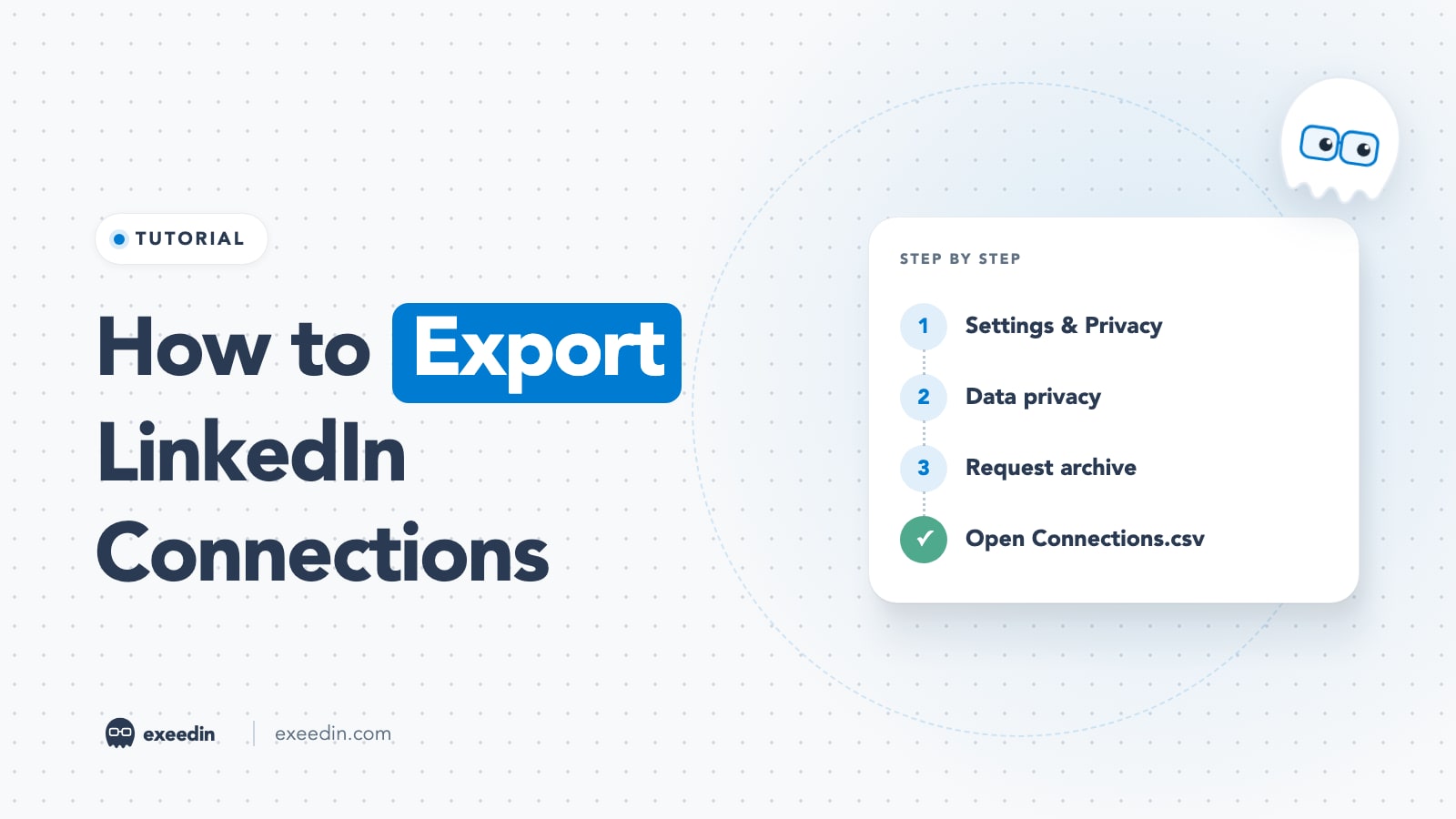
To export LinkedIn connections, go to Me > Settings & Privacy > Data privacy > Get a copy of your data on a computer, choose the archive that includes Connections, and click Request archive. LinkedIn emails you a download link. Inside the file you will find Connections.csv with names, profile URLs, companies, job titles, connection dates and any email addresses your connections chose to share.
This guide follows the steps exactly as LinkedIn's Help Center describes them in October 2026. It also covers what the file really contains, how to clean it in Excel or Google Sheets, how to import it into a CRM such as HubSpot, why Sales Navigator works differently, and the privacy and account-safety rules that most export tutorials leave out.
How to export LinkedIn connections: the quick version
- On a computer, click the Me icon at the top of your LinkedIn homepage.
- Select Settings & Privacy.
- Click Data privacy in the left menu.
- Under How LinkedIn uses your data, click Get a copy of your data (some accounts see this labeled Download your data).
- Pick the option that includes Connections.
- Click Request archive and confirm with your password if asked.
- Wait for the email to your primary address, download the file, unzip it if needed, and open Connections.csv.
These steps come from LinkedIn's own Export connections from LinkedIn article, which tells you to select the larger archive that includes connections, verifications, contacts, account history and inferred information. LinkedIn also says you can export your connections at any time, so there is no monthly cap to worry about.
Step by step on desktop, with what you will see
The export lives in your privacy settings rather than on your network page, which is why many people never find it. LinkedIn currently uses two names for the same screen. The export article calls it Get a copy of your data, while the newer Download your data help page tells you to click Download your data. If you see either one, you are in the right place.
On the next screen you get two choices:
- Specific categories of data. You tick only what you want. If Connections appears in the list on your screen, ticking it alone is the lighter request.
- The larger download. Everything LinkedIn holds about your account, including Connections, Messages, Comments, Shares, Reactions and more.
After you click Request archive, LinkedIn may ask for your password. You do not need to keep the tab open while you wait.
How strong is your LinkedIn profile?
Paste your profile link and see your score right away, with clear fixes for your headline, About section and experience. Free to start, no account needed.
Or open the free LinkedIn profile checker
Can you export LinkedIn connections on mobile?
No. LinkedIn's Download your data page states that this feature is currently not available on mobile, for both the iOS and Android apps. Use a desktop or laptop browser. LinkedIn also advises downloading your archive on a personal computer rather than a shared or public one, which makes sense: the file holds your messages and contacts if you choose the full archive.
How long does the LinkedIn data export take?
This is where LinkedIn's own documentation is a little inconsistent, so it helps to plan for the slower case.
| What you request | Examples of data | When LinkedIn says you get the email |
|---|---|---|
| Specific categories | Profile, Positions, Education, Skills, Certifications | Within minutes (listed as "available within 10 minutes") |
| Larger download | Connections, Messages, Comments, Shares, Reactions, Logins | Within 24 hours (the same page groups these under "available within 48 hours") |
| Download link | The file you receive | Stays available for 72 hours after the email |
All three timings come from LinkedIn's Download your data article. In practice, many people get the Connections file quickly, but if you need it for a deadline, request it a day or two ahead. And download it promptly: after 72 hours the link expires and you have to request a new archive.
What's inside Connections.csv?
The archive arrives as a ZIP folder. Unzip it and open Connections.csv; the other CSV files (messages, positions, skills) can be ignored if you only need your network.
The header row of the connections file usually reads as follows, according to Juicebox's import documentation:
| Column | What it holds | Watch out for |
|---|---|---|
| First Name | Your connection's first name | Emoji or credentials sometimes appear here |
| Last Name | Last name | Some people put titles or "MBA" in this field |
| URL | Their LinkedIn profile link | Changes if they edit their custom URL |
| Email Address | Their email, if they allowed it | Blank for most rows |
| Company | Current employer at export time | Can be blank or out of date |
| Position | Current job title | Free text, so expect inconsistent wording |
| Connected On | The date you connected | Imported as text in some spreadsheet locales |
One detail trips up almost every first import: the file often starts with a short Notes section above the real header, explaining why some emails are missing. Juicebox's troubleshooting advice is to delete those rows so the column names sit in row 1. Most CRMs and spreadsheet imports fail or mislabel columns until you do.
What the file does not contain is just as important. LinkedIn says only 1st-degree connections are exported, so followers who are not connections, 2nd-degree contacts and people you only messaged will not appear. Phone numbers, profile photos, skills and headlines are not in this file either.
Why are email addresses missing from my LinkedIn export?
Because each member decides whether their connections can download their email. LinkedIn's export article says you only see addresses for connections who allowed their connections to see or download them. A file with mostly blank email cells is normal and is no sign the export failed.
The control is called Email visibility. Per LinkedIn's Manage who can see your email address page:
- Desktop: Me > Settings & Privacy > Visibility > Visibility of your profile & network > Email visibility. Choose who can see your address, then set the download toggle to Yes or No.
- Mobile app (iOS and Android): tap your profile photo > Settings & Privacy > Visibility > Email visibility, then set the same toggle.
Check your own toggle too: if you are job hunting or selling, you may want trusted connections to have your address. And never "fill in" missing emails with guessing tools and then treat them as opted in. People who switched the toggle off made a choice worth respecting.
How to open the file in Excel or Google Sheets
Excel
Double-clicking the CSV usually works, but it can garble accented or non-Latin names. The cleaner route is the import tool Microsoft documents in Import or export text (.txt or .csv) files:
- Open a blank workbook and click the cell where the data should start.
- On the Data tab, in Get & Transform Data, click From Text/CSV.
- Select Connections.csv and click Import.
- Check that the delimiter is Comma. If names look broken, change the File Origin dropdown to UTF-8.
- Click Transform Data if you want to remove the Notes rows in Power Query, or Load and delete them on the sheet.
Google Sheets
- Open a new sheet and choose File > Import > Upload.
- Select the CSV, set the separator to Comma, and import.
- Delete any Notes rows above the header, then use View > Freeze > 1 row.
Arabic, Chinese and other non-Latin names
LinkedIn warns that CSV and vCard exports do not support every character, and its export article names extended character sets such as Chinese, Japanese and Hebrew. Arabic is not mentioned either way. If you have many Arabic-script connections (common for GCC users), scan the file after import. If names display as boxes, re-import with UTF-8. If they show as question marks even then, the characters were lost in the export itself and you will need to correct those rows from the profile URLs.
Five cleanup steps worth doing once
- Convert Connected On to a real date column so you can sort by recency.
- Add a Segment column (client, prospect, peer, recruiter, friend).
- Use a filter on Position for words like "Founder", "Head of" or "Director" to find decision makers.
- Save a dated copy (for example Connections-2026-10.csv). The file is a snapshot and goes stale as people change jobs.
How to import LinkedIn connections into a CRM (HubSpot example)
Most CRMs accept a CSV import with the same logic: map columns to fields, choose a unique identifier, and decide how duplicates are handled. In HubSpot, the path described in its import guide is:
- Click More, then go to Data Management > Data Integration.
- In Import a file, click Import data and choose Contacts.
- Pick whether to create and update, create only, or update only.
- Upload the cleaned CSV and map the columns (see the table below).
- Name the import, tick the consent confirmation, and click Finish import.
| LinkedIn column | Typical CRM field |
|---|---|
| First Name / Last Name | First name / Last name |
| Email Address | Email (the unique identifier in HubSpot) |
| Company | Company name (or associate to a company record) |
| Position | Job title |
| URL | A custom "LinkedIn profile URL" property |
| Connected On | A custom date property, for example "LinkedIn connected date" |
HubSpot uses Email as the unique identifier for contacts, so rows with no email cannot be matched to existing records that way. Decide before importing whether those rows belong in the CRM at all, or whether they stay in the spreadsheet as a relationship list you work by hand on LinkedIn. That consent checkbox at the end is also a real question: it asks you to confirm the people in the file expect to hear from you.
Can you export contacts from Sales Navigator?
LinkedIn itself offers no CSV export for Sales Navigator leads. Its Sales Navigator help describes the route LinkedIn supports, which is a CRM integration. According to its Integration between Sales Navigator and your CRM article, CRM sync is only available on Sales Navigator Advanced Plus, and HubSpot, Microsoft Dynamics, Oracle Sales and Salesforce support full CRM sync. Pega, SAP and SugarCRM get embedded profiles only.
That article describes data moving from your CRM into Sales Navigator, with optional writeback of select activity to the CRM. That sync keeps records aligned between the two systems; it does not hand you a spreadsheet of your saved leads. If you need a list of leads you are not connected to, the honest options are the Advanced Plus integration or researching contacts through tools with their own licensed data. Our Sales Navigator vs Apollo comparison covers that tradeoff, and this guide to building lead lists in Sales Navigator shows how to keep lists organized inside the tool. Recruiters have a similar question about candidate exports, covered in our Recruiter export explainer.
Are LinkedIn export extensions and scrapers safe?
Browser extensions that promise "export all connections with emails" or "export any search to CSV" are the fastest way to put your account at risk. LinkedIn's Prohibited software and extensions page says it does not permit browser plug-ins or extensions that scrape, modify the appearance of, or automate activity on LinkedIn's website, and that members using them risk having their accounts restricted or shut down.
The official export already gives you every 1st-degree connection, so a scraper adds little for your own network apart from risk: restrictions, identity verification loops, and sometimes tools that copy your session cookie to a third party server. If you want to know which tools stay inside the rules, see our roundup of LinkedIn Chrome extensions, and read what really causes LinkedIn jail before installing anything that touches your account.
Privacy and GDPR: what you can do with the exported list
Downloading your own connections is fine. Once names and emails sit in a CRM or a mailing tool, though, you are handling personal data, and the laws where you and your contacts live apply.
- Marketing emails in the UK. The ICO's electronic mail marketing guidance says you should not send marketing emails to individuals without specific consent. The "soft opt-in" covers existing customers only and excludes prospects. Emails to companies and government bodies are allowed, but sole traders and some partnerships count as individuals.
- EU, GCC and elsewhere. GDPR applies to EU residents, and Saudi Arabia and the UAE have their own personal data protection laws. If your network spans regions, assume the strictest rule applies to the whole list.
- Purpose and storage. Keep the file on a secured drive, delete old copies, and use the data for the relationship it came from. A networking connection is a weak basis for adding someone to a newsletter. Any email you send should say who you are and offer a working opt-out.
This is general information and should not be read as legal advice. For your own profile's exposure, our LinkedIn privacy settings guide covers every visibility toggle.
What to do with your exported connections
An export is most useful as a map of relationships you already have. A few uses that tend to pay off:
- Find dormant ties. Sort by Connected On and pick ten people from two or more years ago to reconnect with personally.
- Spot warm accounts. Pivot by Company to see where you already know several people before a sales push or job search.
- Build an engagement list. Choose 20 to 30 people whose posts you want to support and comment on them regularly. exeedin's Smart Engage lets you paste LinkedIn profile links into an engage list and shows you their posts from the last 7 days, which pairs well with the URL column.
- Back up your network. If your account is ever restricted, a recent export is the only contact list you control.
Frequently Asked Questions
Can I export my LinkedIn connections with email addresses?
Yes, but only for connections who allowed it. LinkedIn includes an email in Connections.csv only when that person switched on the setting that lets connections download their address. Expect many blank cells. There is no official way to get the missing emails, and guessing tools that fill them in do not give you permission to market to those people.
How long does it take to download LinkedIn data?
LinkedIn says specific data categories arrive within minutes, while the larger download arrives within 24 hours, though its own category list groups Connections under "available within 48 hours." Plan for up to two days if you need the file for a deadline. Once the email arrives, the download link stays active for 72 hours, so save the file promptly.
Can I export connections from the LinkedIn mobile app?
No. LinkedIn's help center says the data download feature is currently not available on mobile, on iOS or Android. You need to request the archive from a desktop or laptop browser through Settings and Privacy, then Data privacy. Once the CSV is downloaded, you can open it on a phone in a spreadsheet app such as Google Sheets.
Can I export someone else's connections or my followers?
No. The export only covers your own 1st-degree connections. LinkedIn states that contacts who are not 1st-degree connections cannot be exported, so followers who never connected with you, 2nd-degree contacts and other people's networks are not included. Tools that claim to pull those lists rely on scraping, which LinkedIn prohibits and which can get your account restricted.
Is it legal to email my exported LinkedIn connections?
It depends on where you and they are based and what you send. A personal one-to-one note is low risk, but marketing emails to individuals generally need consent under rules such as the UK's PECR and the EU's GDPR. Business addresses of companies are treated differently from sole traders. Always identify yourself and offer an opt-out, and get advice before emailing a large list.