10 Best LinkedIn Chrome Extensions in 2026, Checked for Safety
The best LinkedIn Chrome extensions in 2026 for writing, analytics, prospecting and CRM, with verified prices, store data and the account risks to know.
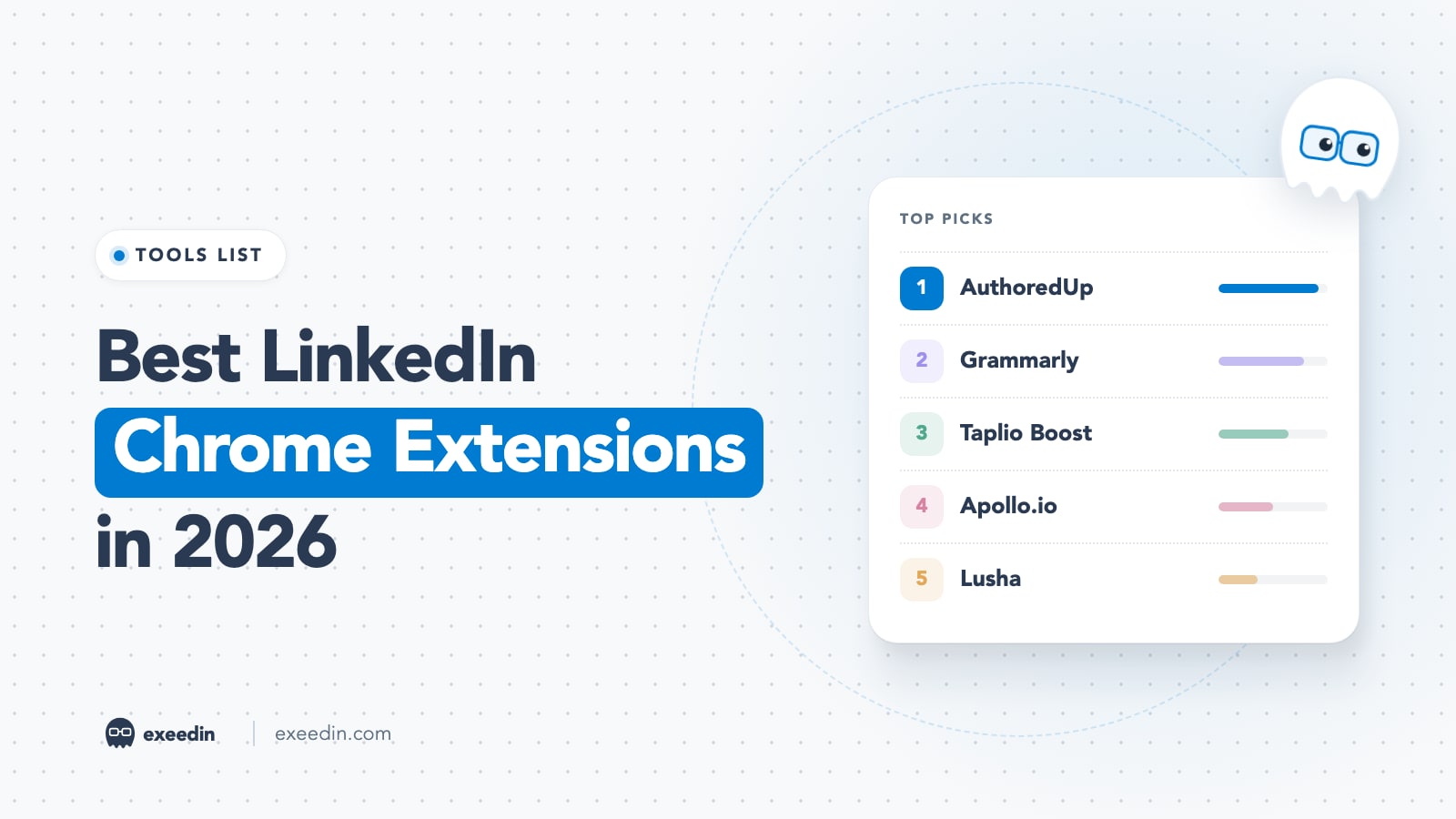
The best LinkedIn Chrome extensions in 2026 are AuthoredUp for writing and formatting, Grammarly for proofreading, Taplio Boost for in-feed stats, Apollo.io, Lusha and Wiza for contact data, and Surfe or Hublead for CRM sync. Pick one per job, keep every one of them manual, and check its permissions before you click Add to Chrome.
For this list we opened every extension's Chrome Web Store listing in October 2026 to confirm it still exists, when it was last updated and what data it declares, then checked each vendor's pricing page. Prices checked October 2026. Several well-known names did not make it, and we explain why. The second half covers what LinkedIn's User Agreement says about extensions and a five-minute permission check.
Quick comparison: the best LinkedIn Chrome extensions at a glance
| Extension | Job | Starting price | Free plan | Standout feature |
|---|---|---|---|---|
| AuthoredUp | Writing and formatting | $19.95/month | 14-day trial | Formatting, previews and post analytics inside LinkedIn |
| Grammarly | Proofreading | Pro listed at $12 | Yes | Works in the post box, comments and messages |
| Taplio Boost | In-feed analytics | Free add-on; Taplio from $39/month | Yes (extension) | Profile and post stats while you browse |
| Apollo.io | Contact data | Check current pricing | Yes | Large B2B database behind the extension |
| Lusha | Contact data | $49.90/month | 40 credits/month | Simple one-profile-at-a-time reveals |
| Wiza | Contact data | $49/user/month | 20 emails, 5 phones | Email and phone finder with CSV export |
| Crystal | Personality insights | $49/month | Up to 10 predictions | DISC-style read on a profile before you write |
| Surfe | CRM sync | $39/user/month (annual) | Yes | HubSpot, Salesforce, Pipedrive and Copper sync |
| Hublead | CRM sync | $32/seat/month (annual) | Trial | LinkedIn contacts and conversations into HubSpot or Salesforce |
| Breakcold | Social CRM | $99/month | 14-day trial (card) | CRM built around LinkedIn and other inboxes |
What changed in 2026: extensions that are gone, renamed or no longer recommended
Many roundups still list tools that have moved on. Before you install from an older list, know these changes:
- Taplio X is gone. Taplio's help center says Taplio X has been deprecated and replaced by Taplio Boost, an optional add-on.
- Shield is winding down. The analytics extension is shutting down, its website now returns an error, and competitors such as AuthoredUp have published migration pages. Export any Shield data now.
- Kleo's in-feed extension was pulled. According to a detailed review of the shutdown, the free extension went offline on June 20, 2025 after LinkedIn required its removal. Kleo now describes its new extension as a clipper for saving inspiration into its web app.
- Engage AI changed its business. The extension still drafts AI comments, but the company's pricing page now sells an "Engagement Community" at $50 a month that promises comments from other members on your posts. That is an engagement pod, and LinkedIn's User Agreement bans driving inauthentic engagement, so we left it off the list.
- LinkedIn has no member-facing Chrome extension. Its last one, Sales Navigator for Gmail (formerly Rapportive), was retired on March 18, 2020 because of low adoption. Anything in the store with LinkedIn in the name is a third-party tool, whatever the logo looks like.
How strong is your LinkedIn profile?
Paste your profile link and see your score right away, with clear fixes for your headline, About section and experience. Free to start, no account needed.
Or open the free LinkedIn profile checker
Do you still need an extension? What LinkedIn now does natively
Two jobs that used to require an extension are now built in. LinkedIn lets you schedule posts on desktop and in the mobile app, from 10 minutes up to 3 months ahead, using the clock icon in the post composer. Native post analytics now show impressions, members reached, profile viewers and followers gained from a post, saves and sends, and viewer demographics. If that covers you, skip the extension. Our step-by-step guide on how to schedule a post on LinkedIn walks through both platforms.
Writing and formatting extensions
1. AuthoredUp: Best for writing and formatting inside LinkedIn
AuthoredUp adds an editor, previews, drafts, scheduling and analytics directly to LinkedIn's post composer. Its store listing showed 30,000 users, a 4.7 rating from 70 reviews and an October 23, 2026 update. Its pricing page promises "No automation. No cookies."
- Bold, italic and bullet formatting with a mobile and desktop preview before you post
- Draft library, templates and a content calendar
- Imports your past posts with their analytics, then ranks your best post type, day and length
- Publishing of video, polls and events through the extension
Pricing: the Individual plan is $19.95 a month, or $16.63 a month billed at $199.50 a year. Business profiles are $14.95 per profile per month. There is a free 14-day trial and no card is needed.
Pros
- Works where you already write, so there is no new app to learn
- Clear no-automation stance
- Analytics on your own posts go deeper than LinkedIn's native view
Cons
- Scheduling and publishing depend on the extension running in your browser
- No AI writing of note; you bring the words
- Unicode bold only covers Latin letters, so Arabic text cannot be bolded (see how to bold text on LinkedIn)
Who it is for: creators who write their own posts and want better formatting and data. If you are weighing it against similar tools, our list of AuthoredUp alternatives compares the options.
2. Grammarly: Best for proofreading posts, comments and messages
Grammarly is the most installed writing extension in the store: its listing showed 40,000,000 users and a 3.9 rating from 43.2K reviews, last updated October 28, 2026. It adds no LinkedIn-specific panels; it underlines problems in any text box you type in, including the LinkedIn post composer, comment fields and messages.
- Spelling, grammar and punctuation checks everywhere you type
- Tone detection and full-sentence rewrites on Pro
- AI prompts for drafting (100 a month on Free, 2,000 on Pro)
Pricing: Free at $0, Pro listed at $12 (confirm the billing period at checkout), Enterprise on request.
Pros
- The lowest-risk extension on this list for your LinkedIn account, since it only reads what you type
- Catches mistakes in comments, where most people never proofread
Cons
- Its store listing discloses handling personal communications, user activity and website content, which is a lot of access
- Rewrite suggestions can flatten your voice into generic business English
- Check language support before paying if you write in Arabic or another non-English language
Who it is for: everyone who writes on LinkedIn in English, especially non-native speakers and anyone who comments a lot.
Analytics and in-feed insight
3. Taplio Boost: Best for Taplio users who want stats in the feed
Taplio Boost replaced Taplio X and shows profile and post information as you browse; Taplio's manual calls it a free companion to the paid product. Its store listing showed only 560 users and a last update on August 20, 2026. Full Taplio needs Taplio Connect (20,000 users), whose listing says it syncs your session with Taplio automatically.
- Stats on your own posts and on other creators' profiles inside the feed
- Smart reply suggestions and saving posts as inspiration
- Saves contacts to Taplio's CRM from a profile
Pricing: Boost is a free add-on. Taplio plans are Starter $39, Growth $69 and Pro $199 a month, each with a 7-day free trial.
Pros
- Free insight layer even without a Taplio plan
- Useful for studying what works for creators in your niche
Cons
- Small, new install base after the rename
- Taplio's Pro plan advertises automated lead outreach and auto-replies to comments, features that sit close to the automation LinkedIn prohibits
- A session-syncing extension is a bigger trust decision than a formatting tool
Who it is for: existing Taplio customers. If the automation side worries you, see our Taplio alternatives.
Prospecting and contact data extensions
These four show emails, phones or personality data on a profile. LinkedIn's terms ban scraping profile data, so use them one profile at a time and skip bulk exports.
4. Apollo.io: Best for contact data backed by a large B2B database
Apollo's extension shows verified emails and phone numbers on LinkedIn profiles and lets you save them to Apollo. Its store listing showed 1,000,000 users and a 4.6 rating from 2.2K reviews, updated October 22, 2026.
- Contact reveal on LinkedIn and Sales Navigator profiles
- Email tracking and sequences once contacts are saved
- Email tracking, and it works outside LinkedIn too
Pricing: there is a free plan. Apollo's pricing page lists Free, Basic, Professional and Custom tiers without public prices when we checked, so check current pricing. Credits reset each billing cycle and do not roll over.
Pros
- Free plan is enough to test the workflow
- Biggest install base in this category
Cons
- Store listing discloses handling personally identifiable information, location and user activity
- Credit-based plans make real costs hard to predict
Who it is for: sales reps who already prospect in Apollo and want LinkedIn as an entry point.
5. Lusha: Best for quick, one-profile contact lookups
Lusha keeps the job small: open a profile, click the extension, reveal an email or phone number. Its listing showed about 400,000 users, a 4.3 rating from 1.9K reviews and an update on October 28, 2026.
Pricing: the Free plan gives 40 credits a month; an email costs 1 credit and a phone number 5. Starter is $49.90 a month, or $449.10 a year.
Pros
- Very simple to learn
- Free plan includes the browser extension and CRM integrations
Cons
- Phone reveals burn credits five times faster than emails
- Listing discloses handling personal communications, location and website content
Who it is for: founders and small sales teams who need a handful of contacts a week.
6. Wiza: Best for email and phone finding from profiles
Wiza finds work and personal emails and phone numbers from profiles and company websites, with a side panel and CSV export. Its listing showed 100,000 users, a 3.7 rating from 140 reviews and an update on October 11, 2026.
Pricing: the Free plan includes 20 valid emails and 5 phone numbers. Paid team plans start at $49 per user per month; individual annual plans include unlimited email reveals.
Pros
- Generous annual plans for heavy email users
- Its privacy disclosure is narrower than most: authentication information and website content
Cons
- Lowest store rating in this group
- Bulk export from LinkedIn search pages is exactly the kind of scraping the User Agreement names
Who it is for: outbound teams. If you prospect inside Sales Navigator, read our guide to Sales Navigator features first; native lead lists cover more than people expect.
7. Crystal: Best for reading someone's communication style before you write
Crystal predicts a DISC-style personality profile on a LinkedIn profile and suggests how to write to that person. Its listing showed about 70,000 users, a 4.6 rating from 210 reviews and an update on October 15, 2026.
Pricing: Crystal Free is $0 and gives predictions for up to 10 people on LinkedIn. Crystal for Chrome is part of Premium at $49 a month or $490 a year.
Pros
- Helps you tailor a first message or InMail
- Free tier is enough to judge the accuracy
Cons
- Predictions from public profiles can be wrong, and people may not like being profiled
- Premium price is high for a single feature
Who it is for: account executives and recruiters writing high-stakes messages.
CRM extensions for LinkedIn
8. Surfe: Best for syncing LinkedIn contacts to HubSpot, Salesforce or Pipedrive
Surfe puts a CRM panel inside LinkedIn: reveal contact details, save a profile to your CRM and create a deal without leaving the page. It works with Salesforce, HubSpot, Pipedrive and Copper. Its listing showed 40,000 users, a 4.4 rating from 59 reviews and an update on October 26, 2026.
Pricing: Free plan with 20 email credits a month. Essential is $49 per user per month, or $39 billed annually; Pro is $89, or $79 annually.
Pros
- Broadest CRM support in this group
- Free plan includes bidirectional CRM sync (one contact a day)
Cons
- The Surfe for CRM connector is an extra $29 a month
- Free plan limits make it a trial in practice
Who it is for: sales teams whose source of truth is a CRM and whose conversations happen on LinkedIn.
9. Hublead: Best for HubSpot and Salesforce teams on a budget
Hublead does one thing: it puts the LinkedIn contact and the conversation into HubSpot or Salesforce in a click. Its listing showed 7,000 users, a 4.7 rating from 150 reviews and an update on October 29, 2026.
Pricing: Professional is $32 per seat per month billed yearly, or $40 monthly, with 600 enrichment credits a year. Business is $64 per seat per month billed yearly.
Pros
- Cheaper than most CRM sync tools
Cons
- Only two CRMs supported
- Listing discloses handling authentication information and website content
Who it is for: HubSpot or Salesforce teams that want message logging without a full sales platform.
10. Breakcold: Best for a CRM built around social selling
Breakcold is a full CRM treating LinkedIn as one inbox among several, with an AI "Chief of Staff" that queues daily follow-ups for you to approve. The Chrome extension is small: 441 users and 4 ratings when we checked, updated October 27, 2026.
Pricing: the X1 Solo plan is $99 a month billed monthly, with 10% off quarterly and 20% off yearly. The 14-day trial requires a card.
Pros
- One place for LinkedIn, email and other channels
- You approve every send
Cons
- Tiny extension install base, so fewer public reviews to judge it by
- Priced as a CRM, which is expensive if you only wanted an extension
Who it is for: founders and small agencies who sell mostly through LinkedIn conversations.
Are LinkedIn Chrome extensions safe? What the User Agreement actually says
LinkedIn's Help Center article on prohibited software and extensions is short and direct: LinkedIn does not permit third-party software, including browser extensions, that scrapes, modifies the appearance of, or automates activity on its website. Members who use them risk restriction, and the tools may stop working without notice.
The legal basis is section 8.2, the "Don'ts", of the User Agreement. Four items matter for extensions:
- Item 2: no software, scripts or robots, explicitly including browser plugins and add-ons, used to scrape or copy profiles and other data.
- Item 13: no bots or unauthorized automated methods to add contacts, send messages, or create, comment on, like or share posts, or otherwise drive inauthentic engagement.
- Item 14: no framing or mirroring that simulates the appearance or function of LinkedIn.
- Item 15: no overlaying or otherwise modifying LinkedIn or its appearance.
Read literally, item 15 covers almost any extension that adds a sidebar or button to LinkedIn, including several on this list. The enforcement cases that made news, such as Kleo's removal, involved tools reading LinkedIn's pages at scale. A practical way to sort risk:
- Lower risk: tools that only act on text you type yourself, such as proofreaders and formatters.
- Medium risk: overlays that read the page you are viewing, one profile at a time, such as contact reveal and CRM sync.
- High risk: anything that auto-connects, auto-messages, auto-likes or auto-comments, exports search results in bulk, or relays your LinkedIn session to a vendor's servers.
If your account is flagged, LinkedIn's page on automated activity says to disable the software, after which the account is re-enabled at the time given in the notice. Our guide to fixing a restricted LinkedIn account covers the full recovery process. For a broader view of which automation tools cross the line, see our LinkedIn automation tools comparison.
If you want writing and scheduling help without installing anything inside LinkedIn, a web app that publishes through LinkedIn's official API avoids the overlay question. exeedin works this way (Creator plan $49 a month, 3-day trial); you write and approve posts in its app and it never touches the LinkedIn page in your browser. The trade-off is that you lose the in-composer convenience an extension like AuthoredUp gives you.
How to check an extension's permissions before you install it
Five minutes of checking prevents most bad installs. Run these steps on desktop Chrome for every extension, including the ones in this list:
- Check the publisher. On the Chrome Web Store listing, look under the title for "Created by the owner of the listed website" and a publisher with a good record.
- Check the numbers and the date. User count, rating count and the Updated date sit near the top and in the Details section. A listing untouched for a year, like the old Kleo one, may no longer be maintained.
- Read the Privacy section. Since late 2020, Google has required developers to disclose what data their extension collects in plain language on the listing. A formatting tool has little reason to handle your location; a contact finder handling personal data is expected. The disclosures are self-reported.
- Read the install dialog. When you click Add to Chrome, Chrome lists the permission warnings. Google's permissions reference shows what they mean: "Read your browsing history" comes from the tabs permission, and "Read data you copy and paste" from clipboard access. A LinkedIn tool should ask for LinkedIn, not every site you visit.
- Turn on Enhanced protection. With Safe Browsing's Enhanced protection on, Chrome warns you with "This extension is not trusted by Enhanced Safe Browsing" before installing an extension from an untrusted developer.
- Restrict site access after installing. Go to chrome://extensions (or More, Extensions, Manage extensions), click Details on the extension, and change "Allow this extension to read and change all your data on websites you visit" to On specific sites and add linkedin.com, or to On select so it runs only when you click it. The toolbar puzzle-piece menu offers the same choice.
- Watch updates. If an update adds a permission with a new warning, Chrome disables the extension until you accept it. Read that prompt instead of clicking through.
- Remove what you do not use. Right-click the icon and choose Remove from Chrome.
How to choose the right LinkedIn Chrome extension
Start from the job and add the fewest tools that cover it; extensions that inject panels into LinkedIn can conflict and slow the page.
- You write your own posts and want them to look good: AuthoredUp, plus Grammarly if English is not your first language.
- You want to know what works: start with LinkedIn's native analytics, then AuthoredUp for longer history. Former Shield users should move their data now.
- You prospect occasionally: Lusha or Apollo's free plan, one profile at a time.
- You run outbound at volume: Wiza or Apollo, but keep exports manual and small.
- Your team lives in a CRM: Hublead for HubSpot or Salesforce, Surfe for Pipedrive or Copper, Breakcold if you want the CRM itself.
- You write in Arabic: test formatting tools on an Arabic draft before paying, since Unicode bold and italic only exist for Latin letters.
Whatever you install, keep the human part human. Our piece on why authentic engagement beats automation explains why auto-commenting tools cost more reach than they buy, and our wider list of LinkedIn marketing tools covers options beyond the browser.
Frequently Asked Questions
Are LinkedIn Chrome extensions allowed?
LinkedIn's Help Center says it does not permit extensions that scrape, modify the appearance of, or automate activity on its website, and section 8.2 of the User Agreement backs that up. Proofreaders carry little risk. Tools that auto-message, auto-engage or bulk export profiles are the ones that get accounts restricted.
What is the best free LinkedIn Chrome extension?
Grammarly's free plan is the most useful free extension for most people, because it checks posts, comments and messages without touching LinkedIn's interface. Taplio Boost is free and adds stats to your feed. For contact data, Apollo, Lusha and Wiza all have free plans with limited monthly credits that are enough to test the workflow before paying.
Which LinkedIn Chrome extension finds email addresses?
Apollo.io, Lusha and Wiza all reveal emails and phone numbers on LinkedIn profiles, and Surfe and Hublead add contact enrichment alongside CRM sync. Each uses credits, and phone numbers usually cost more than emails. Reveal contacts one at a time while viewing a profile, and avoid bulk export from LinkedIn search pages, which is the scraping LinkedIn's terms prohibit.
Can LinkedIn ban you for using a Chrome extension?
Yes. LinkedIn can restrict or suspend accounts that use prohibited tools, and its Help Center warns that such tools may stop working without notice. The usual fix after a restriction for automated activity is to disable the extension; LinkedIn says the account is then re-enabled at the time given in the notice.
What happened to Taplio X, Kleo and Shield?
Taplio X was deprecated and replaced by Taplio Boost, with Taplio Connect as the required extension. Kleo's in-feed LinkedIn extension went offline in June 2025 after LinkedIn required its removal, and Kleo now runs as a web app. Shield, the analytics extension, is winding down, so former users should export their history and move to another analytics tool.
Do LinkedIn Chrome extensions work on the mobile app?
No. Chrome extensions run only in desktop Chrome and other Chromium browsers such as Edge and Brave. The LinkedIn apps for iOS and Android do not load them. On mobile, LinkedIn's built-in scheduling and post analytics cover the basics.