How to Schedule a Post on LinkedIn (Desktop, Mobile and Pages)
Click Start a post, write it, tap the clock icon, pick a time and click Schedule. Full desktop, iOS, Android and Company Page steps, limits and fixes.
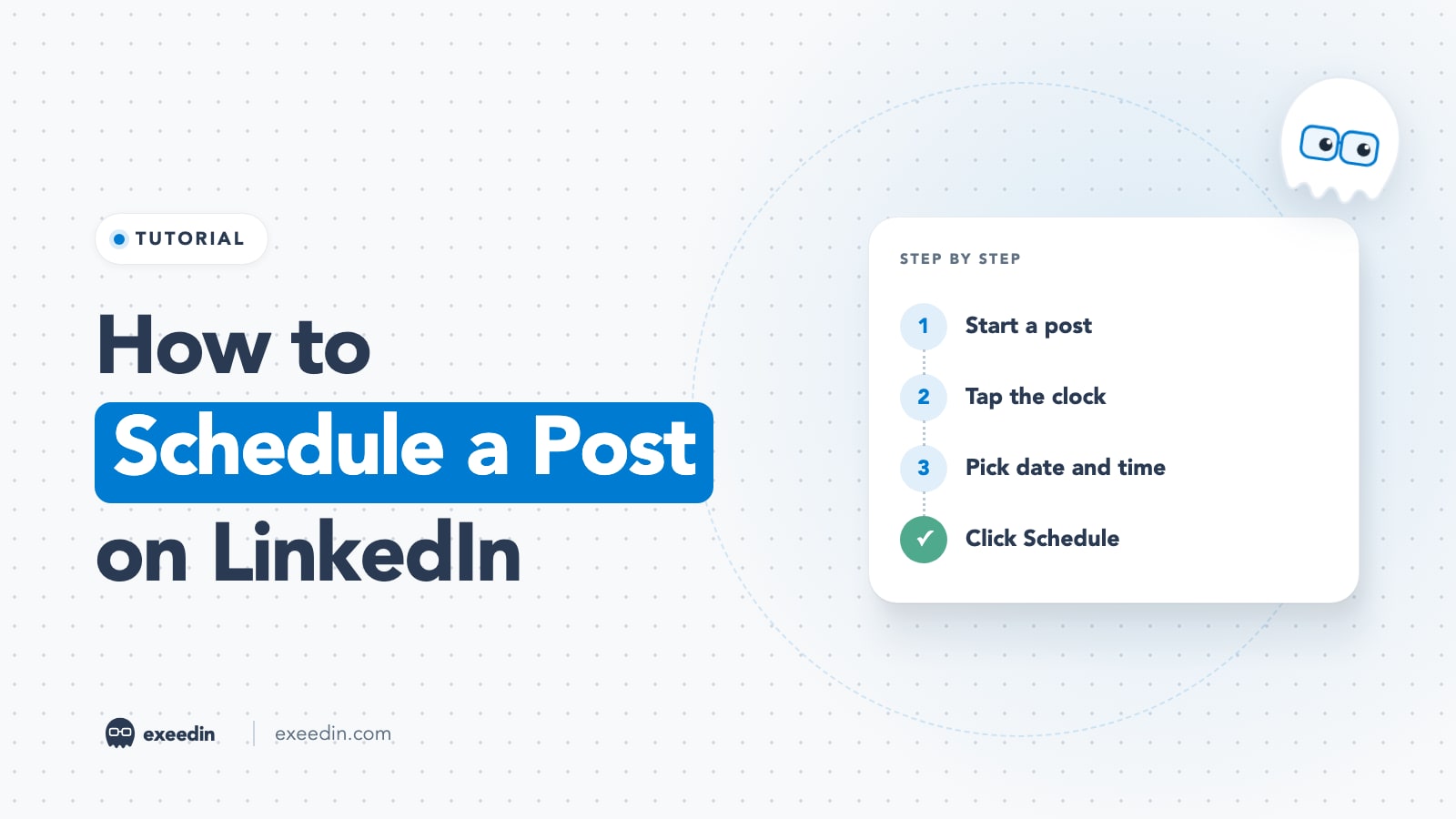
To schedule a post on LinkedIn, click Start a post, write it, click the clock icon, pick a date and time, click Next, then Schedule. It works on desktop and in the iOS and Android apps, from 10 minutes up to 3 months ahead. Company Pages can schedule too, from 1 hour to 3 months ahead, with a few post types excluded.
This tutorial follows LinkedIn's current Help Center instructions (checked October 2026) for personal profiles and Pages, on desktop and mobile. It also covers how to view, edit, reschedule and delete scheduled posts, which formats can be scheduled, what to do when the schedule option is missing, and when a third-party scheduler is worth it.
How to schedule a LinkedIn post: quick steps
- Click Start a post at the top of your LinkedIn homepage (on mobile, tap Post).
- Write your post and add any image, video or document.
- Click the clock icon (lower right of the composer on desktop, upper right on mobile).
- Choose a date and time, then click Next.
- Check the scheduled time shown above your post, then click Schedule.
These steps come from LinkedIn's "Schedule posts" help article. A confirmation appears once the post is queued, and it publishes automatically at the time you chose.
How to schedule a post on LinkedIn on desktop
- Go to your LinkedIn homepage and click Start a post.
- Type your text. You can add media, a document, a poll or other attachments from the composer, as described in LinkedIn's guide to sharing posts.
- Set who can see the post (Anyone, Connections only or a Group) and who can comment, if you want to change the defaults.
- Click the clock icon in the lower-right corner of the composer.
- Pick a date from the calendar and a time from the dropdown. The dropdown offers 30-minute steps, but you can also type an exact time, such as 9:10 AM.
- Click Next. The scheduled date and time now appear above your post.
- Click Schedule. A confirmation message appears in the lower left of the page.
Time zone tip: LinkedIn converts the time you pick to UTC based on your device's time zone settings. If you are traveling, or scheduling for an audience in another region, check your computer's clock first and convert the time to your audience's zone.
Get 10 hooks for your next post
Type what your post is about and get 10 opening lines from different proven angles. Free, no signup.
Or open the free LinkedIn hook generator
How to schedule a post on LinkedIn on mobile (iOS and Android)
LinkedIn's Help Center gives one set of mobile steps for both iPhone and Android, since the app layout is the same.
- Open the LinkedIn app and tap Post in the navigation bar.
- Write your post and add any media.
- Tap the clock icon in the upper-right corner.
- Choose the date and time, then tap Next.
- Tap Schedule.
If you do not see the clock icon, update the app from the App Store or Google Play and restart it. Older app versions may not show the latest composer.
How to schedule a post on a LinkedIn Company Page
According to LinkedIn's Page scheduling article, only super admins and content admins of a Page can schedule posts. Page posts can be scheduled from 1 hour to 3 months ahead.
On desktop
- Open your Page's super admin or content admin view.
- Click Page posts in the left menu, then Start a post.
- Click the schedule icon in the lower right to open the Schedule post dialog.
- Choose a date and time (based on your location; you can type an exact time), then click Next.
- Finish your post and click Schedule.
On mobile
- Open your Page's admin view, tap Dashboard in the upper left and select Page posts.
- Tap Post in the upper-right corner.
- Tap the schedule icon in the upper right, choose a date and time and tap Next.
- Finish your post and tap Schedule in the upper right.
Two Page-specific notes. First, you cannot promote a scheduled post in Campaign Manager with the Browse existing content option until it has been published. Second, LinkedIn's scheduled posts for Pages article says admins can view, edit, reschedule and delete posts scheduled by other admins, and if an admin is removed from the Page, their scheduled posts transfer to the admin who removed them.
How to see your scheduled posts on LinkedIn
Desktop: click Start a post. A badge on the clock icon shows how many posts are queued. Click the clock icon, then View all scheduled posts in the lower left of the Schedule window.
Mobile: tap Post, then the clock icon, then View all.
Company Pages: go to Page posts, click Start a post, open the schedule dialog and choose View all scheduled posts. The steps are the same on mobile, starting from Dashboard.
How to edit, reschedule or delete a scheduled LinkedIn post
From the Scheduled posts list, per LinkedIn's help article:
- Preview: open a scheduled post to see its details.
- Edit the text: click the More icon (three dots) in the upper right of the post and choose Edit post (on mobile, Edit).
- Change the date or time: click More, then Modify schedule, pick the new time, click Next and Schedule. Pages follow the same flow, described in LinkedIn's reschedule a Page post article.
- Delete: click the Delete icon next to the post and confirm. The post will not publish.
- Post it now instead: before you click Schedule, click Edit next to the time above the post and choose Clear time, then post immediately. On Pages, a scheduled post can also be published early with Post now.
One limit to remember: once a document post is published, LinkedIn does not let you swap the file, only edit the text. Check the PDF before you schedule it.
How far in advance can you schedule a LinkedIn post?
| Account | Earliest | Latest | Who can schedule |
|---|---|---|---|
| Personal profile | 10 minutes from now | 3 months ahead | Any member |
| Company Page | 1 hour from now | 3 months ahead | Super admins and content admins |
LinkedIn's help pages do not state a maximum number of scheduled posts. If you plan more than three months out, keep those drafts elsewhere and schedule them as the window opens.
Which post types can you schedule?
| Post type | Personal profile | Company Page |
|---|---|---|
| Text post | Yes | Yes |
| Single image or video | Yes | Yes |
| Multiple photos | Yes | No |
| Document (PDF carousel) | Yes | Yes (not on the excluded list) |
| Poll | Yes | No |
| Reshare of another post | Not listed as excluded | No |
| Event | No | No |
| Job post | No | No |
| Service post | Not listed as excluded | No |
| Article or newsletter edition | Yes, from the article editor | Yes, from the article editor |
For personal profiles, LinkedIn's scheduling article lists only Events and Jobs as unschedulable. For Pages, the Page article excludes events, multiple photos, reshares, polls, jobs and service posts. Articles and newsletter editions use their own scheduler: in the article editor, click the clock icon next to Publish, per LinkedIn's article publishing guide. That editor is desktop only.
Scheduling a PDF carousel works like any other post. Attach the document, add its title, then use the clock icon. Our guide on how to post a PDF on LinkedIn covers file prep.
Why can't I schedule a post on LinkedIn?
If the clock icon is missing or the Schedule button will not work, check these causes in order:
- The post type is not supported. Events and job posts cannot be scheduled from any account. On a Page, polls, multi-photo posts, reshares and service posts cannot be scheduled either. Remove the attachment or post it live.
- The time is outside the window. A personal post must be at least 10 minutes ahead and a Page post at least 1 hour ahead, and neither can go beyond 3 months.
- You do not have the right Page role. Page scheduling needs super admin or content admin access. Other Page roles will not see the option.
- Your app is out of date. Update LinkedIn on iOS or Android and restart it.
- A browser extension is interfering. LinkedIn's own article help notes that extensions such as Grammarly can block parts of the editor. Try an incognito window with extensions off, or another browser.
- The time zone looks wrong. If the post went out at an unexpected hour, check your device's time zone, since LinkedIn uses it to convert the time.
- Still stuck? Clear your browser cache, sign out and back in, and if the option is still missing, contact LinkedIn Help from the Help Center.
Scheduling with third-party tools through the official API
LinkedIn's native scheduler is free and reliable for one account and a few posts a week. Third-party schedulers make sense when you want a calendar view, several accounts, team approvals, analytics or AI help with writing.
Legitimate tools publish through LinkedIn's official Posts API. LinkedIn's Posts API documentation lists the organic content types apps can publish: text, images, videos, documents, articles, multi-image posts and polls. The API has no "schedule" field, so the tool stores your post and publishes it at the chosen time using permissions you grant through LinkedIn's own sign-in screen (w_member_social for your profile, w_organization_social for Pages where you hold an admin role).
That is also your safety test. A trustworthy scheduler connects with LinkedIn's official sign-in and never asks for your LinkedIn password, browser cookies or a Chrome extension that posts as you.
A few options, prices checked October 2026:
- Buffer: a free plan covers 3 channels and 10 scheduled posts per channel, and paid plans start at $5 per channel per month on Buffer's pricing page. It supports LinkedIn profiles and Pages.
- exeedin: a LinkedIn ghostwriter that drafts posts in your own voice, designs carousels and schedules them from a calendar, publishing through LinkedIn's official API. You approve every post. The Creator plan is $49 per month ($39 per month billed yearly) after a 3-day free trial.
- Others: we compare more options, with current pricing, in the best LinkedIn scheduling tools.
Best practices for scheduling LinkedIn posts
- Schedule for your audience's time zone. Convert times if your followers live elsewhere. Our guide to the best time to post on LinkedIn compares the 2026 studies and gives a two-week test plan.
- Be online when it publishes. Scheduling handles the posting; replying to early comments is still your job. Block 30 to 60 minutes after each scheduled post.
- Batch once a week. Write and schedule three to five posts in one session. It is the simplest way to post consistently without burning out.
- Review the queue before each post goes live. News changes. Pause or edit anything that could land badly after a major event.
- Space posts out. Leave at least a day between posts so each has room to collect engagement.
- Double-check media. Preview images and documents in the scheduled list; a document cannot be swapped once published.
- Keep tags and first comments in mind. Check that @mentions resolve to the right person before you schedule, and if you plan a first comment with a link, set a reminder to add it once the post is live.
Wondering whether scheduling hurts reach or authenticity? We cover that debate in should you schedule LinkedIn posts ahead.
Frequently Asked Questions
Can you schedule posts on LinkedIn for free?
Yes. LinkedIn's native scheduler is free for every member and for Page admins. Write your post, click the clock icon, pick a date and time, click Next and then Schedule. Personal posts can be scheduled from 10 minutes to 3 months ahead, and Company Page posts from 1 hour to 3 months ahead, on desktop and in the mobile app.
How do I find my scheduled posts on LinkedIn?
On desktop, click Start a post, then the clock icon, then View all scheduled posts in the lower left of the Schedule window. On mobile, tap Post, then the clock icon, then View all. A badge on the clock icon shows how many posts are waiting. Page admins find the same list from Page posts in the admin view.
Can you edit a scheduled post on LinkedIn?
Yes. Open your scheduled posts, click the More icon (three dots) on the post and choose Edit post to change the text, or Modify schedule to change the date and time. You can also delete it with the Delete icon. Page admins can edit and reschedule posts queued by other admins of the same Page.
Can you schedule a poll or a carousel on LinkedIn?
From a personal profile, yes: LinkedIn only excludes events and job posts from scheduling, so polls and document carousels can be scheduled like any other post. From a Company Page, polls and multi-photo posts cannot be scheduled, but document posts are not on LinkedIn's excluded list. Events cannot be scheduled from either.
Why is the schedule option missing on LinkedIn?
Usually because the post type is not supported (events and jobs everywhere; polls, multi-photo posts and reshares on Pages), the chosen time is outside the allowed window, or you lack a super admin or content admin role on the Page. Updating the app, disabling browser extensions and clearing your cache fix most remaining cases.
Does scheduling a LinkedIn post reduce its reach?
There is no official LinkedIn statement that native scheduling lowers reach, and scheduled posts publish as normal posts. Third-party tools that use LinkedIn's official API publish the same way. What does affect results is timing and your activity afterward, so schedule for when your audience is online and be available to reply to comments in the first hour.