How to Post a PDF on LinkedIn: Desktop, Mobile and Carousels
Click Start a post, open More, choose Add a document, upload your PDF, add a title and post. Here are the mobile steps, limits, carousel sizes and fixes.
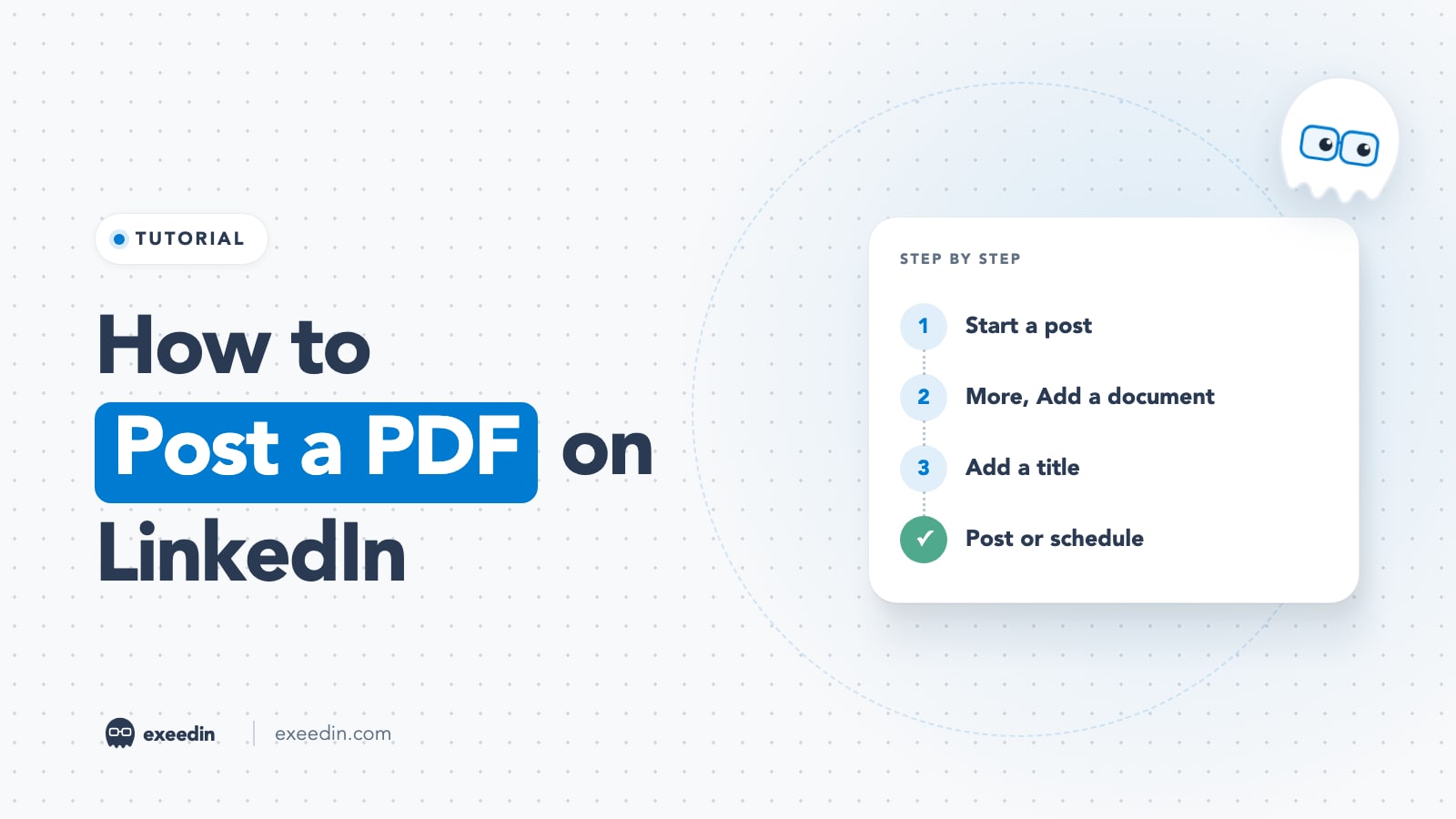
To post a PDF on LinkedIn, click Start a post, open the More menu, choose Add a document, upload your PDF, give it a title, write a caption and click Post. On the mobile app, tap Post, then More, then Document. LinkedIn accepts PDF, PPT, PPTX, DOC and DOCX files up to 100 MB and 300 pages.
This guide covers the full desktop and mobile steps, file limits, carousel sizes, why the document option sometimes goes missing, scheduling, downloads, Company Pages and the Featured section. Every step and limit was checked against LinkedIn's own Help Center in October 2026, and the links go to the exact pages.
How to post a PDF on LinkedIn (desktop)
These steps follow LinkedIn's help page Upload and share documents on LinkedIn.
- On your LinkedIn homepage, click Start a post.
- In the post window, click More (the plus icon), then the Add a document icon.
- Choose a file from your computer, or pick one from Dropbox or Google Drive. Corporate cloud accounts may need admin approval first.
- Select one file. LinkedIn allows one document per post.
- Type a document title and click Done.
- Write your caption. You can add hashtags and @mentions here.
- Click Post, or use the clock icon to schedule it (covered below).
How to upload a document on LinkedIn from your phone
LinkedIn gives a single set of mobile steps for iPhone and Android, and the flow is the same on both.
- Tap Post in the bottom navigation bar.
- Tap the More icon, then tap Document.
- Choose a file from your device or a cloud service. For cloud files, that service's app must be installed on your phone.
- Select one file, enter a title and tap Next.
- Add your caption, hashtags or mentions.
- Tap Post.
A practical tip for phones: save the final PDF to your Files app (iPhone) or Downloads folder (Android) before you open LinkedIn. Picking a local file is faster and avoids cloud permission prompts in the middle of posting.
LinkedIn document file types and limits
| Spec | LinkedIn rule | What it means for you |
|---|---|---|
| File types | PDF, PPT, PPTX, DOC, DOCX | Export to PDF when you can; LinkedIn recommends it for best quality |
| Maximum size | 100 MB | Compress image heavy decks before uploading |
| Maximum length | 300 pages | The upper limit; most carousels are far shorter |
| Files per post | One | Merge several files into one PDF first |
| Page size | All pages should match | Mixed sizes look broken in the viewer |
| Video and animation | Not supported | They show as static images |
| Editing after posting | Caption only | To fix the file, delete and repost |
All of these rules come from the same LinkedIn help page, which also asks you to flatten or merge layered PDFs, make sure hyperlinks inside the PDF are secure, and check that the document complies with LinkedIn's copyright policy.
Get 10 hooks for your next post
Type what your post is about and get 10 opening lines from different proven angles. Free, no signup.
Or open the free LinkedIn hook generator
How to prepare your PDF before uploading
- Flatten it. Layered PDFs from design tools can render oddly. Export a flattened PDF.
- Use one page size. LinkedIn asks you to resize pages so they all match.
- Embed fonts. If you write in Arabic or mix scripts, export with fonts embedded so letters connect correctly on every device. Check page 1 on your phone after upload.
- Use secure links. If you link inside the PDF, use https addresses. Put your most important link in the caption too, because many people read documents on phones where tapping a small link inside a page is awkward.
- Remove anything private. Anyone who can see the post can download the file (more on that below), so strip internal notes, client names and comments.
- Name the file sensibly. A clean file name looks professional when people download it.
Why the document title matters
LinkedIn asks for a title in the upload flow, and it is the label people see with your document. Treat it like a second headline. A title such as "7 pricing mistakes we fixed in 2026" tells the reader what they get for swiping, while "Final_v3.pdf" tells them nothing. You can edit the post caption later, but plan the title before you post, because LinkedIn only lets you edit the description after publishing.
How to post a PDF carousel on LinkedIn
What most people call a LinkedIn carousel is a document post: a PDF where each page is a slide that readers swipe through. You post it exactly as described above. The difference is in the design.
Best carousel sizes: 1080 x 1350 vs 1080 x 1080
LinkedIn does not publish a required page size for organic document posts. Its only rule is that every page should be the same size. Kapwing's guide to LinkedIn carousel posts recommends 1080 x 1350 pixels for portrait and 1280 x 720 for horizontal pages, and notes you can use virtually any size as long as every page matches.
| Format | Pixels | Ratio | Best for |
|---|---|---|---|
| Portrait | 1080 x 1350 | 4:5 | Mobile readers; takes more of the screen in the feed |
| Square | 1080 x 1080 | 1:1 | Designs you also reuse on other platforms |
| Horizontal | 1280 x 720 | 16:9 | Converted slide decks and webinar slides |
For most personal brand carousels, portrait 4:5 is the practical default because it fills more of a phone screen. If you do not want to design slides by hand, the free LinkedIn carousel designer on exeedin exports a ready PDF at 1080 x 1350. For the writing side (hooks, slide count, what makes people swipe to the end), read our guide to creating LinkedIn carousel PDFs that people actually read.
Document carousel vs multi-image post
You can also post several photos at once. LinkedIn's photo help page says you can select up to nine images in one post. A multi-image post shows as a grid that opens into a gallery, while a document shows one page at a time with a swipe. For step by step content, frameworks and checklists, the document format keeps the reading order under your control. Our comparison of LinkedIn post formats goes deeper on when each one wins.
A note for Arabic carousels
The document viewer moves through pages in the order they appear in the PDF, regardless of the language on the page. For Arabic carousels, keep page 1 as the cover, add page numbers (1/8, 2/8) so readers know where they are, and test the swipe direction on a phone so the arrows you draw on the slides match the way the viewer actually moves.
Why can't I upload a PDF on LinkedIn?
If the document option is missing or the upload fails, work through these causes in order:
- The icon is hidden under More. The composer shows a few shortcuts and tucks the rest behind the plus icon. Click More before assuming the option is gone.
- You already attached something else. If you added a photo, video or poll first, the document icon may be unavailable. Remove the other attachment and check the More menu again.
- The file is too big or too long. Over 100 MB or over 300 pages fails. Compress images or split the file.
- The format is not supported. Keynote, Pages, Canva links and image files are not documents. Export to PDF.
- The cloud account needs approval. Company Dropbox or Google Drive accounts may require an admin to allow the connection. Download the file locally instead.
- The app is out of date. On mobile, update the LinkedIn app and restart it. The desktop browser is the fallback that almost always works.
- The PDF has layers or mixed page sizes. It may upload but render badly. Flatten it and make every page the same size.
If a PDF posted but you spotted a typo on slide 4, there is no replace option. LinkedIn only lets you edit the description or delete the post, so the fix is to delete it and post the corrected file. Do it quickly, before the post collects comments you would lose.
Can you schedule a PDF post on LinkedIn?
Yes. LinkedIn's scheduling help page explains that you schedule from the post composer: after writing your post, click the clock icon, choose a date and time, and confirm. Attach the document first, then use the clock icon in the same composer. You can manage scheduled posts from the composer afterwards. Our tutorial on how to schedule a post on LinkedIn walks through editing and rescheduling.
Third-party schedulers vary on documents, because they publish through LinkedIn's API and not every tool supports the document format. Check that a tool lists PDF or document posts before you rely on it. exeedin, for example, lets you attach a PDF (including carousels made in its designer) and schedule it, and it publishes through LinkedIn's official API. Our roundup of LinkedIn scheduling tools compares which ones handle documents.
Can people download your PDF from LinkedIn?
Yes, and you cannot switch it off. LinkedIn's help page states that, for accessibility purposes, members who can view your post can download your document as a PDF. There is no download toggle in the composer in 2026.
That has three practical consequences. Put your name or logo on every page, because the file will travel without the post. Never upload anything confidential, even to a post with limited visibility. And if you want to collect emails in exchange for a full guide, share a shorter preview document on LinkedIn and keep the complete version on your own site.
How to post a PDF on a LinkedIn Company Page
LinkedIn's document help page says you can attach documents to posts from your homepage, a Group or a LinkedIn Page. On a Page:
- Open your Page's admin view (you need an admin role that can post).
- Start a post from the Page, not from your personal homepage. Check that the composer shows the Page name and logo.
- Click More, then Add a document, and follow the same upload, title and caption steps.
- Post now or schedule with the clock icon.
If you manage the Page's settings as well, LinkedIn's Page admin help covers editing the Page itself, such as its public URL.
How to add a PDF to your LinkedIn Featured section
A document post slides down the feed quickly. The Featured section keeps your best PDF at the top of your profile. According to LinkedIn's help page on featured samples of your work, Featured accepts posts, articles, links and uploaded media, including documents and presentations.
- Click the Me icon, then View Profile.
- Click Add profile section, open Recommended and select Add Featured. If Featured already exists, use its add icon instead.
- Click the add icon and choose Media to upload the PDF directly, or choose Posts to feature the document post you already published.
- Add a title and description, then click Save.
On mobile, tap your profile photo, then View profile, then Add section, Recommended and Add featured. Featuring the original post keeps its reactions and comments visible as social proof, while uploading the file as media gives a cleaner preview. Our guide to using the LinkedIn Featured section covers what to pin there.
Best practices for LinkedIn document posts
- Make page 1 a cover. It is the only page most people see before deciding to swipe. Put a clear promise on it in large type.
- Design for a phone. Big text, high contrast and one idea per page. If you need to zoom to read it, it is too small.
- Write a real caption. The caption is still read first. Give two or three lines of context and say what is inside.
- Keep the length honest. A short, complete document beats a long one padded to look substantial.
- End with one next step. A final page that asks a single question or points to one link works better than a crowded closing slide.
- Repurpose it. A good document can become your Featured item, a newsletter attachment or a lead magnet on your site.
If your carousels used to travel further than they do now, our analysis of why LinkedIn carousel posts are getting fewer impressions looks at what changed and what still works.
Frequently Asked Questions
What is the maximum PDF size on LinkedIn?
LinkedIn accepts documents up to 100 MB and 300 pages, according to its Help Center. Supported formats are PDF, PPT, PPTX, DOC and DOCX, with one file per post. If your file is larger, compress the images inside it or split it into two documents. For carousels, staying far below these limits keeps uploads fast and pages sharp.
Can I edit a PDF after posting it on LinkedIn?
No. LinkedIn lets you edit the post's description or delete the post, but it does not let you replace or change the uploaded document. To fix a mistake in the file, delete the post and publish the corrected PDF as a new post. Do this early, because deleting the original also removes its reactions and comments.
Why can't I see the Add a document option on LinkedIn?
The option is usually hidden under the More (plus) icon in the post composer. It can also be unavailable if you already attached a photo, video or poll, so remove that attachment and look again. On mobile, update the app and try again, or use LinkedIn in a desktop browser, where the document upload is most reliable.
What size should a LinkedIn PDF carousel be?
LinkedIn does not set a required size for document posts, only that every page should match. The most common choice is 1080 x 1350 pixels (4:5 portrait), which fills more of a phone screen. Square 1080 x 1080 works well if you reuse the design elsewhere, and 1280 x 720 suits converted presentation slides.
Can people download my PDF from a LinkedIn post?
Yes. LinkedIn states that members who can view your post can download your document as a PDF, for accessibility reasons, and there is no setting to turn this off. Add your name or logo to each page, remove anything confidential, and keep premium material on your own site if you want to gate it.
Can I post a PDF on LinkedIn from my phone?
Yes. In the LinkedIn app, tap Post, tap the More icon, then tap Document. Choose the file from your phone or a cloud app, add a title, tap Next, write your caption and tap Post. The steps are the same on iPhone and Android. Saving the PDF locally first makes the upload quicker.