10 Best LinkedIn Scheduling Tools in 2026 (Real Price Per Profile)
The best LinkedIn scheduling tools in 2026, compared on PDF carousel support, first comments, multi-account and real price per profile, from LinkedIn's free scheduler to Buffer, Hootsuite and Taplio.
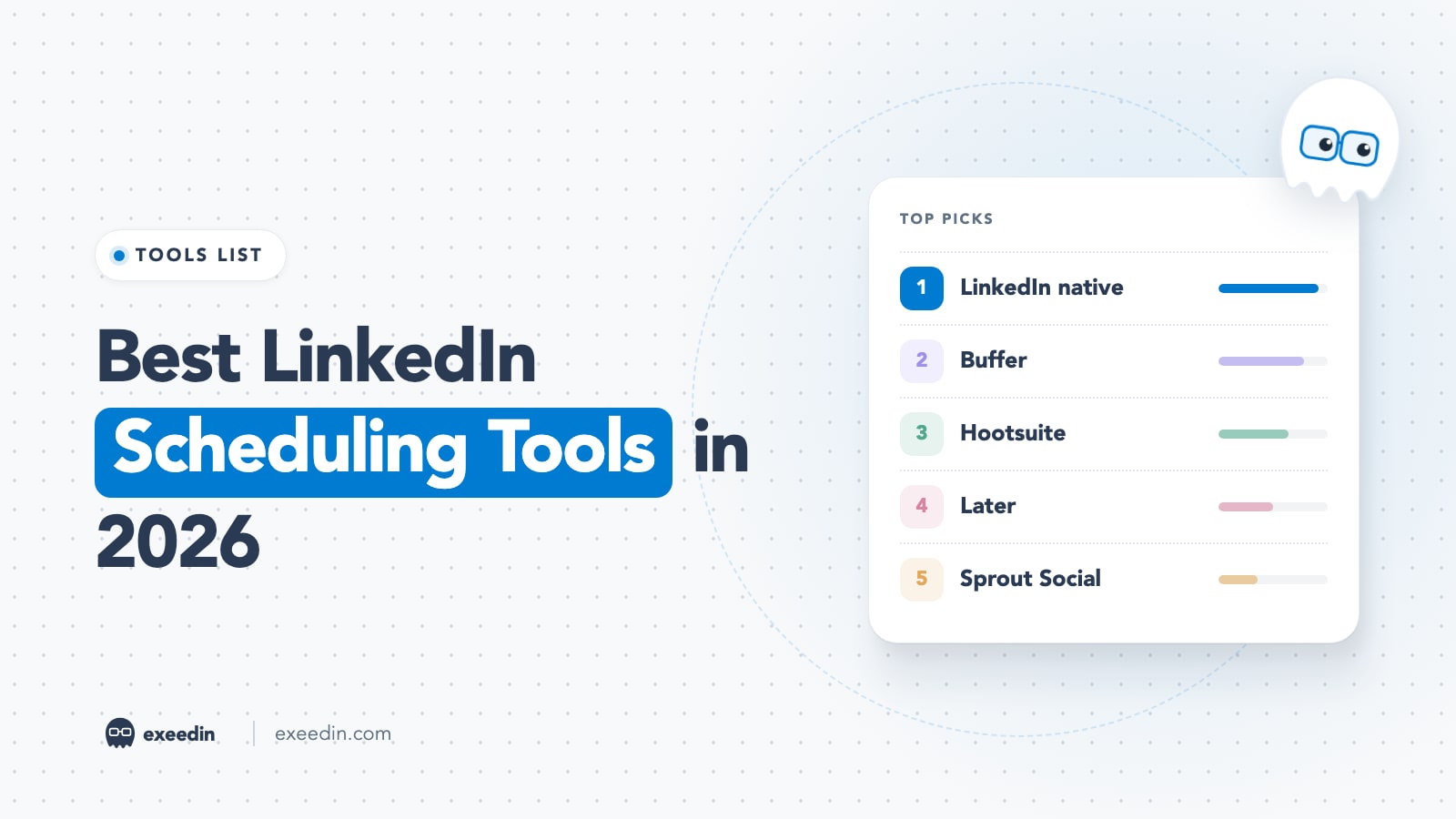
The best LinkedIn scheduling tools in 2026 are LinkedIn's own free scheduler for occasional posts, Buffer or SocialPilot for cheap multi-network scheduling, Hootsuite or Sprout Social for marketing teams, and LinkedIn-first tools like Taplio, AuthoredUp or exeedin for creators. The deciding features are PDF carousel support, a scheduled first comment, multi-account handling, and the real price per profile.
For this guide we checked each vendor's own pricing page and help center in October 2026, plus LinkedIn's Help Center for the native scheduler. Where a vendor's documentation was unclear or contradictory, we say so instead of guessing. Prices checked October 2026.
Quick comparison: LinkedIn post schedulers at a glance
| Tool | Best for | Starting price | PDF / document posts | First comment | Multi-account | Pricing model |
|---|---|---|---|---|---|---|
| LinkedIn native scheduler | Occasional posts, zero budget | Free | Not on LinkedIn's excluded list for profiles; test it | No | No (one profile or Page at a time) | Free |
| Buffer | Solo creators on a budget | $5 per channel/month | Yes (web only) | Yes (paid plans) | Yes | Per channel |
| Hootsuite | Marketing teams across many networks | $99 per user/month, billed annually | Yes | Yes (since July 2026) | Yes (10 accounts on Standard) | Per user |
| Later | Visual, Instagram-first brands | $18.75/month, billed yearly | Not documented for LinkedIn | Instagram only | Via social sets | Per social set |
| Sprout Social | Larger teams that need reporting | $79 per seat/month, billed annually | Yes | Yes | Yes (5 profiles on entry plans) | Per seat |
| Taplio | LinkedIn creators who want AI and a queue | $39/month | Yes | Lists "auto-comment" | Team/agency plans (price on request) | Per account |
| AuthoredUp | Writers who want a better editor | $19.95/month | Yes, via LinkedIn's scheduler | No (rejected on roadmap) | Business plan, 3+ profiles | Per profile |
| Metricool | Analytics plus scheduling for several brands | From $25/month for 5 brands | Yes | Yes | Yes (brand tiers) | Per brand tier |
| SocialPilot | Agencies managing many client accounts | $20/month for 5 accounts | Yes | Yes | Yes | Per account bundle |
| exeedin | Professionals who want the post written in their voice, then scheduled | $49/month ($39 billed yearly) | Yes (built-in Carousel Designer) | Yes | Business plan: one LinkedIn account per seat | Per person |
What to look for in a LinkedIn post scheduler
For LinkedIn specifically, four things decide whether a tool fits:
- Document (PDF carousel) support. Swipeable carousels on LinkedIn are PDF document posts. Several schedulers still cannot publish them, which forces you back into the LinkedIn app for your best-performing format. Our guide on how to post a PDF on LinkedIn covers the format itself.
- First comment. Many creators put links, sources or a follow-up question in the first comment. If the tool cannot schedule it, someone has to be online at publish time.
- Multi-account. Do you need your own profile only, a profile plus a Company Page, or ten client profiles? Each tool counts "accounts" differently.
- Price per profile. Per-channel, per-user, per-brand and per-set pricing make headline prices hard to compare. We break this down in the pricing section below.
How strong is your LinkedIn profile?
Paste your profile link and see your score right away, with clear fixes for your headline, About section and experience. Free to start, no account needed.
Or open the free LinkedIn profile checker
1. LinkedIn native scheduler: Best for free, occasional scheduling
LinkedIn has a free built-in scheduler for profiles and Pages, on desktop and mobile, with no third-party connection needed.
How it works on desktop and mobile
According to LinkedIn's Help Center, on desktop you click Start a post, write your post, click the clock icon in the lower right, pick a date and time, click Next, then Schedule. On the iOS and Android apps you tap Post, write, tap the clock icon in the upper right, choose the time, tap Next and Schedule. The full walkthrough is in our guide on how to schedule a post on LinkedIn.
To manage what you queued, open the composer, click the clock icon, then View all scheduled posts (on mobile, View all). From the More menu you can choose Modify schedule or Edit post, or delete the post.
How far ahead, and what it cannot do
- Profile posts can be scheduled from 10 minutes to 3 months ahead. LinkedIn converts the time to UTC based on your device's time zone settings.
- Events and Jobs posts cannot be scheduled from a profile.
- For Company Pages, LinkedIn's Page scheduling article says super admins and content admins can schedule from one hour to three months ahead, and that events, multiple photos, reshares, polls, jobs and service posts cannot be scheduled.
- LinkedIn's instructions describe one post at a time. There is no recurring queue, no bulk upload, and no field for a scheduled first comment.
- Each profile or Page schedules for itself, so there is no single calendar across several accounts.
On document posts: LinkedIn's profile article does not list documents among the post types that cannot be scheduled, but third-party guides disagree on whether PDF posts schedule reliably. Attach your PDF, check that the clock icon is still active, and schedule a test post before you build a content plan around it.
Pricing: free.
Pros
- Free, official, no third-party access to your account.
- Lets you type an exact time.
Cons
- No first comment, no queue, no bulk scheduling.
- Pages cannot schedule polls or multi-photo posts.
Who it is for: anyone posting once or twice a week from a single profile who writes posts themselves.
2. Buffer: Best for solo creators on a budget
Buffer is a simple multi-network scheduler with a queue, calendar and idea board, for LinkedIn profiles and Pages.
LinkedIn features. Buffer's LinkedIn help article confirms PDF document posts on the web app (one PDF per post, up to 100MB and 300 pages, and a document title is required or the post will not schedule). First comments are available on paid plans and publish at the same moment as the post. Multi-image posts take up to 20 images. Polls are not supported. Buffer also warns against posting duplicate content across many profiles, since LinkedIn may suspend those accounts.
Pricing. Buffer's pricing page lists a Free plan (up to 3 channels, 10 scheduled posts per channel), Essentials at $5 per channel per month ($60 per channel billed yearly) and Team at $10 per channel per month with unlimited users and approval workflows. One LinkedIn profile is one channel, so a profile plus a Page is two.
Pros
- Lowest paid entry point on this list for a single profile.
- PDF carousels and first comments both work.
- Usable free plan for testing.
Cons
- PDF posts are web only for now.
- No LinkedIn polls.
- No help writing LinkedIn-specific posts in your own voice; it is a scheduler first.
Who it is for: creators and small businesses scheduling LinkedIn alongside one or two other networks.
3. Hootsuite: Best for marketing teams across many networks
Hootsuite is a full social suite (publishing, listening, inboxes, reporting) that connects LinkedIn profiles and Pages.
LinkedIn features. Hootsuite added PDF support for LinkedIn posts in March 2024; PDF posts appear as carousels and can be scheduled. In July 2026 it shipped LinkedIn First Comment in Composer, for both Pages and profiles, so the comment can be scheduled with the post and shows up in approvals.
Pricing. Hootsuite's plans page lists Standard from $99 and Professional from $199 per user per month, billed annually, with Advanced up to $399 and Enterprise on request. Standard includes 10 social accounts; Professional and above are unlimited. There is a 14-day free trial, though trial accounts have daily posting limits and no bulk scheduling.
Pros
- PDF carousels and scheduled first comments for profiles and Pages.
- Approvals, listening and reporting in one place.
- Ten accounts on the entry plan.
Cons
- Expensive if LinkedIn is your only channel.
- Far more tool than a single creator needs.
Who it is for: in-house teams running several networks with approvals.
4. Later: Best for visual, Instagram-first brands
Later grew up as an Instagram planner and still shines there. LinkedIn is supported, with fewer post types.
LinkedIn features. Later's own LinkedIn scheduling guide covers text posts, a single image or a single video, with video limited to Company Pages, and says multi-photo carousel posts and user tagging cannot be scheduled. We found no LinkedIn document (PDF) support in Later's documentation. Its pricing page lists first comment for Instagram only.
Pricing. Later's pricing page shows Starter at $18.75/month, Growth at $37.50/month and Scale at $82.50/month, billed yearly. Each "social set" includes one profile per supported platform, so one LinkedIn profile per set; extra sets are $11.25/month. All plans have a 14-day free trial.
Pros
- Strong visual planning; social sets are good value across platforms.
Cons
- No documented LinkedIn PDF carousels or LinkedIn first comment.
- Video only for Company Pages.
- One LinkedIn profile per social set.
Who it is for: brands where LinkedIn is a secondary channel and posts are simple text, image or video.
5. Sprout Social: Best for larger teams that need reporting
Sprout Social is a suite for companies: publishing, a shared inbox, listening and polished reports.
LinkedIn features. Sprout's help center documents PDF uploads for LinkedIn document posts (PDF only, not Word or PowerPoint files) and scheduled first comments for LinkedIn Company Pages and personal profiles. First comments take text, links and hashtags, not images.
Pricing. Sprout's pricing page lists Essentials at $79 per seat per month billed annually ($99 billed monthly), Standard at $199, Professional at $299 and Advanced at $399 per seat per month. Entry plans include 5 social profiles; Professional and Advanced are unlimited. There is a 30-day free trial with no credit card.
Pros
- PDF documents and first comments on LinkedIn.
- Best-in-class reporting and team workflows.
Cons
- Per-seat pricing makes it the priciest option for small teams.
Who it is for: larger companies with a social team and reporting needs.
6. Taplio: Best for LinkedIn creators who want AI and a queue
Taplio is built only for LinkedIn: an AI writer trained on viral posts, a content queue, a carousel generator, analytics and, on the top plan, lead outreach.
LinkedIn features. Taplio's post scheduler page says you can queue documents and full carousels alongside other post types, and its pricing page lists "auto-comment on my posts" and an AI carousel generator. Team and agency setups add client roles and the ability to manage multiple accounts.
Pricing. Taplio's pricing page shows Starter at $39/month, Growth at $69/month and Pro at $199/month, each billed monthly. The comparison table shows lower figures ($32, $49 and $149) without labeling the billing period, so check current pricing before you commit to a yearly plan. Every plan starts with a 7-day trial with full Pro access. Team and agency plans have no public price.
Pros
- LinkedIn-only focus: queue, carousels, analytics in one tool.
- AI writing and idea feeds built in.
Cons
- AI post writing starts on the $69 Growth plan.
- Multi-account pricing is not published.
- AI drafts lean on viral-post patterns, so they need editing to sound like you.
Who it is for: solo LinkedIn creators who want one tool for writing, scheduling and tracking. If you are choosing between the two LinkedIn-only names, see our comparison of AI LinkedIn ghostwriting tools.
7. AuthoredUp: Best for writers who want a better editor
AuthoredUp is a LinkedIn editor and analytics tool known for its formatting, previews and hook library. Its scheduling works differently from every other tool here.
LinkedIn features. AuthoredUp's help center states that it has no scheduling system of its own: it exposes LinkedIn's native scheduler inside its editor, with a minimum of 30 minutes ahead, and not every attachment type can be scheduled. Document posts are supported in the editor. Scheduled first comments are not: the request is marked Rejected on AuthoredUp's roadmap, because it would require automation that goes against LinkedIn's policies.
Pricing. AuthoredUp's pricing page lists Individual at $19.95/month ($16.63/month billed yearly) for one profile, and Business at $14.95 per profile per month ($12.46 billed yearly) with a minimum of 3 profiles. You can try it free with no credit card.
Pros
- Best editor and preview on this list.
- Clear per-profile pricing.
Cons
- Inherits every limit of LinkedIn's scheduler.
- No scheduled first comment, by design.
- Scheduling depends on LinkedIn enabling the feature for your account.
Who it is for: people who write their own posts and want better formatting and analytics more than a full queue. If writing consistently is the hard part, our guide on posting on LinkedIn consistently without burning out helps.
8. Metricool: Best for analytics plus scheduling across brands
Metricool pairs a planner with strong analytics and competitor tracking, priced by number of brands.
LinkedIn features. Metricool's LinkedIn help article confirms one document per post (PDF, PPT or DOC, up to 100MB and 300 pages), an "Image carousel" option that turns images into a PDF, and a first comment added from the speech-bubble icon. LinkedIn connection is only available on paid plans.
Pricing. Metricool's pricing page lists Starter from $25/month for 5 brands ($20 billed annually), and Advanced from $67/month for 15 brands ($53 billed annually), with higher brand tiers above that. The Free plan covers 1 brand and 20 posts a month but excludes LinkedIn.
Pros
- PDF documents and first comments on LinkedIn.
- Very low cost per brand at agency scale.
Cons
- Free plan does not include LinkedIn.
Who it is for: freelancers and small agencies that report on results for several clients. For a wider view of the category, see our list of the best LinkedIn marketing tools.
9. SocialPilot: Best for agencies managing many client accounts
SocialPilot is a budget scheduler aimed at agencies, with client workspaces and bulk scheduling.
LinkedIn features. SocialPilot's LinkedIn scheduler page covers profiles and Pages, document posts and carousels, and a first comment added while you publish. Its pricing table lists LinkedIn first comment and document publishing on all four self-serve plans.
Pricing. SocialPilot's pricing page lists Essentials at $20/month for 5 accounts and 1 user, Standard at $40/month for 10 accounts, Premium at $100/month for 20 accounts and Ultimate at $200/month for 40 accounts, with about 15% off billed yearly ($17, $34, $85 and $170). All self-serve plans have a 14-day trial with no credit card.
Pros
- Cheapest way to cover many LinkedIn accounts with documents and first comments.
Cons
- Essentials allows only 1 user; teams need Standard or higher.
- No help writing posts that sound like each client.
Who it is for: agencies and freelancers posting for 5 to 40 accounts. Our breakdown of LinkedIn tools for agencies by cost per account has more options.
10. exeedin: Best for writing in your voice, then scheduling
exeedin is a LinkedIn ghostwriter: it scans your profile and past posts to learn your voice, writes posts in English or Arabic, designs PDF carousels, then schedules and publishes them through LinkedIn's official API. You approve every post before it goes out.
LinkedIn features. Schedule from Create, My Posts, the Calendar or Ghost Chat, with suggested best-time slots or a custom time. Posts can carry up to 5 images, a PDF or a video, and the built-in Carousel Designer makes the PDF for you. When you tap Schedule or Post Now, exeedin offers an optional first comment, which it posts right after the post goes live. On the Business plan, each seat has its own LinkedIn account and voice, and a team calendar and approvals let a manager review posts before they publish.
Pricing. Creator is $49/month ($39/month billed yearly) for one person and one LinkedIn account. Business is $59 per seat per month, one LinkedIn account per seat. There is a 3-day free trial with no credit card.
Pros
- Writes the post in your voice as well as scheduling it.
- PDF carousels and first comments built in.
- Official LinkedIn API, no browser extension posting.
- Arabic and English, which most schedulers leave to you.
Cons
- LinkedIn only: no Instagram, X or Facebook.
- Publishes to personal profiles, not Company Pages.
- No bulk actions in My Posts, and the trial is short (3 days).
- More expensive than Buffer if you only need a scheduler.
Who it is for: founders, consultants and teams who struggle more with writing posts than with scheduling them.
What does a LinkedIn scheduler really cost per profile?
Headline prices hide very different units. Here is the monthly cost for one LinkedIn profile and for five, based on the pricing pages linked above (lowest plan that covers it, yearly billing where the vendor quotes it that way).
| Tool | Pricing unit | 1 profile | 5 profiles |
|---|---|---|---|
| LinkedIn native | Free | $0 | $0 (each schedules alone) |
| Buffer Essentials | Per channel | $5 | $25 |
| Hootsuite Standard | Per user, 10 accounts | $99 | $99 (one user) |
| Later Starter | Per social set | $18.75 | $63.75 (4 extra sets) |
| Sprout Social Essentials | Per seat, 5 profiles | $79 | $79 (one seat) |
| Taplio Starter | Per account | $39 | Check current pricing |
| AuthoredUp | Per profile | $16.63 | $62.30 (Business, 5 x $12.46) |
| Metricool Starter | Per brand tier | $20 | $20 (5 brands) |
| SocialPilot Essentials | Per bundle of 5 | $17 | $17 |
| exeedin | Per person | $39 | $295 (Business, 5 seats, monthly) |
The cheap tools win on raw cost per profile. A scheduler only saves time if the posts already exist, so count writing time too.
Are LinkedIn scheduling tools safe to use?
LinkedIn's page on prohibited software and extensions says it does not permit third-party tools, including browser extensions, that scrape the site or automate activity on it, and accounts using them may be restricted. Schedulers that publish through LinkedIn's official API (the "connect with LinkedIn" login) are a different category from extensions that act inside your logged-in browser.
- Prefer tools that connect through LinkedIn's OAuth screen and never ask for your password.
- Avoid tools that auto-like, auto-comment on other people's posts or send connection requests for you.
- Do not publish identical posts across many profiles; Buffer's own help center warns this can get accounts suspended.
Why did my scheduled LinkedIn post not publish?
- Expired connection. LinkedIn access tokens expire. Most tools mark the post as failed; reconnect LinkedIn in the tool's settings and reschedule.
- Unsupported post type. Polls, events and some attachments cannot be scheduled natively or through several tools. Check the tool's LinkedIn help page before building a carousel week.
- Wrong time zone. LinkedIn converts scheduled times to UTC using your device's time zone. If you travel, or schedule from Dubai for a London audience, check the time shown above the post before you confirm.
- Plan limits. Hootsuite trials cap daily posts; Buffer Free stops at 10 scheduled posts per channel.
How to choose the right LinkedIn scheduling tool
- One profile, a few posts a week, you write them yourself: start with LinkedIn's native scheduler. Upgrade to Buffer when you want a queue and first comments.
- LinkedIn is your main channel and carousels matter: pick a LinkedIn-first tool. Taplio for an all-in-one queue, AuthoredUp for the editor, exeedin if writing the posts is the bottleneck.
- Several networks, one team: Hootsuite or Sprout Social, depending on budget and how much reporting you owe.
- Agency with many client profiles: SocialPilot or Metricool for cost per account.
- Arabic and English audiences in the GCC: any scheduler will publish Arabic text, but few help you write it. Check time zones carefully when your audience sits in several countries.
Whatever you pick, a scheduler only pays off if you post at the right moments and keep going. Pair it with our data on the best time to post on LinkedIn and our take on whether you should schedule LinkedIn posts ahead.
Frequently Asked Questions
Does LinkedIn have a free post scheduler?
Yes. LinkedIn's built-in scheduler works on desktop and in the iOS and Android apps. Write your post, click or tap the clock icon, pick a date and time, then select Next and Schedule. Profile posts can be scheduled from 10 minutes to 3 months ahead. It is free, but it has no queue, no bulk scheduling and no scheduled first comment.
How far in advance can you schedule a LinkedIn post?
On a personal profile, LinkedIn lets you schedule a post between 10 minutes and 3 months ahead. Company Page admins can schedule from one hour to three months ahead. Third-party tools follow their own rules; AuthoredUp, which uses LinkedIn's scheduler, needs at least 30 minutes. Times are converted to UTC from your device's time zone setting.
Can you schedule a LinkedIn carousel (PDF document post)?
Yes, with the right tool. Buffer (web app), Hootsuite, Sprout Social, Metricool, SocialPilot, Taplio and exeedin all support LinkedIn document posts; Later's LinkedIn guide does not cover them. LinkedIn's native scheduler does not list documents as excluded for profiles, but reports conflict, so test a draft first.
Which LinkedIn scheduling tools support a first comment?
Buffer (paid plans), Hootsuite (since July 2026), Sprout Social, Metricool, SocialPilot and exeedin all let you add a first comment that publishes with your post, and Taplio lists an auto-comment feature. LinkedIn's native scheduler and AuthoredUp do not; AuthoredUp rejected the feature over LinkedIn policy concerns. Later lists first comment for Instagram only.
Does scheduling LinkedIn posts hurt reach?
LinkedIn offers its own scheduler and has not published any rule that penalizes scheduled posts. What affects results is what happens after publishing: replying to early comments and posting consistently. Schedule for when your audience is online, then be available for the first hour.