How to Add a Link to a LinkedIn Post (and Fix the Preview)
Paste the full URL into your LinkedIn post and it becomes clickable with a preview card. Here is how to fix missing previews, where to put links, and how to track clicks.
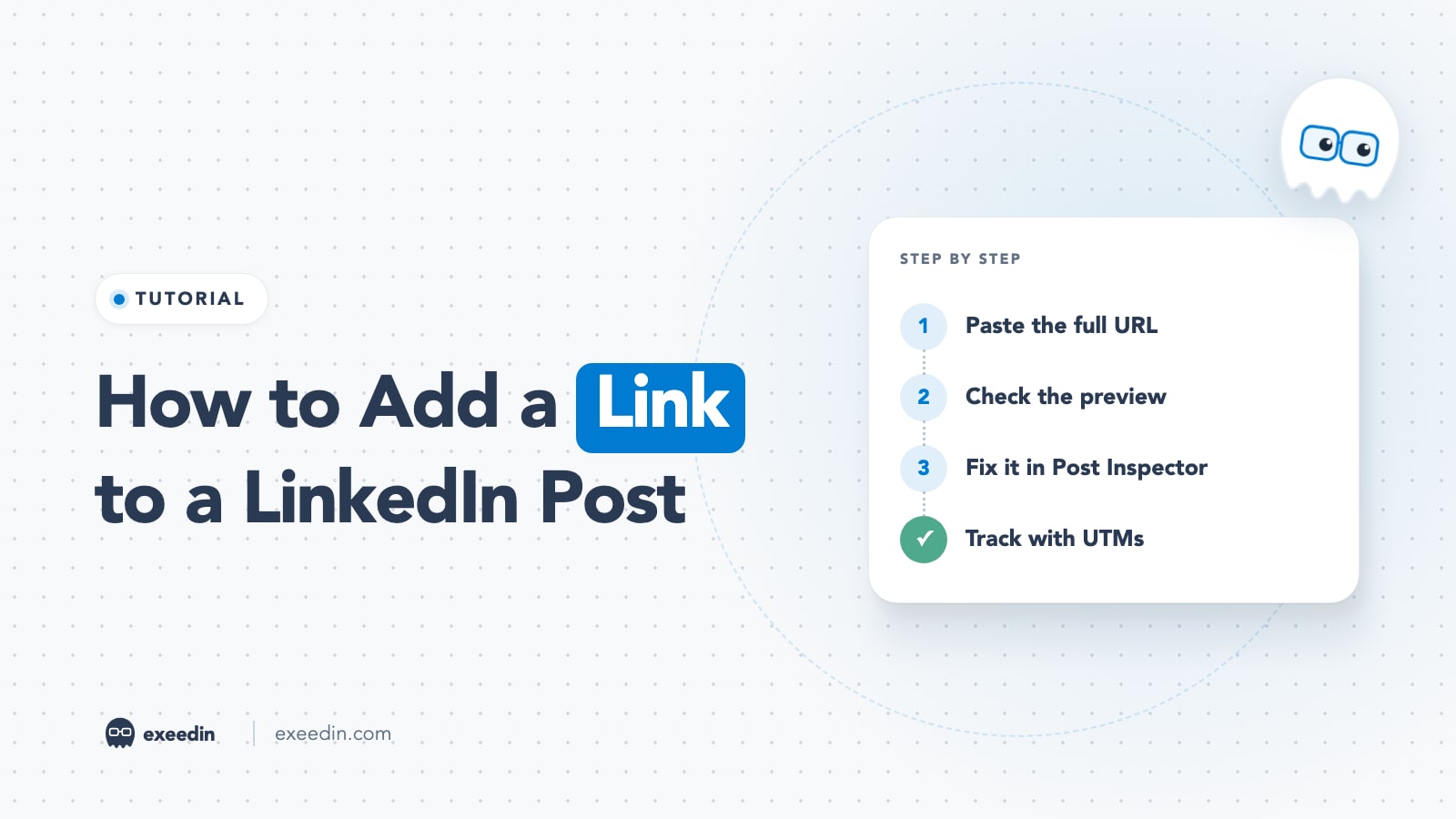
To add a link to a LinkedIn post, paste the full URL (starting with https://) into the post text. LinkedIn turns it into a clickable link automatically, loads a preview card within a few seconds, and shortens any link longer than 26 characters when you click Post. You cannot hyperlink words in a regular post; the URL itself is the link.
This guide covers the desktop and mobile steps from LinkedIn's Help Center (checked October 2026), how to fix a link preview that will not show or shows the wrong image, the honest data on links in the post versus the first comment, and other places to put links: articles, newsletters, your Featured section, your profile and the Premium custom button. It ends with link shorteners and UTM tracking.
How to add a clickable link to a LinkedIn post (desktop)
- Click Start a post at the top of your homepage.
- Paste the link or type the full URL into the post field.
- Wait a few seconds for the preview card to appear. If no preview loads, you can still post the link.
- Write your post text around it. You have up to 3,000 characters.
- Click the dropdown next to your name, choose who can see the post, and click Done.
- Click Post.
These steps follow LinkedIn's Share articles or links article, which also gives the preview image format: a 1.91:1 ratio at 1200 x 627 pixels.
How to add a link to a LinkedIn post on mobile (iOS and Android)
- Tap Post in the navigation bar.
- Paste or type the URL in the "Share your thoughts" field and wait for the preview.
- Add your text.
- Tap the audience dropdown under your name and pick who can see it.
- Tap Post in the upper right.
On a phone, the fastest route is often the share sheet. In your browser or another app, tap Share, choose LinkedIn, and the link lands in a new post. You can also select text in an article inside the LinkedIn app and use Quote and share to post the quote with the link.
How LinkedIn handles links once you post
- Automatic shortening. LinkedIn's Short URLs in shared posts article says links longer than 26 characters are shortened once you click Post, to make them easier to read.
- Hidden URL. The same article says that if you share an article and leave no text after the link, the URL is hidden from the share and only the preview card shows. Add a line after the link if you want the address visible.
- No anchor text. Regular posts do not support hyperlinking a word or phrase. If you want "read the report" as clickable text, you need an article or a newsletter edition.
- Tagging is different. Typing @ creates a mention of a person or Page, which works separately from website links. See our guide on how to tag someone on LinkedIn.
Get 10 hooks for your next post
Type what your post is about and get 10 opening lines from different proven angles. Free, no signup.
Or open the free LinkedIn hook generator
Why is my LinkedIn link preview not showing?
LinkedIn builds the preview from the page you are linking to. When it fails, the cause is almost always on the website side. Work through these checks in order.
The page is missing Open Graph tags
LinkedIn's Making your website shareable article lists four tags that must be present: og:title, og:image, og:description and og:url. Without them the preview may show the wrong title or an unrelated image from the page. Most website builders and SEO plugins add these if you fill in the "social sharing" fields.
The image does not meet LinkedIn's specs
The same article sets the sharing image at a maximum of 5 MB, at least 1200 x 627 pixels, with a recommended 1.91:1 ratio. Images narrower than 401 pixels display as a small thumbnail. If the image meets the specs and still does not appear, the site may be blocking LinkedIn from fetching it, or the image may sit in a protected folder.
The URL contains spaces or the site has SSL problems
LinkedIn's Troubleshooting issues sharing URLs article says URLs with spaces cannot be shared and return an error. LinkedIn also notes that a "cannot display preview" error can come from problems with the landing page's SSL certificate.
LinkedIn is showing an old, cached version
If you changed the image or title recently, LinkedIn may still show the old one. The troubleshooting article suggests waiting 48 hours after the last share. The faster fix is the Post Inspector.
How to use LinkedIn Post Inspector to refresh a preview
LinkedIn's Help Center article "Use Post Inspector to refresh URL" points to the free Post Inspector tool. To use it:
- Open the Post Inspector while signed in to LinkedIn.
- Paste the URL you want to share and run the inspection.
- Check that the title, description and image are correct.
- Go back to the composer and paste the link again in a new post.
Two limits matter. The refresh only affects new posts, messages and articles; posts already published keep the old preview. And the tool only re-reads the page, so if the Open Graph tags are wrong, fix them first and inspect again. If you do not own the site, you cannot change what it sends, so add your own image to the post instead.
Can you edit or remove a LinkedIn link preview?
Before posting
In the composer, the preview card has a close button in its corner. Removing the card keeps the URL in your text as a plain clickable link, which is useful when the preview image is ugly or misleading. On a Company Page, admins have extra options: LinkedIn's Page help lets them click the Edit icon under the text box to upload a different image or edit the article title before posting. Personal profiles do not get that option, so fix the source page or remove the card.
After posting
LinkedIn's Edit a shared post article says only the text of a published post can be edited. You can change or remove the URL in the text, but the existing preview stays, and a new URL cannot display a new preview image. The article also notes that the share box remembers the last link you shared for three days. To get a fresh preview, delete the post and create a new one, ideally after refreshing the URL in Post Inspector.
Link in the post or link in the comments?
Many creators put links in the first comment, believing LinkedIn shows link posts to fewer people. Here is what the evidence supports.
- LinkedIn has not confirmed a link penalty. Ordinal's link penalty study, which analyzed posts from early 2023 to early 2026, states that LinkedIn has never confirmed a deliberate downranking mechanism for outbound links.
- Observed reach is lower, mostly for Pages. The same study measured a 26.5% reach loss on linked posts overall, with company Pages absorbing the penalty while personal profiles showed almost none. It reports the gap grew from 5% in 2023 to 42% in 2025.
- Engagement is lower too. Socialinsider's LinkedIn benchmarks for business Pages put link posts at a 3.25% engagement rate by impressions in 2025, the lowest of any format, against 7.00% for native documents.
Our read: the effect is real for Company Pages, small or absent for many personal profiles, and partly about behavior. A link invites people to leave LinkedIn, and a post that only exists to send them elsewhere usually gives them little reason to react or comment first. We explain the mechanics in zero-link posts explained.
A practical approach
- Write the post so it stands alone: the key insight, data or story should be in the text, with the link as optional depth.
- If you post from a Page, test link-in-comment against link-in-post for a month and compare members reached.
- If you use the first comment, post it within a minute of publishing and say "link in the first comment" in the text, so readers know where to look.
- Accept the trade-off: a link in the comment can earn fewer clicks than a visible preview card, since readers have to open the comments to find it.
If you schedule with exeedin, the optional first comment it offers at Post Now or Schedule is editable, so you can put your link there and it goes live right after the post publishes.
Other places to put links on LinkedIn
Articles and newsletters
The article editor lets you hyperlink text, add several links and embed media, which makes articles and newsletter editions the best home for resource lists and source-heavy pieces. Our comparison of articles, posts and newsletters covers when each format makes sense.
Your Featured section
Featured sits on your profile and can hold links, posts, articles and media. It is the right place for your website, a lead magnet or your best case study, because it stays visible long after a post scrolls away. See our guide to using the Featured section.
Contact info website links
Every member can display up to three website links in the Contact info part of the intro section. Edit your intro, open Edit contact info, click Add website, and pick a website type. Our walkthrough on adding a portfolio website shows how to make it visible.
The custom button (Premium)
LinkedIn removed the free intro hyperlink that came with Creator Mode. The replacement is the custom button, which LinkedIn says is available only to a select group of Premium Business, Sales Navigator and Recruiter Lite subscribers. Options include Visit my website, Book an appointment, View my portfolio, View my newsletter and View my services, and the button appears on your profile, in search results, in messages and in the feed. If the button matters to your plan choice, our LinkedIn Premium plans comparison lists what each tier includes.
Should you use a link shortener on LinkedIn?
Usually not. LinkedIn already shortens long links when you publish, so a third-party shortener adds a second redirect and hides the destination from readers, which makes careful people less likely to click. There are two good reasons to use one:
- A branded short domain (for example go.yourcompany.com) that readers recognize.
- Click tracking when you cannot add analytics to the destination site.
Avoid generic shorteners for anything that looks like a login, payment or download page. Readers have been trained to distrust disguised links, and LinkedIn's analytics do not report link clicks for spam, malicious or policy-violating links.
How to track LinkedIn link clicks with UTM parameters
LinkedIn's post analytics show link clicks, but they cannot tell you what visitors did afterward. Add UTM parameters so your website analytics can. Google's UTM parameter reference says you should always use utm_source, utm_medium and utm_campaign, and that values are case sensitive.
| Parameter | Example value | Why |
|---|---|---|
| utm_source | Where the visit came from | |
| utm_medium | social (or organic_social) | The channel type |
| utm_campaign | q4_report_launch | The campaign or topic |
| utm_content | post_body or first_comment | Which placement got the click |
A full link looks like: https://example.com/report?utm_source=LinkedIn&utm_medium=social&utm_campaign=q4_report_launch&utm_content=first_comment. Use utm_content to compare placements: one value for the post body, another for the first comment, a third for your Featured section. Because values are case sensitive, keep the spelling and capitalization identical every time (for example, always LinkedIn with the same capitals), or your reports will split one source into several.
LinkedIn's shortened link points to the full URL you pasted, so the parameters travel with it. Click your own link once after posting and check the address bar to confirm. Then compare LinkedIn's link clicks with sessions in your analytics; our guide on how to use LinkedIn analytics shows where the link click number lives.
Frequently Asked Questions
How do I make a link clickable in a LinkedIn post?
Paste the complete URL, including https://, into your post text. LinkedIn detects it and makes it clickable automatically, with no extra formatting needed. If the link is not clickable, check for a missing protocol, a space inside the URL, or punctuation stuck to the end of it. Regular posts cannot turn words into hyperlinks; use an article for that.
Why does LinkedIn show the wrong image for my link?
LinkedIn reads the page's Open Graph tags and caches the result. If the og:image tag is missing, too small or recently changed, the preview can be wrong or outdated. Fix the tag on the website, then paste the URL into LinkedIn Post Inspector to refresh it. Posts that were already published keep their old preview.
Do links in LinkedIn posts reduce reach?
LinkedIn has never confirmed a link penalty, but studies observe lower reach on linked posts. Ordinal measured a 26.5% reach loss overall, concentrated on company Pages, with almost no gap for personal profiles. Write posts that deliver value without the click, and test placement on your own account by comparing members reached over several weeks.
Can I add a link to a LinkedIn post after publishing?
Yes. Open the More menu on your post, choose Edit post, and paste the URL into the text. It will be clickable, but LinkedIn will not generate a new preview card for an edited post, because only the text of published posts can be changed. If the preview matters, delete the post and publish it again with the link.
Can I add a link to my LinkedIn profile without Premium?
Yes. Every member can add up to three website links in Contact info, add links to the Featured section, and include URLs in the About section as plain text. The custom button under your name is limited to a select group of Premium Business, Sales Navigator and Recruiter Lite subscribers, and the old Creator Mode intro link has been removed.