How to Use LinkedIn Analytics: Every Metric Explained (2026)
LinkedIn analytics live under your profile's Analytics section > Show all. Here is what each metric means, how to export your data, Page analytics, and a 15-minute weekly review.
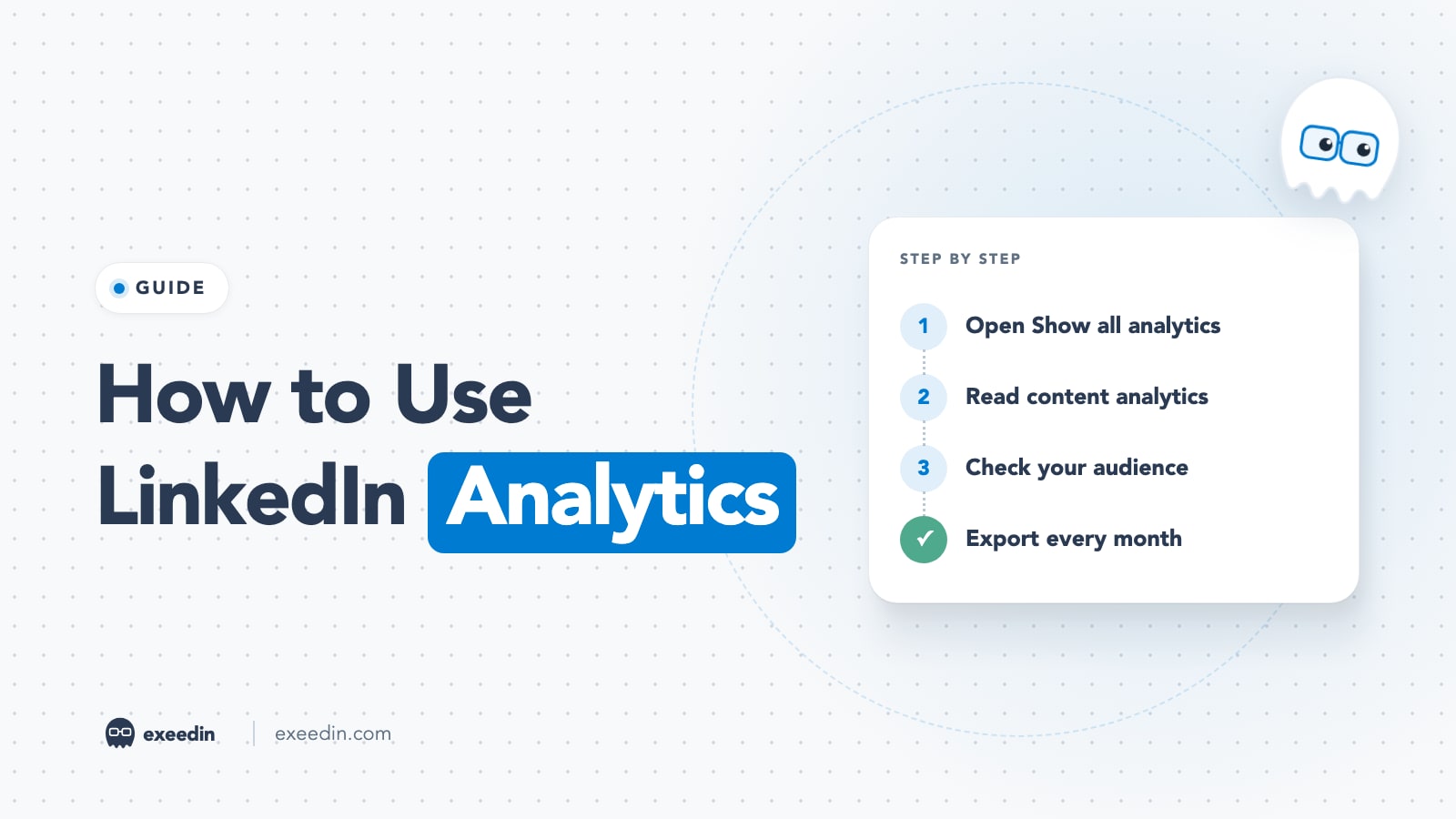
To see your LinkedIn analytics, click Me > View profile, scroll to the Analytics section and click Show all. That dashboard holds your content analytics (impressions and engagements), audience analytics (followers and demographics), profile viewers and search appearances. For a single post, click the impressions count or View analytics under that post.
This guide explains where every LinkedIn analytics screen lives in October 2026, on desktop and mobile, what each metric actually measures according to LinkedIn's own definitions, how to export your data before LinkedIn stops keeping it, how Page analytics differ, and a 15-minute weekly review you can copy.
How to see LinkedIn post analytics: quick steps
- Click the Me icon at the top of your LinkedIn homepage.
- Click View profile.
- Scroll to the Analytics section and click Show all.
- Open Content analytics for impressions and engagements, or Audience analytics for followers.
- Change the date range (the default is Past 7 days) and switch the metric dropdown between Impressions and Engagements.
- To dig into one post, go to Me > Posts & Activity and click View analytics on that post.
LinkedIn's Analytics and tools article confirms this path. On mobile, tap your profile photo, tap it again to open your profile, scroll to Analytics and tap Show all.
What's in LinkedIn analytics for personal profiles in 2026
Creator Mode was retired in 2024, and LinkedIn now states that all LinkedIn members have access to creator analytics. Your Analytics & tools area has four main parts.
Content analytics
Impressions and engagements over time, plus your top performing posts. Use the date range dropdown and the Impressions/Engagements toggle. Custom date ranges are available only in the mobile app. You can export this view as an .XLSX file.
Post performance
A per-post table under "Most recent posts performance". Click Show all posts, pick a date range and use Load more to go past five posts. LinkedIn says this view is desktop only, is rolling out gradually, and exports as CSV. It also covers collaborative posts where you are the original poster or an accepted collaborator.
Audience analytics
Total followers, new follower trends and follower demographics: job title, location, industry, seniority, company size and company, with the top five shown for each. Exportable as .XLSX.
Profile viewers and search appearances
Who's viewed your profile covers the last 90 days. On a free account you see the three most recent viewers if your own viewing setting shows your name and headline; Premium Business and Career subscribers get up to 365 days of viewer data, filters and a weekly trend graph, per LinkedIn's basic and Premium comparison. Search appearances shows how often you appeared in LinkedIn search, your searchers' companies and job titles, and the titles you were found for. LinkedIn's search appearances article also describes profile engagement figures: total impressions, total clicks, average viewing time and impressions per profile section.
Newsletter authors get a fifth block, Newsletter analytics, with total subscribers and article views. For a deeper look at the viewer feature, see our guide to seeing who viewed your LinkedIn profile, and for what searchers can and cannot learn about you, read search appearances and data privacy.
How strong is your LinkedIn profile?
Paste your profile link and see your score right away, with clear fixes for your headline, About section and experience. Free to start, no account needed.
Or open the free LinkedIn profile checker
LinkedIn analytics metrics explained
LinkedIn defines each post metric in its Post analytics for your content article. In plain terms:
| Metric | What LinkedIn counts | How to read it |
|---|---|---|
| Impressions | Times your post was shown on LinkedIn | Includes repeat views by the same person |
| Members reached | Estimated distinct members and Pages that saw the post | Your true audience size for that post |
| Profile viewers from this post | Distinct members who viewed your profile from the post | The best signal that a post created curiosity about you |
| Followers gained | Members who followed you from the post | Long-term value of the post |
| Reactions | Likes and other reactions | Lightest form of approval |
| Comments | Comments by members and Pages | Conversation, usually worth more than reactions |
| Reposts | Shares to someone's own feed | Distribution beyond your network |
| Saves | Times members saved the post | Reference value; strong for tips and carousels |
| Sends on LinkedIn | Times members sent it to others in messages | Private word of mouth |
| Link clicks | Clicks on external links, repeat clicks included | Traffic intent; not reported for links to LinkedIn content |
| Video views | Plays of 2 or more continuous seconds, replays included | Compare with watch time, not alone |
Two details change how you read these numbers. LinkedIn's View post analytics page notes that your own views, engagements, link clicks, saves and sends count toward your analytics. And the post view also shows Discovery, In network and out of network reach (desktop only), profile activity and viewer demographics. Demographics only appear when enough unique viewers exist to protect privacy, and they are not available for posts shared only with connections or in Groups.
The most useful ratio is impressions per member reached. If it is close to 1, people saw the post once; if it climbs, the post kept resurfacing for the same audience. Pair it with profile viewers from this post, which tells you whether reach turned into interest in you.
How long does LinkedIn keep your analytics?
LinkedIn removes older analytics on a fixed schedule. According to the same post analytics article:
| Data | How long it stays available |
|---|---|
| Discovery and social engagement counts (most posts) | 1,000 days |
| Members reached | 400 days |
| Demographic breakdowns | 180 days |
| Video performance and video viewer demographics | 180 days |
| Article performance, article demographics, newsletter analytics | 2 years |
If you want year-over-year comparisons of who your audience is, export demographics at least every six months. That is the main reason the weekly routine below ends with a download.
LinkedIn Page analytics: visitors, followers, content, competitors and more
Company Pages have their own analytics, and LinkedIn says they are available for all Page admin roles. Open your Page admin view and click Analytics in the left menu. The tabs:
- Content: how your updates and videos perform, organic and sponsored.
- Visitors: who visits your Page, by demographics and source.
- Followers: who follows you, follower demographics and where they came from.
- Search appearances: who searches for your Page and the keywords they use.
- Competitors: how your followers and content engagement compare with Pages you choose.
- Employer brand: engagement with your Career Pages.
- Newsletter: trends, article totals and subscriber demographics.
Page content analytics add metrics personal profiles do not show. LinkedIn's Page content analytics article defines engagement rate as clicks, reactions, comments and shares divided by impressions, and CTR as clicks divided by impressions. For boosted or sponsored posts you also get leads (people who filled out a lead gen form), cost per lead and cost per engagement. Data can take up to 48 hours to appear, except reactions and comments, which update in real time.
If you post from both a Page and a personal profile, expect the profile to reach more people. Our analysis of personal profiles versus Company Pages explains why.
How to export LinkedIn analytics
Personal profile
- Content analytics and Audience analytics: open the view, set the date range, click Export. You get an .XLSX file.
- Post performance table: desktop only, exports as CSV.
- Single post: there is no per-post export; capture the numbers in your own tracker.
LinkedIn Page
Per LinkedIn's Export your LinkedIn Page analytics report article: open the Page admin view, click Analytics, choose Content, Visitors, Followers or Competitors, click Export in the upper right, select a timeframe and click Export again. The file downloads as XLS.
What is a good engagement rate on LinkedIn?
Only cite benchmarks that match your account type. Socialinsider's LinkedIn benchmarks, built from organic posts by business Pages, put the average engagement rate by impressions at 5.20%. By format, native documents averaged 7.00%, multi-image posts 6.45%, video 6.00%, images 5.30%, text 4.50%, polls 4.20% and link posts 3.25%.
Those are Page numbers. Personal profiles often behave differently, and your niche matters more than any industry average. The most reliable benchmark is your own median: take your last 20 posts, sort by engagement rate, and treat the middle value as your baseline. A post that beats your median by 50% is a winner worth studying, whatever an industry report says.
A 15-minute weekly LinkedIn analytics review
Pick one day, for example Monday morning, and run the same routine. Consistency beats depth here.
- Minutes 0 to 3: open Content analytics, set Past 7 days, note total impressions and engagements against the previous week.
- Minutes 3 to 8: open each post from the week and log impressions, members reached, comments, saves, profile viewers from this post and followers gained.
- Minutes 8 to 11: check Audience analytics. Did new followers match the people you want, by job title and industry?
- Minutes 11 to 13: glance at profile viewers and search appearances. Note any companies or titles that keep showing up.
- Minutes 13 to 15: write one sentence: "Next week I will do more of X and less of Y." Once a month, export the XLSX files.
Copy this table into a spreadsheet and add one row per post:
| Date | Topic | Format | Impressions | Members reached | Comments | Saves | Profile viewers | Followers gained | Engagement rate | Lesson |
|---|---|---|---|---|---|---|---|---|---|---|
| Mon | Hiring mistake story | Text | ||||||||
| Wed | 5-step checklist | Carousel | ||||||||
| Fri | Client result | Image |
After four to six weeks, sort the sheet by profile viewers and by followers gained. Those two columns usually tell a different story than impressions, and they line up better with business outcomes. When you also log the posting hour, the sheet answers the timing question for your audience; our guide to the best time to post on LinkedIn shows how to test it.
Common LinkedIn analytics problems
Why can't I see my post impressions?
Analytics are only visible to you, and only on your own posts. Open the post from Me > Posts & Activity rather than the feed. Very new posts may show partial numbers, and demographics stay blank until enough unique viewers exist. If the layout changed for you recently, our walkthrough on tracking impressions after the interface update shows where each number moved.
Why did my impressions drop?
Week-to-week swings are normal; look at a four-week trend before reacting. If reach fell across many posts, check topic shifts, posting frequency and format changes first. We break down the 2026 causes in why LinkedIn reach dropped.
Why are my profile viewers missing?
Viewer insights require your own profile viewing setting to be public. If you browse in private mode, LinkedIn hides your viewers too. Free accounts also see only the three most recent viewers.
Why do third-party tools show different numbers?
Most tools cannot read impressions for personal profiles, so they count reactions, comments and reposts from your public posts instead. They also refresh on their own schedules. Treat LinkedIn's native numbers as the source of truth for impressions.
When native analytics are not enough
LinkedIn's dashboard is good at "what happened" and weak at "why". It does not tag posts by topic, compare hooks or show patterns across months. That is where external tools help. Our roundup of the best LinkedIn analytics tools compares the main options and their pricing. exeedin's Analytics page is one lightweight option: it reads your public posts from the last 90 days, shows reactions, comments and reposts per post, and points out what your top posts do differently. It does not show impressions, because LinkedIn only shows those to the author on LinkedIn itself.
Frequently Asked Questions
How do I see analytics for one LinkedIn post?
On desktop, click Me, then Posts and Activity, choose the post, and click the impressions count or View analytics. On mobile, open your profile, scroll to Activity, tap Show all posts, and tap the impressions count on the post. You will see discovery, engagement, profile activity and viewer demographics. Only you can see your post analytics.
What is the difference between impressions and members reached?
Impressions count every time your post was shown, including repeat views by the same person. Members reached is LinkedIn's estimate of the distinct members and Pages who saw the post at least once. Reach tells you how many people you touched; impressions tell you how often. A high ratio of impressions to reach means the post kept resurfacing for the same people.
Can I export my LinkedIn analytics?
Yes. On a personal profile, Content analytics and Audience analytics export as XLSX files, and the desktop post performance table exports as CSV. Page admins can export Content, Visitors, Followers and Competitors data as XLS from the Analytics tab. Export regularly, because LinkedIn keeps demographic breakdowns for only 180 days and members reached for 400 days.
Do I need LinkedIn Premium to see analytics?
No. LinkedIn says all members have access to creator analytics, including content analytics, audience analytics and per-post data. Premium mainly expands profile viewer data, from the last 90 days with three recent viewers on a free account to up to 365 days with the full list and filters for Premium Business and Career subscribers.
Do my own views count in LinkedIn analytics?
Yes. LinkedIn's help center says your own views, social engagements, link engagements, saves and sends are included in your post analytics. For a small post, checking it repeatedly can nudge the numbers. For larger posts the effect is negligible, but it is a good reason not to judge early performance by impressions alone.
How often should I check LinkedIn analytics?
Once a week is enough for most people. Daily checking encourages overreacting to normal swings. A weekly 15-minute review that logs each post's reach, comments, saves, profile viewers and followers gained, plus a monthly export, gives you enough data to spot patterns within six weeks without turning analytics into a second job.