Best LinkedIn Analytics Tools in 2026: 7 Picks, Ranked
LinkedIn's free analytics comes first. Here are 7 LinkedIn analytics tools ranked for 2026, what each really tracks, verified prices, and the metrics worth watching.
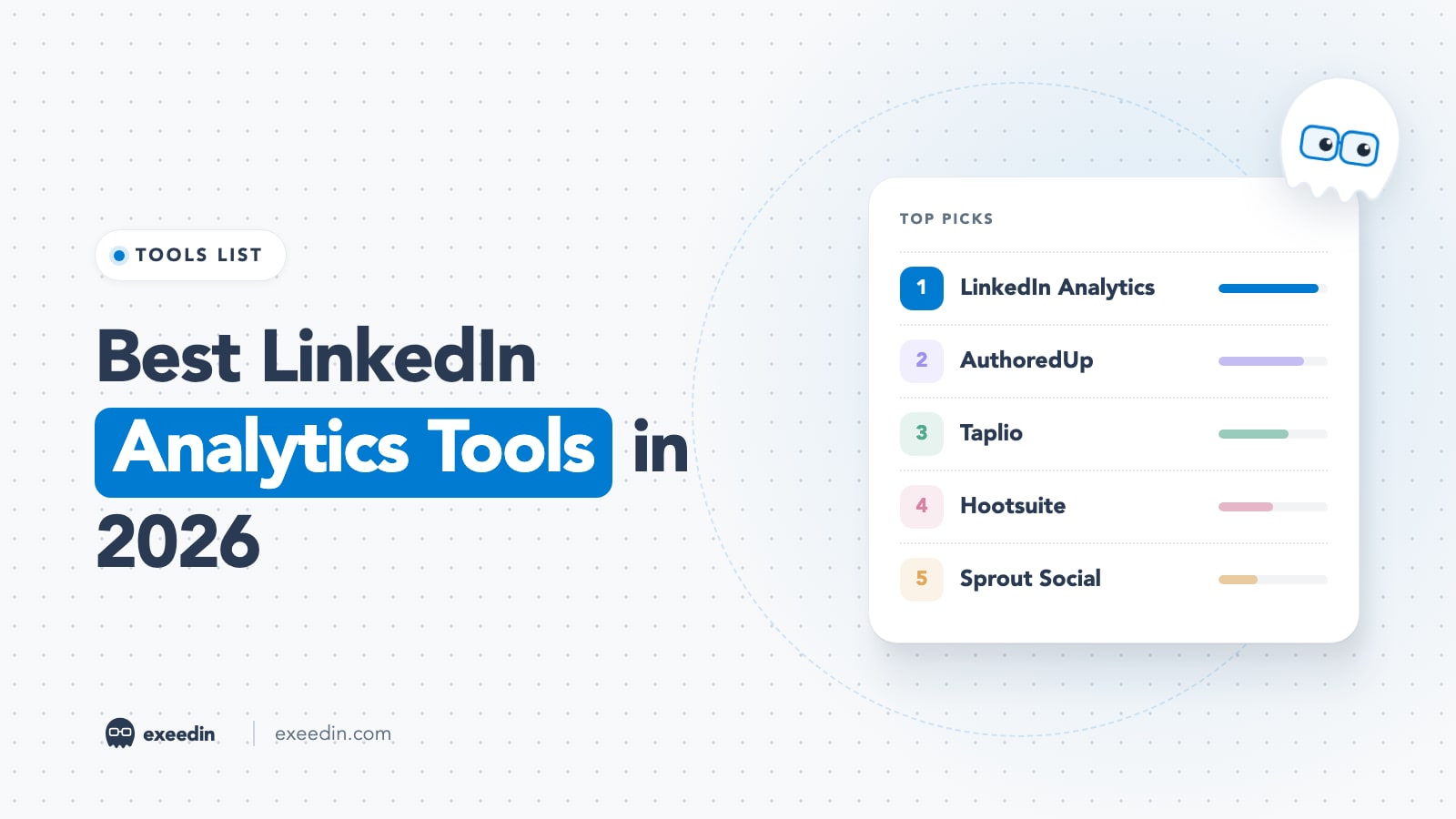
The best LinkedIn analytics tools in 2026 start with LinkedIn's own free analytics, which is the only place that shows every private number for your posts, profile and Page. Add a third-party tool only for what native analytics lacks: longer history, post comparisons, team reports or multi-network dashboards. For most creators that means AuthoredUp or Taplio; for brands, Hootsuite or Sprout Social.
This guide covers what LinkedIn shows natively for personal profiles and Company Pages, seven tools ranked by how well they answer real questions, two tools that changed or disappeared this year, which metrics deserve your attention, and a 20-minute weekly review routine. Every LinkedIn feature below was checked against the LinkedIn Help Center, and every price was checked on the vendor's own site. Prices checked October 2026.
Quick comparison: LinkedIn analytics tools at a glance
| Tool | Best for | Starting price | Free plan | Standout feature |
|---|---|---|---|---|
| LinkedIn native analytics | Everyone, as the source of truth | Free | Yes | Only source for every private metric |
| AuthoredUp | Creators who want deep post analysis | $19.95/month | Free trial | Saves, sends and profile views per post |
| Taplio | All-in-one growth suite | $39/month | 7-day trial | Weekly action plan from your stats |
| Hootsuite | Teams on several networks | $99/user/month | 14-day trial | Profile impressions and reach via API |
| Sprout Social | Company Page reporting | $79/seat/month (annual) | 30-day trial | Cross-network reports and benchmarks |
| Buffer | Small budgets, Page basics | $5/channel/month | Yes, 3 channels | Cheap per-channel pricing |
| exeedin Analytics | Writers who want analytics next to drafting | $49/month (Creator) | 3-day trial | Flags posts made via exeedin |
What LinkedIn's native analytics shows in 2026
Before paying for anything, learn what you already have. LinkedIn splits its analytics into three places for members (post analytics, creator analytics and profile insights) plus a separate dashboard for Company Page admins. You no longer need Creator Mode to see any of it: LinkedIn retired Creator Mode in 2024, and its help page now says all LinkedIn members have access to creator analytics.
Post analytics for personal profiles
Each post has its own analytics page. LinkedIn defines the metrics as follows:
- Impressions: the number of times your post was shown on LinkedIn.
- Members reached: the number of distinct members and Pages that saw your post, an estimate that excludes repeat views.
- Profile viewers from this post and followers gained from this post.
- Social engagement: reactions, comments, reposts, saves and sends on LinkedIn.
- Link engagement: visits to external links in the post, plus Premium custom button clicks.
- Video metrics: video views (two or more continuous seconds), watch time and average watch time.
Post analytics also break discovery into in-network and out-of-network on desktop, and show viewer demographics. The mobile version omits the in-network and out-of-network split. Data does not last forever: LinkedIn keeps discovery and engagement counts for 1,000 days, members reached for 400 days, demographic breakdowns for 180 days, and video performance for 180 days. If you want a multi-year archive, export regularly.
How to open post analytics on desktop:
- Click the Me icon at the top of your homepage.
- Under Manage, select Posts & Activity.
- Pick the tab for the content type (Posts, Videos, Images, Articles or Newsletter).
- Click the impressions count in the lower left of a post, or View analytics in the lower right.
On the iOS or Android app: tap your profile picture, tap it again to open your profile, scroll to Activity, tap Show all posts, choose the content tab, then tap the impressions count or View on the post. These steps come from LinkedIn's post analytics help page. For a fuller walkthrough of every screen, see our guide on how to use LinkedIn analytics.
Creator analytics: content and audience over time
Creator analytics rolls your posts up into trends. Content analytics shows how posts, images, videos, events, polls and articles perform over a period, with a chart you can switch between impressions and engagements. Audience analytics shows follower growth and the top five follower groups by job title, location, industry, seniority, company size or company. A per-post performance table is desktop only for now, and it exports to CSV, while the content and audience views export as .XLSX files.
Desktop: click Me, then View Profile, scroll to the Analytics section and click Show all. Mobile: tap your profile photo, tap it again, and tap Show all in the Analytics section.
Profile viewers and search appearances
The same Analytics section on your profile holds profile viewers and profile appearances. LinkedIn draws a clear line between the two: profile appearances count how often your name and headline appear across LinkedIn (search results are one of those places), while profile views count people who actually opened your profile. LinkedIn also notes that full profile analytics need three or more unique profile viewers in the past seven days.
This is where Premium makes a real difference. A free account sees viewer data for the last 90 days and, depending on your profile viewing settings, only the three most recent viewers. Premium Career and Premium Business show the full list of viewers for up to 365 days, with filters and trend graphs. Our guide to seeing who viewed your LinkedIn profile covers the privacy settings that affect what you see.
Company Page analytics
Page analytics are separate from your personal numbers, and every Page admin role can see them. In the Page admin view, click Analytics in the left menu to reach Content, Visitors, Followers, Search appearances, Leads, Newsletters, Competitors and Employer brand. The content view adds metrics personal profiles lack, including clicks, click-through rate and an engagement rate defined as interactions (clicks, reactions, comments and shares) per impression. Highlights cover up to 365 days. On mobile, Page content analytics are limited to the last 30 days, and LinkedIn points you to desktop for post analytics.
Competitor analytics is the one place where a paid Page tier shows up. A free Company Page can track one competitor, while a Premium Company Page can track up to nine, with trending competitor posts from the past 30 days.
What native analytics is missing
- No engagement rate for personal posts. You calculate it yourself.
- No side-by-side comparison of posts by format, hook or topic.
- Limited history: demographic data drops after 180 days.
- No combined view across your profile, your Page and your teammates.
- No comparison against other creators unless you run a Company Page.
If none of those gaps bother you, native analytics is enough.
Get 10 hooks for your next post
Type what your post is about and get 10 opening lines from different proven angles. Free, no signup.
Or open the free LinkedIn hook generator
The 7 best LinkedIn analytics tools, ranked
We ranked each tool on whether it shows the private numbers (impressions, reach, profile views), whether it adds analysis you can act on, how it gets your data, and what it costs one person. How a tool gets data matters more in 2026, as the Shield story below shows.
1. LinkedIn native analytics: Best free source of truth
LinkedIn's own dashboards are the only place every private metric lives. Every other tool here either reads these numbers through an official connection, collects them from your logged-in browser, or does without them.
Key features: per-post analytics, creator analytics trends, follower demographics, profile viewers, Page analytics with competitor tracking, and XLSX or CSV exports.
Pricing: free. Premium adds the full 365-day viewer list for personal profiles; Premium Company Pages add more competitor slots.
- Pros: complete and first-party; free; no account risk; saves and sends are included.
- Cons: no engagement rate for personal posts; no format or hook comparison; demographics expire after 180 days; profile and Page live in separate places.
Who it is for: everyone. Even if you buy a tool, check numbers here when they disagree.
2. AuthoredUp: Best for creators who want deep post analysis
AuthoredUp started as a LinkedIn post editor and formatter and has grown a solid analytics layer for personal profiles and Company Pages. Its analytics compare periods, break down your best post types and posting times, and put posts side by side. It also surfaces saves, sends, reach and profile views per post, according to its pricing page.
How it gets data: AuthoredUp can import your history from a LinkedIn data export, which it says contains only posts with reaction and comment counts. The fuller analytics come from its Chrome extension, which collects past posts and their metrics while you use LinkedIn.
Pricing: $19.95 per month for one profile, or $16.63 per month billed yearly ($199.50 a year). The Business plan is $14.95 per profile per month for three or more profiles. Free trial, no card required.
- Pros: the best per-post detail outside LinkedIn itself; post comparison and best-time breakdowns; cheap for one person; includes a strong editor.
- Cons: the best data depends on a browser extension; analytics are LinkedIn only; a data-export import carries only reactions and comments.
Who it is for: creators who post several times a week and want to know which formats and hooks work. We compare it head to head in Taplio vs AuthoredUp.
3. Taplio: Best all-in-one growth suite with analytics
Taplio bundles writing, scheduling, engagement and lead features with an analytics dashboard. Its analytics page says it tracks followers, impressions, engagement rate and per-post performance over any time range, highlights which hooks, formats and topics drive results, and hands you a weekly next step. Its pricing page also lists a monthly stats email and a "My analytics" view from its Chrome extension.
Pricing: Starter $39/month, Growth $69/month and Pro $199/month on monthly billing, with a 7-day trial and a 30-day money-back guarantee. Annual discounts appear on the page; check current pricing for the yearly rate.
- Pros: analytics sit next to writing and scheduling; weekly recommendations; engagement rate is calculated for you.
- Cons: private metrics rely on its Chrome extension; Growth and Pro get pricey for one person; analytics alone do not justify the price.
Who it is for: creators who want one subscription for most LinkedIn work. If price is the issue, our list of Taplio alternatives covers cheaper picks.
4. Hootsuite: Best for teams managing several networks
Hootsuite connects to LinkedIn through an official account connection, and its help center lists post impressions, post reach, saves and sends for LinkedIn personal profiles, along with reactions, comments, reshares, link clicks and video metrics. That means private profile numbers without a browser extension, though Hootsuite notes profile metrics are limited to certain plans and its counts can differ from LinkedIn's.
Pricing: paid plans start at $99 per user per month for Standard, $199 for Professional and up to $399 for Advanced, with annual billing cheaper than monthly. 14-day free trial.
- Pros: profile impressions and reach through an official connection; LinkedIn reports next to Instagram, Facebook and others; built for teams.
- Cons: expensive for one person; profile metrics depend on plan; LinkedIn-specific insight is shallower than AuthoredUp.
Who it is for: marketing teams that report on several networks and want LinkedIn in the same deck.
5. Sprout Social: Best for Company Page reporting at scale
Sprout Social's reporting covers LinkedIn Company Pages, LinkedIn ads and personal profiles in one dashboard, with a dedicated LinkedIn Pages report and a paid performance report. For personal profiles, Sprout's own guide says metrics are only available at the post level, so it is strongest on Pages.
Pricing: Essentials $79 per seat per month billed annually ($99 billed monthly), Standard $199, Professional $299 and Advanced $399, with Premium Analytics sold as an add-on. 30-day free trial, no card required.
- Pros: polished, shareable reports; benchmarking with Premium Analytics; strong for agencies and brands.
- Cons: personal profile data is post level only; per-seat pricing adds up fast; Premium Analytics costs extra.
Who it is for: brands and agencies whose LinkedIn priority is the Company Page and who need client-ready reports.
6. Buffer: Best budget option for Page basics
Buffer is the cheapest scheduler with LinkedIn numbers. Its channel table shows basic and advanced analytics for LinkedIn Pages but only basic analytics for LinkedIn personal profiles.
Pricing: a free plan for up to three channels (with a 30-day insights history), then Essentials at $5 per channel per month and Team at $10 per channel per month, with yearly billing saving two months.
- Pros: very cheap; a real free plan; simple to read.
- Cons: personal profile analytics are basic; little LinkedIn-specific analysis; reports need a paid plan.
Who it is for: small businesses and solo founders who mostly need to post on schedule and glance at Page results.
7. exeedin Analytics: Best for writers who want results next to their drafts
exeedin is an AI LinkedIn ghostwriter, and its Analytics page exists to feed the writing. It shows your LinkedIn posts from the last 90 days, read from your public profile, with reactions, comments and reposts per post. Posts published through exeedin carry a "via exeedin" badge, so you can compare them against everything else you post. Numbers refresh when you open the page, at most once an hour. Insights compare your own posts by format, best day, language and length, which helps bilingual Arabic and English posters see which language lands better.
What it does not show: impressions, views, saves, sends, profile viewers or follower demographics. LinkedIn only shows those to the author on LinkedIn itself, and exeedin does not use a browser extension to collect them. History stops at 90 days.
Pricing: included in Creator at $49 per month ($39 per month billed yearly) after a 3-day free trial. Business teams ($59 per seat per month) also get team analytics combining everyone's results.
- Pros: no extension or login sharing; analytics next to drafting and scheduling; team view on Business.
- Cons: no impressions or reach; 90-day window only; updates only when you open the page; poor value if you only want analytics.
Who it is for: people who want help writing and scheduling plus a quick read on what works. If you are weighing it against an analytics-first tool, see exeedin vs AuthoredUp.
LinkedIn analytics tools that changed or shut down in 2026
Shield Analytics
Shield was the default LinkedIn analytics tool for many creators. In May 2026 its team announced a wind-down: new sign-ups and renewals stopped, and users were given a window to export their data, as AuthoredUp reported at the time. Coverage of the shutdown links it to Shield's dependence on a Chrome extension that read analytics through users' logged-in LinkedIn sessions; one write-up says LinkedIn enforced against that model and Google removed the extension from the Chrome Web Store. In October 2026, shieldapp.ai no longer loaded. Keep any Shield exports you have. We cover replacement options in what to switch to after Shield.
Inlytics
Inlytics was a popular personal-profile analytics tool. In October 2026, inlytics.io redirects to DemandBird, a multi-platform social media management tool with plans from $29.25 per month billed yearly. DemandBird's site does not mention Inlytics, and we found no announcement explaining the change, so treat it as a different product and test it before migrating.
The lesson from both: an analytics tool built on scraping your logged-in browser can vanish, and LinkedIn's help center says it does not permit browser extensions that scrape, modify the appearance of, or automate activity on its site. Before you trust a tool with years of history, ask how it gets its data, and export your numbers from LinkedIn itself every quarter.
How to choose a LinkedIn analytics tool
- You post on a personal profile and want to know what works: start with native analytics plus a spreadsheet. If you post three or more times a week and want comparisons, try AuthoredUp.
- You want analytics plus writing, scheduling and engagement in one bill: Taplio, or exeedin if you want an AI ghostwriter in your own voice and can live without impressions.
- You report on a Company Page: native Page analytics first, then Sprout Social or Hootsuite when you need client-ready or cross-network reports.
- You are on a tight budget: Buffer's free plan or native analytics.
- You manage a team of personal profiles: look for team rollups (Hootsuite, Sprout Social, AuthoredUp Business or exeedin Business) and confirm each person keeps ownership of their LinkedIn login.
Before you pay, ask any vendor where its impressions come from, how far back history goes, and whether you can export it.
Which LinkedIn metrics actually matter?
A tool is only as useful as the questions you ask it. These are the numbers worth watching, in rough order of how much they tell you.
Impressions vs members reached
Impressions count every time a post was shown; members reached counts distinct people. If impressions run far above reach, the same people are seeing the post repeatedly. Track both, but judge growth on reach. If both are falling, our breakdown of why LinkedIn reach dropped in 2026 covers the usual causes.
Engagement rate
For personal posts, calculate it yourself: reactions plus comments plus reposts, divided by impressions. Compare a post against your own median, never against someone else's account, because rates fall naturally as reach widens beyond your network.
Comments, saves and sends
Comments show a conversation started. Saves and sends, both in LinkedIn's post analytics, show someone found it worth keeping or passing on. They are the strongest quality signals you get.
Profile views and followers gained from a post
These connect content to outcomes. A post with modest reactions that sends people to your profile is doing commercial work. Make sure your profile converts them; the free LinkedIn profile evaluator is a quick place to start.
Follower growth and audience mix
Who follows matters more than how many. Check the audience view monthly: if job titles drift away from your buyers or hiring managers, your topics have drifted too. Our guide to growing followers on a personal profile covers the fixes.
What to ignore
- Total reactions in isolation, with no link to impressions.
- Day-to-day swings in profile appearances.
- Comparisons with creators who have a different audience size.
- Any single post's result. Look at four to eight weeks of posts before changing course.
A 20-minute weekly LinkedIn analytics routine
- Pick a fixed slot each week, reviewing posts at least three days old.
- Log each post in a sheet. Date, format, topic, hook, impressions, members reached, reactions, comments, reposts, saves, sends, profile viewers and followers gained from the post.
- Calculate engagement rate and mark each post as above or below your running median.
- Read the top and bottom post side by side. Write one sentence on what differed: hook, format, topic, length or timing.
- Check profile viewers and new followers in creator analytics, and note any jump against the posts that week.
- Decide one change for next week (a format to repeat, a hook style to test, a topic to drop) and write it at the top of the sheet.
- Once a month, export from creator analytics so your history outlives any tool and LinkedIn's retention limits.
A tool can automate steps two to four. The judgment in step six stays with you.
Frequently Asked Questions
What is the best free LinkedIn analytics tool?
LinkedIn's own analytics is the best free option, and for most people it is the only one they need. It shows impressions, members reached, reactions, comments, reposts, saves, sends, profile views from a post, follower growth and audience demographics. Buffer's free plan adds basic LinkedIn data for up to three channels if you also want scheduling, but it shows less than LinkedIn itself.
Can third-party tools see my LinkedIn impressions?
Only some, and only with your access. Impressions and reach are private to the author. Tools such as Hootsuite read them through an official account connection, while others collect them through a Chrome extension running in your logged-in browser. Tools that only read your public profile, including exeedin, can see reactions, comments and reposts but not impressions.
Do I need LinkedIn Premium to see analytics?
No. Post analytics, creator analytics and profile appearances are available to every member, and LinkedIn retired Creator Mode in 2024, so nothing needs switching on. Premium mainly adds the full list of profile viewers for up to 365 days, with filters and trends. For Company Pages, a Premium Page raises competitor tracking from one competitor to up to nine.
Is Shield Analytics still available?
No. Shield announced a wind-down in May 2026, stopped new sign-ups and renewals, and gave users a window to export their data. Reports link the shutdown to its reliance on a Chrome extension that read analytics through logged-in LinkedIn sessions. In October 2026 the Shield website no longer loaded, so former users need a different tool and should keep any exports.
How long does LinkedIn keep post analytics?
LinkedIn keeps discovery and social engagement counts for 1,000 days, members reached data for 400 days, and demographic breakdowns for 180 days. Video performance is kept for 180 days, while article and newsletter analytics last two years. If you want a longer record, export creator analytics to XLSX or CSV every month and keep your own sheet.