How to Tag Someone on LinkedIn: Posts, Comments, Photos (2026)
Type @ and the person's name in a post or comment, then pick them from the list. Steps for desktop, mobile, companies and photos, plus fixes when tagging fails.
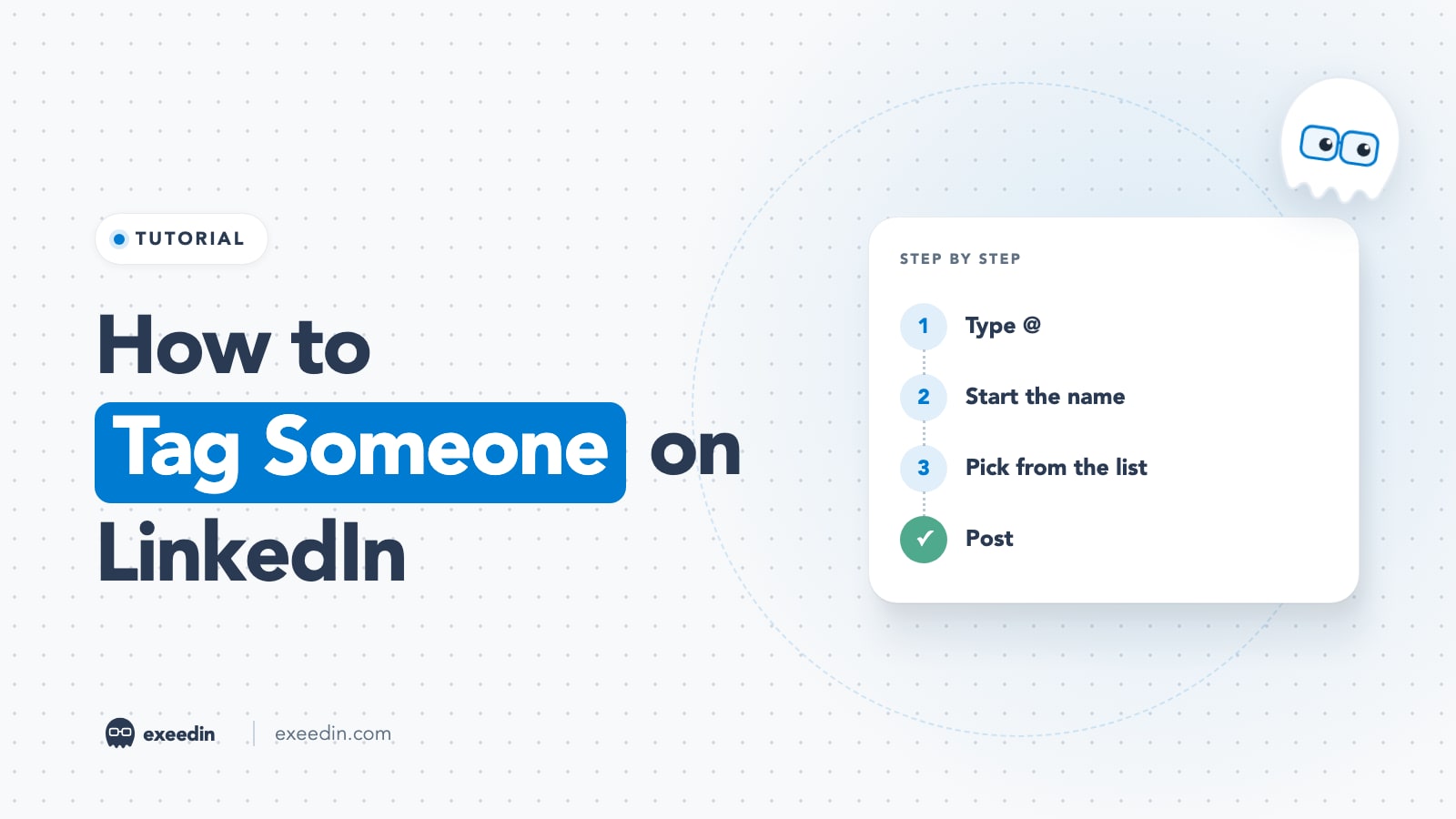
To tag someone on LinkedIn, type @ followed by the first letters of their name in a post or comment, then pick the right person from the list that appears. Their name turns into a blue link and they get notified when you publish. The same @ method works for Company Pages, and photos have a separate Tag button.
Below you will find the exact desktop and mobile steps, how to tag a company, people in comments and people in photos, the real rules on non-connections and limits, and a checklist for when tagging is not working. Each rule was checked against LinkedIn's Help Center in October 2026.
How to tag someone in a LinkedIn post (desktop)
- Click Start a post on your homepage.
- Type @ and start typing the person's name. Two or three letters are usually enough to bring up suggestions.
- Click the correct person in the dropdown. If the name is common, LinkedIn's mentions help page suggests adding their company to the search.
- Check that the name turned into a highlighted link. Plain text means the tag did not take.
- Finish your post and click Post.
Once the post is live, the person receives an email and an in-app notification, unless they have switched those notifications off.
How to tag someone on LinkedIn mobile (iPhone and Android)
- Tap Post in the bottom navigation bar.
- Tap the @ (At) icon on your keyboard, or type @ yourself.
- Type the person's name and tap them in the suggestion list.
- Confirm the name is highlighted, finish your message and tap Post.
On a phone, the most common slip is typing the full name and tapping Post without choosing a suggestion. The text looks right to you, but nobody is tagged. Always tap the name in the list.
How to tag a company on LinkedIn
Company Pages are tagged the same way as people. Type @ and the start of the company's name, then pick the Page from the dropdown; Pages show their logo in the list, which helps you avoid lookalike or outdated Pages. Tagging a company is useful when you mention your employer, a client, a partner or an event organizer, because the Page's admins can see the mention and may react or reshare.
Two tips for companies. Pick the main Page, not a Showcase Page or an old regional Page, unless the post is really about that division. And when the company has a common name, type a few extra letters until the right logo appears.
Get 10 hooks for your next post
Type what your post is about and get 10 opening lines from different proven angles. Free, no signup.
Or open the free LinkedIn hook generator
How to tag someone in a LinkedIn comment
LinkedIn's help page says mentions work in comments exactly as in posts: click Comment on the post, type @, start typing the name and pick the person. This is the most natural place to tag, because you are bringing someone into an existing conversation ("@Sara covered this in her talk last week").
Keep comment tags purposeful. Tagging five friends under a stranger's post to "boost" it is easy to spot and annoys both the author and the people tagged. If you want comments that earn attention on their own merit, our guide on writing LinkedIn comments that feel human and bring profile views covers the habits that work.
How to tag people in a LinkedIn photo
Photo tags are different from @mentions. They sit on the image itself. LinkedIn's Tag people in your photos help page lays out the steps.
Desktop
- Click Photo in the share box and select up to nine images.
- In the Edit your photo window, click Tag, then click on the photo.
- Type the member's name and select them. Repeat for more people and move between images as needed.
- Optionally add alt text, click Done, write your caption, choose who can see the post, and click Post.
Mobile
- Tap Post and add up to nine photos from your camera or gallery.
- Tap the Tag icon, tap the photo, then type and select the member's name.
- Tap Next, add your caption, choose the audience and tap Post.
LinkedIn allows up to 30 tags per photo, and you do not need to be connected to someone to tag them. Photo tags are a good fit for event photos and team shots, as long as the people tagged are actually in the picture.
LinkedIn tagging rules you should know
| Question | Answer | Source |
|---|---|---|
| Can you tag people you are not connected to? | Yes, but LinkedIn may limit mentions of non-connections | LinkedIn Help: Mention people in your posts |
| How many people can you tag in a text post? | LinkedIn does not publish a number | Not stated in LinkedIn Help |
| How many people can you tag in a photo? | Up to 30 per photo, up to nine photos per post | LinkedIn Help: Tag people in your photos |
| Can someone block you from tagging them? | Yes, members can turn off mentions and tags | LinkedIn Help: Mentions and tags settings |
| Do tags survive a non-public post? | Only for people inside the chosen audience | LinkedIn Help: Visibility of mentions and tags |
| Can you add a tag after posting? | Yes, edit the post or comment | LinkedIn Help: Mention people in your posts |
| Can the tagged person remove it? | Yes, from posts, comments and photos | LinkedIn Help: Remove a mention or tag |
About the number of mentions: you will see figures like 25, 40 or 50 quoted on other blogs, but LinkedIn's Help Center does not state a limit for mentions in a text post. If you ever get close enough to a cap to find out, the post has bigger problems than the cap.
What happens when you tag someone
- They are notified. The person gets an email and an app notification after you publish, unless they turned that off.
- Their network may see it. LinkedIn's visibility help page says the post may be shared with the network of the person being tagged. That is the reach effect people hope for, and it is also why careless tagging backfires: your post lands in front of their network with your name on it.
- The tag is a link. Readers can click through to the person's profile or Page.
- Audience rules apply. If you post to connections only, or another limited audience, tags of anyone outside that audience are removed.
Why is LinkedIn not letting me tag someone?
Work through these causes in order. Most failed tags come from the first three.
- You did not select a suggestion. Typing the full name is not enough; you must click or tap the person in the dropdown.
- They turned off mentions. Members can switch off mentions and tags in their settings. LinkedIn tells you when a member cannot be mentioned.
- You spelled the name differently from their profile. The search matches the name as written on the profile. For Arabic names this matters a lot: "Mohammed", "Mohamed" and "Muhammad" are different searches, and some members use Arabic script for their name. Try the exact spelling from their profile, or add their company to the search.
- Your post is not public. Tags of people outside the selected audience are removed. Switch the audience to Anyone if the tag matters.
- LinkedIn limited the mention. LinkedIn may limit mentions of people you are not connected to. Connecting first, or mentioning them in a comment reply to their own post, are the usual workarounds.
- You posted through a third-party tool. Scheduling tools publish through LinkedIn's API, which restricts people lookups. Postpone's help center, for example, explains that LinkedIn only lets apps look up people connected to the posting account, so its people mentions work from Company Pages for their followers only. If a mention comes through as plain text, edit the live post on LinkedIn and add the @mention there.
- The app glitched. Update the app, or try in a desktop browser.
If you write and schedule your posts in exeedin, the same rule applies: LinkedIn does not let apps create real person mentions, so add tags by editing the post on LinkedIn once it is live. Our guide on how to schedule a post on LinkedIn covers LinkedIn's native scheduler, which keeps mentions intact because you tag inside LinkedIn's own composer.
How to remove a tag on LinkedIn
Remove a tag of yourself
According to LinkedIn's help page on removing mentions, you can remove a mention or tag of yourself at any time:
- Mention in a post or comment: click the More icon (three dots) in the upper right of the post or comment, select Remove mention, then confirm with Remove. Your name stays in the text but is no longer linked to your profile.
- Tag in a photo: click the Tag icon on the photo, click the trash icon next to your name, then confirm. The person who tagged you is not notified.
The steps are the same on mobile with taps instead of clicks.
Remove a tag you added
As the author, edit the post or comment and delete the mention, or for photos, remove the tag from the image. LinkedIn's photo help confirms that authors can remove tags after posting.
Stop people tagging you
Go to Me, then Settings & Privacy, then Visibility, then Mentions, tags, and collaborations, and switch off the toggle. LinkedIn's settings help page notes that turning it off stops new mentions and tags but does not remove existing ones. On mobile, tap your profile photo and follow the same path.
@mention vs hashtag on LinkedIn
| @mention | #hashtag | |
|---|---|---|
| Points to | A specific person or Page | A topic |
| Notifies someone | Yes, the tagged person or Page admins | No |
| Clickable result | Their profile or Page | A feed of posts using the tag |
| Best for | Credit, introductions, collaborators | Labeling the subject of a post |
| Main risk | Annoying people with irrelevant tags | Looking spammy with too many |
The two do not compete. A typical well tagged post credits one or two people with @mentions and, if you use hashtags at all, adds a couple of topic tags at the end.
LinkedIn tagging etiquette
- Tag people who are in the story. Co-speakers, co-authors, the colleague who solved the problem, the host of the event. If they would not recognize why they were tagged, do not tag them.
- Explain why in the post. "Thanks to @Lina for the pricing framework" gives context. A list of names at the bottom with no explanation reads like a reach grab.
- Ask before tagging in photos. Not everyone wants their face linked to their profile, especially in casual event shots.
- Do not tag famous names for reach. Tagging a CEO or a top creator who has nothing to do with your post rarely gets a response. We looked at this in whether tagging CEOs on LinkedIn still works in 2026.
- Avoid tag circles. Groups that tag each other on every post to game reach look a lot like engagement pods, which carry their own risks. See what engagement pod penalties look like on LinkedIn.
- Use comments for follow ups. If you forgot someone, tagging them in a comment ("Adding @Omar, who built the dashboard") is natural and gets them notified.
Tagging ideas that work
- Event recap: tag the organizer's Page and the two or three speakers you quote, with one sentence on what you took from each.
- Team win: tag the people who did the work and say what they did, so the post reads as credit for them.
- Resource share: tag the author of the report or book you discuss, with your own take on it.
- Carousel or document post: tag sources in the caption, since tags cannot sit inside the PDF pages. Our guide on how to post a PDF on LinkedIn covers the caption and upload steps.
Frequently Asked Questions
Can you tag someone on LinkedIn who is not a connection?
Yes. LinkedIn's Help Center says members do not need to be connected to mention or be mentioned. LinkedIn may still limit mentions of people outside your network to keep things professional, and anyone who has turned off mentions cannot be tagged at all. If a tag will not work, connecting first or tagging them in a reply to their own post usually solves it.
Does the person know when you tag them on LinkedIn?
Yes. After you publish, a tagged member gets an email and an in-app notification, unless they have turned those notifications off. Tagged Company Pages show the mention to their admins. If you remove a tag of yourself from someone's photo, the person who tagged you is not notified, according to LinkedIn's help page.
How many people can you tag in a LinkedIn post?
LinkedIn does not publish a limit for mentions in a text post, so figures you see elsewhere are third-party estimates. For photos, LinkedIn's Help Center allows up to 30 tags per photo and up to nine photos per post. In practice, tagging more than a handful of people in one post tends to look like a reach grab rather than credit.
Can you tag someone after posting on LinkedIn?
Yes. LinkedIn lets you edit your posts and comments to add a mention after publishing. Open the More menu on the post, choose Edit, type @ and pick the person from the list, then save. This is also the fix when a scheduling tool published your mention as plain text instead of a clickable tag.
Why did my LinkedIn tag turn into plain text?
Usually because the name was typed but not selected from the suggestion list, the person has turned off mentions, or the post was shared with a limited audience that does not include them. Posts published through third-party apps can also lose person mentions because of LinkedIn API restrictions. Edit the live post on LinkedIn and add the mention again.
How do I stop people from tagging me on LinkedIn?
Go to Settings and Privacy, then Visibility, then Mentions, tags, and collaborations, and switch off the toggle. People will no longer be able to mention or tag you in new content. Existing mentions stay, but you can remove each one from the post's More menu by choosing Remove mention.