How to Bold Text on LinkedIn: Posts, Profile and Comments (2026)
LinkedIn posts have no bold button, so you paste Unicode bold from a text generator. Here are the desktop and mobile steps, a style table and the accessibility cost.
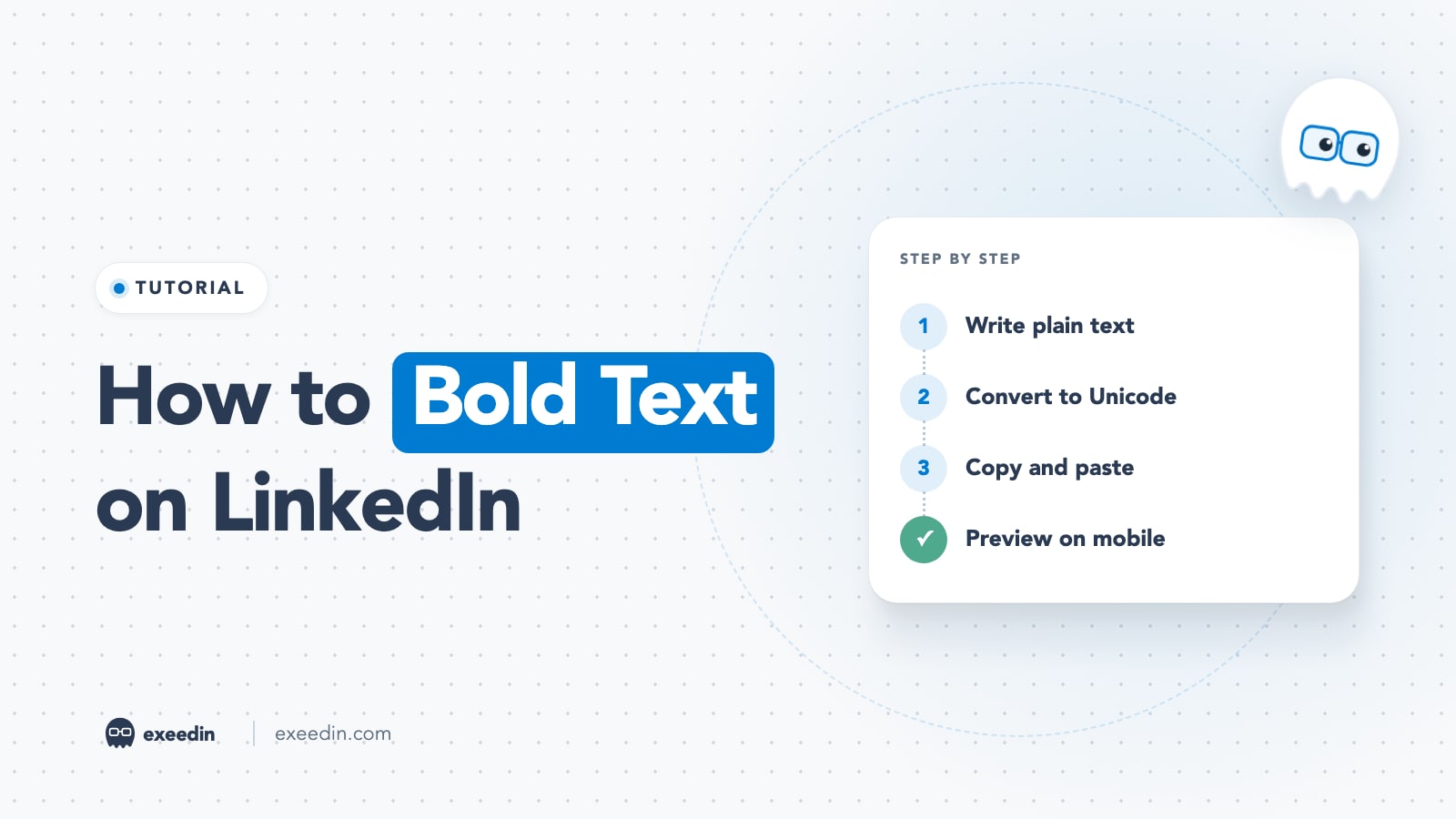
To bold text on LinkedIn, type your text in a free Unicode text generator, convert it to a bold style, then copy and paste it into your post, comment, headline or About section. LinkedIn's regular post box has no bold button, so this copy and paste method is the only way. LinkedIn articles and newsletters are different: their editor has a real bold and italic button.
This guide shows the exact steps on desktop and mobile, where styled text works and where it fails, a style table you can copy from, and the accessibility cost that most formatting guides skip. Every LinkedIn feature claim below was checked against LinkedIn Help pages in October 2026.
How to bold text on LinkedIn in 5 steps
- Write the words you want to emphasize in plain text first, so you can check the spelling before converting.
- Open a Unicode text generator (search "LinkedIn text formatter" or "bold text generator"; dozens of free ones exist, and they all use the same Unicode characters).
- Paste your text and pick a style, such as bold sans, bold serif or italic.
- Copy the converted text and paste it into the LinkedIn post box, comment field, headline or About section.
- Preview before posting on a phone if you can, because some older devices and fonts show styled characters as empty boxes.
That works for bold, italic, bold italic, monospace, underline and strikethrough. The same steps apply to every style in the table further down.
Does LinkedIn have a native bold option in 2026?
Only in two places. LinkedIn's Write and publish articles help page says the article editor's toolbar lets you change the text style, bold or italicize text, and add ordered or unordered lists, blockquotes and dividers. Newsletters use the same editor, because you pick "newsletter edition" inside the same article flow.
Regular feed posts, comments and profile fields have no formatting toolbar. What you see as bold in other people's posts is almost always a set of look-alike Unicode characters pasted in from a generator or a browser extension. There is one more limit worth knowing: the same help page says the article publishing feature is not available in the LinkedIn mobile app, so native bold is a desktop browser feature.
If you are deciding which format fits your idea in the first place, our comparison of LinkedIn articles vs posts vs newsletters covers reach, length and formatting side by side.
How Unicode "bold" actually works
Unicode is the standard that gives every character on every device a number. Inside it is a block called Mathematical Alphanumeric Symbols, which holds bold, italic, bold italic, script, Fraktur, double-struck, sans-serif and monospace versions of Latin and Greek letters, plus styled digits. They were added so mathematicians could tell apart variables that share a letter. The Wikipedia summary notes that Unicode expressly recommends against using these characters as a substitute for normal formatting in running text.
A text generator simply swaps each normal letter for its mathematical twin. To you, "𝗛𝗶𝗿𝗶𝗻𝗴" looks like the word Hiring in bold. To a computer, it is six unrelated symbols that happen to look like letters. That difference explains every downside covered below.
Why Arabic and other scripts cannot be bolded this way
The block only covers Latin letters, Greek letters and digits. If you write in Arabic, Hebrew, Hindi or Chinese, a generator returns your text unchanged, because there are no bold versions of those letters to swap in. For bilingual creators in the GCC, the practical answer is to create emphasis with structure instead: a short standalone line, a line break before the key sentence, or an English keyword in bold sans next to the Arabic sentence if the post is already bilingual. Keep the Arabic itself plain so it shapes and connects correctly.
Get 10 hooks for your next post
Type what your post is about and get 10 opening lines from different proven angles. Free, no signup.
Or open the free LinkedIn hook generator
LinkedIn Unicode style table: copy and paste examples
These are the styles most generators offer. You can copy straight from this table. The "screen reader risk" column reflects the accessibility sources cited in the next section: any style built from mathematical symbols carries the same risk, while combining marks (underline and strikethrough) keep the base letters but add noise.
| Style | Example | Best use | Screen reader risk |
|---|---|---|---|
| Bold sans | 𝗕𝗼𝗹𝗱 𝘀𝗮𝗻𝘀 𝟮𝟬𝟮𝟲 | Short section labels in a post | High |
| Bold serif | 𝐁𝐨𝐥𝐝 𝐬𝐞𝐫𝐢𝐟 𝟐𝟎𝟐𝟔 | A single emphasized phrase | High |
| Italic | 𝐼𝑡𝑎𝑙𝑖𝑐 𝑡𝑒𝑥𝑡 | Book or report titles | High |
| Bold italic | 𝑩𝒐𝒍𝒅 𝒊𝒕𝒂𝒍𝒊𝒄 | Rarely, a quoted line | High |
| Sans italic | 𝘚𝘢𝘯𝘴 𝘪𝘵𝘢𝘭𝘪𝘤 | Side notes | High |
| Sans bold italic | 𝙎𝙖𝙣𝙨 𝙗𝙤𝙡𝙙 𝙞𝙩𝙖𝙡𝙞𝙘 | Rarely, one callout | High |
| Monospace | 𝙼𝚘𝚗𝚘𝚜𝚙𝚊𝚌𝚎 𝟸𝟶𝟸𝟼 | Code, commands, prompts | High |
| Bold script | 𝓑𝓸𝓵𝓭 𝓼𝓬𝓻𝓲𝓹𝓽 | Avoid in professional posts | High |
| Underline (combining mark) | U̲n̲d̲e̲r̲l̲i̲n̲e̲d̲ | Avoid; looks like a link | Medium |
| Strikethrough (combining mark) | S̶t̶r̶u̶c̶k̶ o̶u̶t̶ | Before and after edits, jokes | Medium |
Underline deserves a special warning. On a platform where links are clickable, underlined words that do nothing confuse readers. If you want to point at something, use a real link or a plain arrow.
The accessibility and search cost of Unicode bold
This is the section most "how to bold" guides keep short, and it matters if your audience includes anyone using a screen reader, which on a professional network is a lot of people.
Screen readers
Accessibility consultant Per Axbom explains in Don't fake bold and italic text with Unicode that screen readers usually either skip these characters entirely or read out a long description of each one, letter by letter. In his demonstration the styled words in a sentence simply go silent. A listener hears your post with its most important words missing, or hears "mathematical bold capital H" six times in a row.
Even AuthoredUp, which sells a formatting extension, says on its accessibility help page that it "depends on the type of screen reader" and that some screen readers, especially desktop apps, still cannot read formatted content. That is an honest answer from a vendor with a reason to say otherwise.
Stanford's accessibility team adds a test that applies to all emphasis, real or fake. Their guidance on italics and bold notes that screen readers add little vocal emphasis anyway, and suggests asking whether the content still makes sense without being able to see the formatting. If it does not, rewrite the sentence instead of bolding it.
Search and findability
Because styled letters are different characters, search engines do not match them to normal words, a point Axbom also makes. On LinkedIn this hits hardest in your headline and About section. A recruiter who searches for "product manager" will not match "𝗣𝗿𝗼𝗱𝘂𝗰𝘁 𝗠𝗮𝗻𝗮𝗴𝗲𝗿" written in bold sans, because those are not the letters they typed. Keep every keyword you want to be found for in plain text.
Display problems
Older phones and some fonts lack these characters and show question marks or empty boxes.
Where bold text works on LinkedIn (and where to avoid it)
Unicode characters are just text, so they paste into almost any text field. Whether you should use them is a separate question.
| Place | Works? | Recommendation |
|---|---|---|
| Feed posts | Yes | One or two short labels at most; never the hook's keywords |
| Comments | Yes | Skip it; comments read as conversation |
| Headline | Yes | Avoid; your headline keywords drive search |
| About section | Yes | Short subheadings only, keywords in plain text |
| Experience descriptions | Yes | Avoid; recruiters search these fields |
| Name field | Technically | Never; LinkedIn requires your true name |
| Articles and newsletters | Native bold | Use the editor's B button instead of Unicode |
For the headline specifically, our guide to writing a LinkedIn headline that is more than your job title shows how to stand out with words rather than styling, and our post on LinkedIn headline examples gives ready formulas.
How to bold text on LinkedIn on mobile (iPhone and Android)
The LinkedIn app has no formatting option, so the mobile method is the same copy and paste flow through a browser.
- Write your post in the LinkedIn app or your notes app, but do not post yet.
- Open a Unicode text generator in Safari or Chrome on your phone.
- Type or paste the words you want in bold, choose the style, and tap the copy button the site provides (long press and Copy also works).
- Switch back to the LinkedIn app, place the cursor where the bold words should go, long press and tap Paste.
- Check the preview, then post.
Two mobile tips save time. First, convert only the few words you need instead of the whole post, so you are not juggling long text between apps. Second, if you reuse the same bold labels every week (for example "Key takeaway"), save them in your phone's text replacement or notes so you can paste them without a generator.
How to bold text on LinkedIn on desktop
On a computer you have three options, in order of effort.
- Web generator: open one in a second tab, convert, copy and paste into the post box. Free and works in any browser.
- Browser extension: tools such as AuthoredUp add a formatting bar above LinkedIn's post box. Its own guide to bolding text in LinkedIn posts describes a Bold button in that toolbar, plus italic and bullet point formatting. Under the hood it still inserts Unicode characters, so the accessibility notes above still apply.
- Native editor: if the piece is long enough to deserve headings and real emphasis, write it as an article or newsletter edition and use the built-in bold button or the usual keyboard shortcut.
How to add italics, underline and bullet points
Italics
Use the same generator and pick an italic style. Italic is a good fit for titles of books, reports and podcasts, where it follows normal writing conventions. Do not italicize whole sentences; italic Unicode is harder to read than bold on small screens.
Underline and strikethrough
These are made with combining marks, invisible characters placed after each letter. Strikethrough can work for a playful before and after ("S̶t̶r̶u̶c̶k̶ o̶u̶t̶, now: ..."). Underline mostly causes confusion with links, as covered above.
Bullet points
The post box has no list button, but bullet symbols are ordinary characters, so you can type or paste them at the start of each line: •, ▸, →, ✓ or numbered lines such as "1." work well. Numbers are often the better choice because they are read correctly by screen readers and tell the reader how long the list is. Emoji bullets are fine in moderation; our piece on using emojis in LinkedIn hooks covers when they help and when they cheapen a post.
Line breaks and white space
White space is the formatting LinkedIn readers notice most. Press Enter between short paragraphs and add an empty line between sections. If your breaks disappear after posting, you probably pasted rich text from a document editor; paste into a plain text note first, then copy into LinkedIn. Keep your first line or two strong, because the feed cuts long posts with a "see more" link and the opening lines are all most people read before deciding.
LinkedIn formatting best practices
- Bold short labels and keep keywords plain. Style a short label like "Step 1" or "The result", and keep the important words around it plain so they stay searchable and readable aloud.
- One style per post. Mixing bold serif, italic and script in one post looks like spam and reads as noise.
- Never style your whole hook. The first line is what people see before "see more". Make it land with words.
- Test the screen reader rule. Read the post as if the styled words were missing. If it falls apart, rewrite.
- Structure beats styling. Short paragraphs, numbered steps and one idea per line do more for skimmers than any bold font.
- Keep links and @mentions plain. A styled name is not a mention; LinkedIn's mentions only work when you type @ and pick the person from the list.
If you want ready structures that look scannable without heavy styling, our guide to LinkedIn post templates shows formats that rely on line breaks and lists, and LinkedIn post formats compared covers when a carousel or document beats a long text post.
Why can't I bold text on LinkedIn?
If you are looking for a B button in the post box, it does not exist for posts, comments or profile fields, so nothing is wrong with your account. If you pasted bold text and it turned plain or showed boxes, check these causes:
- You pasted from a word processor. Bold from Word, Google Docs or Notion is rich text formatting, which LinkedIn strips. Only Unicode characters survive.
- The device font lacks the characters. The reader sees boxes or question marks. There is nothing you can fix on your side except using fewer styled characters.
- You styled non-Latin text. Arabic and most other scripts have no bold Unicode version, so generators return them unchanged.
- You are on the mobile app trying to write an article. Article publishing, and its native bold, is only available on desktop according to LinkedIn's help page.
Frequently Asked Questions
Can you bold text in a LinkedIn post?
LinkedIn's post box has no native bold button in 2026. You can make text look bold by converting it with a free Unicode text generator and pasting it in. Real bold and italic only exist in the article and newsletter editor on desktop. Use Unicode bold sparingly, because screen readers may skip it and search does not match it to normal words.
Is bold text on LinkedIn bad for accessibility?
It can be. Unicode bold is made of mathematical symbols, and accessibility experts note that screen readers often skip those characters or read each one aloud as a long description. A blind reader may miss your key words entirely. Keep styled text to short labels, keep important information in plain text, and check that the post still makes sense without the formatting.
How do I bold text in my LinkedIn headline or About section?
Convert the words in a Unicode text generator, copy them, then open your profile, edit the intro or About section and paste. It works, but it is a poor trade in the headline: styled words are not matched by search, so recruiters looking for your job title or skills may not find you. Use plain text for keywords and, at most, bold a short subheading in About.
Can you bold text in LinkedIn comments?
Yes, the same copy and paste method works in comments because Unicode bold is just characters. It is rarely worth it. Comments read like conversation, and a bold comment can look like an attempt to stand out instead of adding to the discussion. A specific, useful sentence will get more profile visits than styled text.
Does bold text help LinkedIn reach?
There is no evidence from LinkedIn that styled characters change how the feed ranks a post. Formatting helps reach only indirectly, by making a post easier to skim so more people read past the first lines and react. Line breaks, numbered points and a clear hook do that job without the accessibility and search downsides of Unicode bold.
Why does my bold text show as boxes on some phones?
The phone's font does not include the mathematical Unicode characters your generator used, so it draws empty boxes or question marks in their place. You cannot control the reader's device. The safest fix is to use styled text only for a word or two, so the post still reads correctly even when those characters fail to display.