How to Start a LinkedIn Newsletter: Step-by-Step Guide 2026
Start a LinkedIn newsletter from Write article > Manage > Create newsletter. Here are the eligibility rules, steps, the first-edition invite, SEO settings, analytics and 10 ideas.
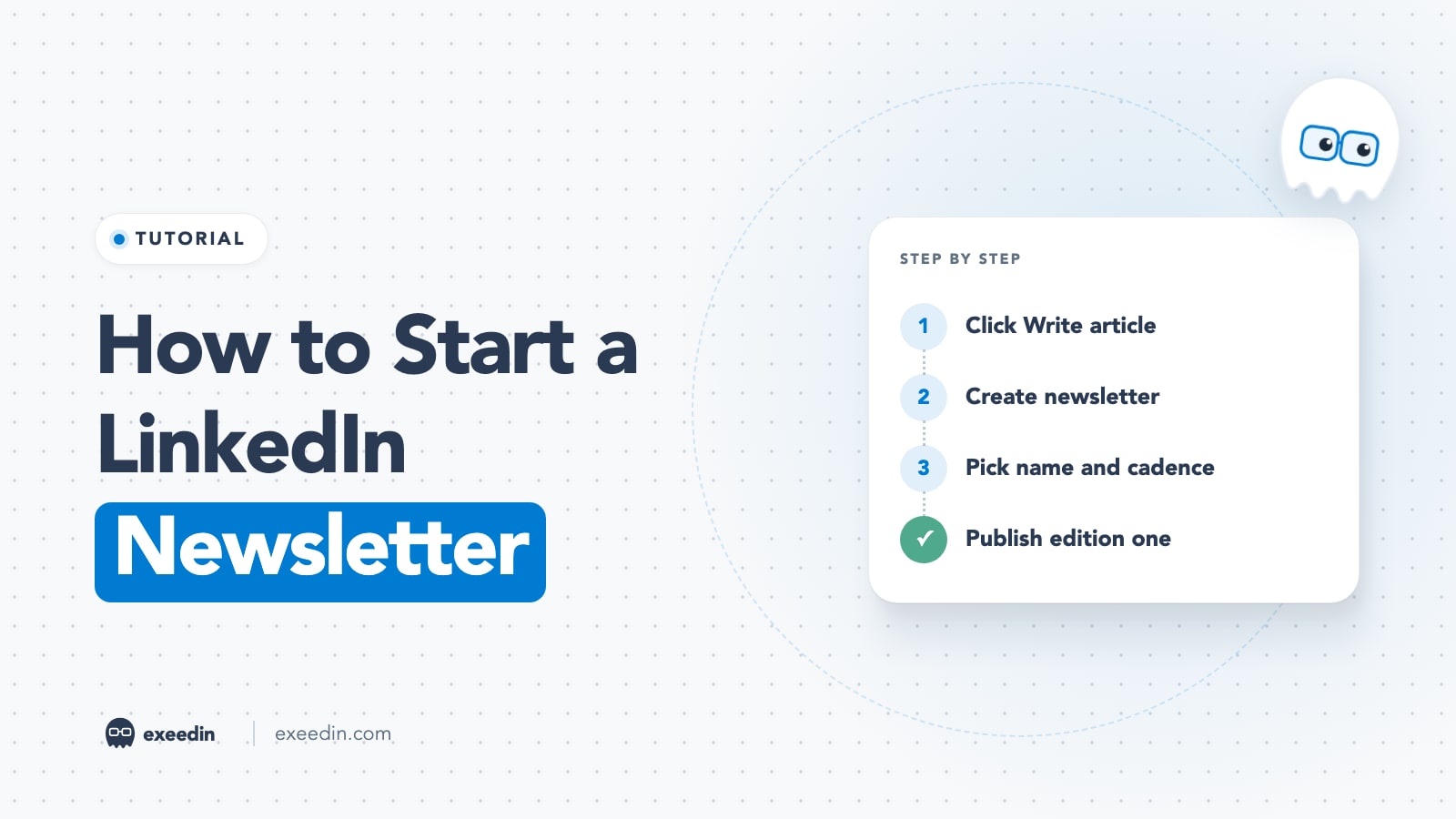
To start a LinkedIn newsletter, click Write article on your homepage, open the Manage dropdown in the upper right, select Create newsletter, add a title, description, publishing frequency and image, then click Done and publish your first edition. LinkedIn says every member can create one; Company Pages need more than 150 followers to be evaluated.
This guide follows LinkedIn's Help Center as of October 2026. It covers eligibility for people and Pages, the desktop steps (and why mobile is limited), how to name it and pick a cadence, the first-edition invitation that is your biggest growth moment, SEO settings, analytics, ten newsletter ideas and the mistakes that quietly kill subscriber growth.
How to start a LinkedIn newsletter: quick steps
- On a computer, click Write article in the share box at the top of your homepage.
- If you are a Super admin or Content admin of a Page, choose under Publish as whether to publish as yourself or the Page, then click Next.
- Open the Manage dropdown near the upper right of the editor.
- Select Create newsletter.
- Fill in the newsletter title, description, publishing frequency and image, then click Done.
- Write your first edition: a headline, a cover image and the body.
- Click Next, add a short post introducing the edition, and click Publish (or use the clock icon to schedule it).
LinkedIn's LinkedIn Newsletters article documents steps 1 to 5. The newsletter page itself is only created when the first edition goes live, so step 7 is where your newsletter actually starts to exist.
Who can create a LinkedIn newsletter in 2026?
Personal profiles
LinkedIn's Newsletter access criteria page says all LinkedIn members have access to create a newsletter. You no longer need Creator Mode, which LinkedIn retired in 2024. If the Create newsletter option does not appear under Manage, check that you are inside the article editor on desktop, then contact LinkedIn Help from that page.
Company Pages and Showcase Pages
Pages still go through an evaluation. The same page lists three criteria:
- Audience base: more than 150 followers and/or connections to be evaluated.
- Recent original content: the Page has recently shared original posts, images, videos or articles.
- Good standing: the Page and its admins have a record of following LinkedIn's Professional Community Policies.
Meeting these criteria makes a Page eligible to be evaluated; it does not guarantee access. To create a Page newsletter, LinkedIn's Create a LinkedIn Page newsletter article says to open the Page's super or content admin view, select Create in the left menu, choose Create a newsletter, enter a title, frequency and description, upload an image and select Done. A newsletter created for a Showcase Page is not linked to the parent Page.
Get 10 hooks for your next post
Type what your post is about and get 10 opening lines from different proven angles. Free, no signup.
Or open the free LinkedIn hook generator
Can you start a LinkedIn newsletter on mobile?
Only partly. LinkedIn's Write and publish articles page states that the article publishing feature is not available on the LinkedIn mobile app, and newsletters are created from the article editor. Set up the newsletter and write editions on a computer. Your subscribers can read and subscribe on mobile without any issue, and you can share and promote editions from the app.
Limits and rules to know before you start
| Rule | What LinkedIn says |
|---|---|
| Number of newsletters | Up to five at a time, as yourself or as a Page |
| Editions per newsletter | Unlimited (Page newsletter article) |
| Cooldown | After you create or delete a newsletter, wait two weeks before creating another |
| Title | Avoid emojis in the newsletter title |
| Editing details later | Title, description, frequency and image (if added) can be edited |
| Who can read | Anyone can view the newsletter page without logging in; subscribing requires a LinkedIn account |
The limits on newsletters, the two-week cooldown and the title guidance come from LinkedIn's Manage a newsletter article. The cooldown matters if you are testing: create one newsletter you are confident in rather than experimenting with several.
How to name your LinkedIn newsletter and choose a cadence
The name
The newsletter name shows in invitations, notifications, search results and on your profile, so it does more work than a post headline. A good name tells a stranger what they get and who it is for.
- Topic plus audience: "Hiring Notes for Gulf Startups", "The B2B Pricing Brief".
- Promise plus format: "One Sales Call Teardown a Week".
- Avoid: your own name alone (unless you are already well known), vague words like "Insights" or "Thoughts", and emojis.
The description should finish the thought: what each edition covers, how often it arrives and what the reader will be able to do afterward.
The cadence
The publishing frequency you pick is shown to potential subscribers, so treat it as a promise. Choose the cadence you could keep during your busiest month. For most professionals that is biweekly or monthly. A monthly newsletter that arrives on schedule builds more trust than a weekly one that skips every third issue. You can change the frequency later from the newsletter's edit screen, but frequent changes signal unreliability.
The first edition: LinkedIn's invitation to your whole network
This is the most important moment in a LinkedIn newsletter's life. According to LinkedIn's Manage a newsletter article, by default your connections and followers are notified and invited to subscribe after your first article is published. For Pages, the Page newsletter article says your Page followers will be invited by notification to subscribe.
After that, growth slows down, but LinkedIn keeps helping. The Newsletters article says that when a member follows you, or a Page with a newsletter, an invitation to subscribe is sent automatically, and subscribers receive push, in-app and email notifications for each new edition.
How to make the first invitation count:
- Build your audience first. If you have 300 connections, the launch invite reaches 300 people. Spend a few weeks posting on the newsletter's topic before you launch, so your network grows and knows what you stand for.
- Make edition one your best piece. Everyone who opens the invitation lands on edition one, so it works as your sample issue. A "welcome to my newsletter" note with no substance wastes it.
- Announce it a few days ahead. A short post saying what is coming, when and for whom primes people to accept the invite.
- Publish at a good time for your audience. The notification lands when you publish, so avoid late nights in your readers' time zone.
How to grow LinkedIn newsletter subscribers after launch
- Promote every edition with a real post. The text you add at the Publish step appears in the feed. Write it like a standalone post with the key takeaway; a bare "New edition is out" gives people no reason to click. Our tips on writing better article captions apply directly.
- Turn your best posts into editions. A post that sparked comments is a topic people want in depth. exeedin's Post to Newsletter option, inside its Create flow, turns a LinkedIn post into a newsletter draft in your voice that you then edit and publish yourself.
- Add the newsletter to your profile. Feature it in your Featured section, and if you qualify for the Premium custom button, "View my newsletter" is one of its options.
- Reply to comments on each edition. Comments are where readers turn into regulars.
- Share outside LinkedIn. LinkedIn's newsletter FAQ says anyone can view a newsletter page without logging in, so you can link it from your email signature, website and other channels.
- Cross-promote with peers. Mention another newsletter in your niche and ask them to do the same.
Looking for examples of what works at scale? Our roundup of LinkedIn newsletters with 10,000+ subscribers breaks down what those authors do consistently.
LinkedIn newsletter SEO: settings that help Google find you
Newsletter editions are LinkedIn articles, and articles have their own search settings. LinkedIn's Write and publish articles page says that under the Manage menu you can open Settings to create an article URL, add an SEO title and add an SEO description. Use them on every edition:
- SEO title: the phrase people would actually search, for example "How to price a B2B SaaS product".
- SEO description: one or two sentences that answer the query and give a reason to click.
- Article URL: a short, readable slug with the main keyword.
- Headings and structure: use subheadings and lists in the editor so the piece is easy to scan.
Whether LinkedIn articles rank well depends on the topic and competition. We looked at that question in do LinkedIn newsletters help with SEO. The short version: treat search traffic as a bonus and your subscriber list as the main asset.
How to see your LinkedIn newsletter analytics
LinkedIn's Analytics and tools article says newsletter authors get Newsletter analytics in their Analytics & tools area, showing total subscribers and article views. Open it from your profile: Analytics, then Show all. Each edition also has its own article analytics, which LinkedIn keeps for two years. Page newsletters have a Newsletter tab inside Page analytics with trends, article totals and subscriber demographics.
Track three numbers per edition: subscribers gained since the last edition, views in the first week, and comments. If views per edition fall while subscribers grow, fewer subscribers are opening each edition, which often means the topics or headlines have drifted from what people signed up for. Our guide on how to use LinkedIn analytics explains how to set up a simple tracker.
LinkedIn newsletter vs article vs post
A newsletter is a series of LinkedIn articles with a subscribe button. The difference is the notification: a standalone article reaches people only through the feed, while each newsletter edition is pushed to subscribers by notification and email. Posts are short and fast; newsletters are for depth and repeat readers. We compare all three, including when not to start a newsletter, in LinkedIn article vs post vs newsletter, and lay out the business case in why you should start a LinkedIn newsletter.
10 LinkedIn newsletter ideas
- The weekly teardown: analyze one real example (a sales email, a landing page, a job ad) and show what you would change.
- Industry news, explained: three stories from your sector and what they mean for your readers' jobs.
- The playbook series: one step of a long process per edition, such as "hiring your first sales rep" in eight parts.
- Founder or leader diary: monthly numbers, decisions and lessons from building something.
- Market data brief: one chart or dataset each edition with your interpretation.
- Q and A edition: answer questions readers send you or leave in comments.
- Tool and workflow reviews: what you actually use, with honest pros and cons.
- Career advice for one role: a newsletter for new managers, junior analysts or first-time founders.
- Regional focus: trends for a specific market, such as hiring or investment in the GCC, published in English, Arabic or both.
- Interviews: short conversations with practitioners, written up as lessons rather than transcripts.
Need more raw material? Our list of LinkedIn post ideas works as a topic bank, and many of those prompts scale into a full edition.
Common LinkedIn newsletter mistakes
- Launching too early. The first-edition invitation goes to the network you have on that day. Grow first, launch second.
- A thin first edition. It is the one most people will judge you by.
- Promising a cadence you cannot keep. Missed editions train subscribers to ignore you.
- Making it a sales brochure. Readers subscribe for useful ideas. Mention your offer at the end, briefly, and only when it fits.
- Skipping the feed post. An edition with a one-line caption gets little distribution beyond notifications.
- Ignoring the SEO fields. Without an SEO title and description, search engines fall back on whatever they find.
- Starting several newsletters at once. The two-week cooldown makes experiments slow, and splitting your audience weakens each one.
- Assuming you own the list. LinkedIn's help pages describe no way to export subscribers' email addresses, so invite your most engaged readers to an email list you control as well.
Frequently Asked Questions
How many followers do you need to start a LinkedIn newsletter?
For personal profiles, none. LinkedIn says all members have access to create a newsletter. Company Pages are different: a Page needs more than 150 followers and/or connections to be evaluated, plus recent original content and a good-standing record. Even so, launching with a larger network helps, because the first edition invites your current connections and followers to subscribe.
Does LinkedIn notify my connections when I start a newsletter?
Yes. By default, LinkedIn notifies your connections and followers and invites them to subscribe after your first edition is published. For Page newsletters, Page followers receive the invitation. After launch, new followers are invited automatically, and subscribers get push, in-app and email notifications every time you publish a new edition.
Can I create a LinkedIn newsletter on my phone?
You cannot do it in the LinkedIn mobile app. LinkedIn's help center says article publishing is not available on the mobile app, and newsletters are created from the article editor. Use a desktop or laptop browser to create the newsletter and write editions. Readers can subscribe, read and comment on mobile, and you can share your editions from the app.
How many newsletters can I have on LinkedIn?
LinkedIn allows up to five newsletters at a time, whether you publish as yourself or as a Page, and each newsletter can have unlimited editions. After you create or delete a newsletter, you must wait two weeks before creating another. Most people do better with one focused newsletter than with several smaller ones.
How often should I publish a LinkedIn newsletter?
Publish as often as you can sustain with quality, and match the frequency you chose at setup. For most professionals that means every two weeks or monthly. Subscribers are notified each time, so a reliable rhythm matters more than volume. If your schedule changes, update the frequency in the newsletter settings rather than silently skipping editions.
Can I schedule a LinkedIn newsletter edition?
Yes. When you finish an edition and click Next, a clock icon appears next to Publish. Click it and follow the prompts to pick a later date and time. Scheduling lets you write in advance and publish when your audience is most active, which matters because the notification to subscribers goes out when the edition goes live.