How to Create a Poll on LinkedIn: Steps, Limits and 15 Ideas
Create a LinkedIn poll from Start a post > More > Create a poll. Here are the desktop and mobile steps, every limit, who sees your votes, and 15 poll ideas by goal.
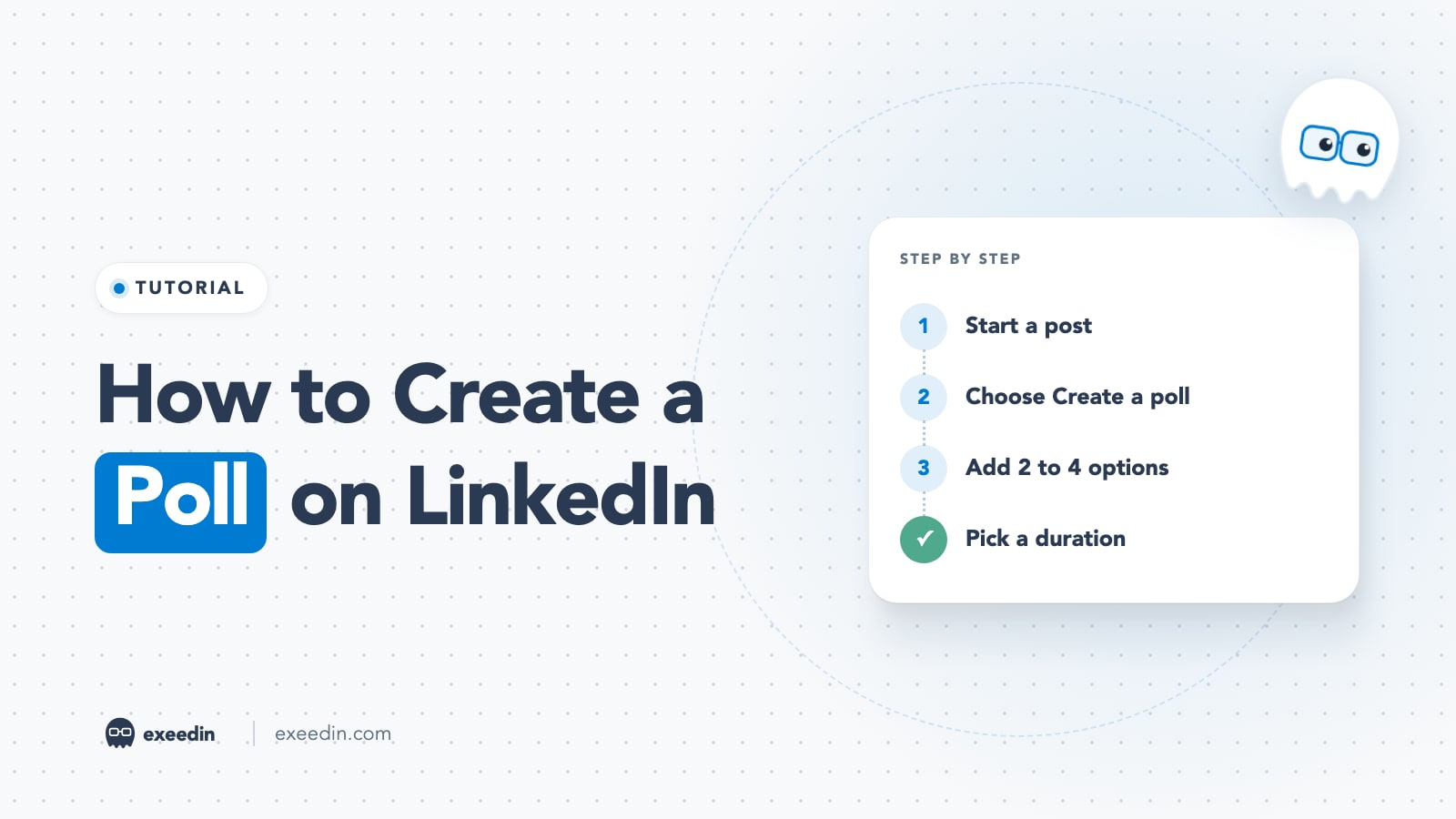
To create a poll on LinkedIn, click Start a post, open the More icon, choose Create a poll, type a question of up to 140 characters, add 2 to 4 answer options of up to 30 characters each, pick a duration from one day to two weeks, then click Done and Post. On mobile, tap Post, then More, then Poll.
Below you will find the exact desktop and mobile steps from LinkedIn's Help Center (checked October 2026), every limit in one table, who can see your votes, what you can and cannot change after posting, polls on Pages and in groups, scheduling, 15 poll ideas sorted by goal, and an honest look at when a poll hurts more than it helps.
How to create a poll on LinkedIn (quick steps)
- Click Start a post at the top of your homepage.
- In the post window, click the More icon, then the Create a poll icon.
- Type your question.
- Fill in the options. Click +Add option for a third or fourth answer.
- Choose the poll duration from the dropdown.
- Click Done.
- Add context in the text field, choose your audience from the dropdown next to your name, and click Post.
These steps match LinkedIn's Create LinkedIn Polls article. The text field above the poll matters more than people expect, and we will come back to it in the tips section.
How to create a LinkedIn poll on mobile (iOS and Android)
LinkedIn gives one set of steps for both apps:
- Tap Post in the navigation bar.
- Tap the More icon, then tap Poll.
- On the Create a poll page, enter your question and options. Tap +Add option to add more.
- Choose a duration from the dropdown.
- Tap Done in the upper right.
- Tap Edit if you want to change anything, use the Anyone dropdown to pick the audience, and add your text.
- Tap Post.
Mobile is fine for quick polls, but write the question on a larger screen if you can. With only 140 characters, every word counts, and typos cannot be fixed later.
LinkedIn poll limits: characters, options and duration
| Setting | Limit | Source |
|---|---|---|
| Question length | 140 characters | LinkedIn Polls FAQ |
| Answer option length | 30 characters each | LinkedIn Polls FAQ |
| Number of options | 2 to 4 (the FAQ says iOS allows up to 5) | Create LinkedIn Polls, LinkedIn Polls FAQ |
| Duration choices | 1 day, 3 days, 1 week, 2 weeks | LinkedIn Polls |
| Default duration | 1 week | Create LinkedIn Polls |
| Votes per member | One at a time (single choice) | LinkedIn Polls FAQ |
| Post text above the poll | Up to 3,000 characters, like any post | Share articles or links |
One inconsistency is worth knowing. LinkedIn's FAQ says the iOS app lets you add up to five options, while the creation article and LinkedIn's developer documentation both set the maximum at four. Write polls with four options or fewer so they look the same for everyone and work in scheduling tools.
The 30-character option limit is the one that bites. "Yes, but only for senior roles" is exactly 30. Abbreviate in the options and explain in the post text.
How strong is your LinkedIn profile?
Paste your profile link and see your score right away, with clear fixes for your headline, About section and experience. Free to start, no account needed.
Or open the free LinkedIn profile checker
Who can see how you voted on a LinkedIn poll?
LinkedIn polls are not anonymous to the person who created them. LinkedIn's Polls article states that the author can view who voted and how each person voted. For polls created by a LinkedIn Page, all Page admins can see the same detail. For polls in a LinkedIn Group, only the poll author can view these results.
Everyone else sees aggregates. According to the Polls FAQ:
- Voters see the percentage results once they vote.
- After the poll closes, anyone who can see the post can view the total results as percentages.
- The author also sees the number of votes per option.
Voters can also change their mind. Before the poll closes, they can use Undo to change or remove a vote; after it closes, they can use Remove vote. If you run a poll on a sensitive workplace topic, tell people in the post text that you can see individual answers. It is the decent thing to do, and it gives you more honest results.
Can you edit a LinkedIn poll after posting?
No. LinkedIn's FAQ says a poll cannot be edited once it is created, and the developer documentation confirms that updating poll content is not allowed. You also cannot extend or shorten the duration. What you can do:
- Edit the post text above the poll, which is useful for adding a clarification.
- Delete the poll entirely and post a corrected one. Deleting removes the votes you collected.
Because of this, proofread the question and options before you click Post. Read them out loud. If an option could be read two ways, it will be.
How to create a poll on a LinkedIn Company Page, in a group, or for an event
Company Pages
Page admins can create a poll directly from the Page. Open your Page's admin view, start a post as the Page, and use the same More and Create a poll steps. The FAQ also notes that super admins can create polls and vote on behalf of the Page. Remember that every Page admin can see individual votes.
LinkedIn Groups
Polls can be posted in groups too, and LinkedIn says that in a group only the poll author sees individual results. Group polls tend to work well because the audience already shares a topic.
Events
LinkedIn's poll articles do not list events as a place to create polls. If you want input for an event, post the poll from your profile or Page and mention the event in the text, or use the poll to choose the topic before you create the event.
Can you schedule a poll on LinkedIn?
LinkedIn's Schedule posts article lets you schedule posts between 10 minutes and 3 months ahead using the clock icon, and it names only Events and Jobs as content that cannot be scheduled. So after you click Done on your poll, look for the clock icon before you post. Keep in mind the poll's countdown starts when it publishes.
Third-party schedulers can also publish polls, because LinkedIn's official Posts API supports poll content for both members and organizations, with the same 140 and 30 character limits and the same four durations. Support varies by tool, so check before you plan a series. For the full picture of native and third-party options, see our guide on how to schedule a post on LinkedIn.
15 LinkedIn poll ideas, sorted by goal
The best polls ask something your audience has an opinion on and you genuinely want to know. Here are starting points, each with options that fit the 30-character limit.
To research your market
- "What's your biggest blocker to posting on LinkedIn every week?" Options: Time / Ideas / Confidence / Results.
- "How does your team buy software in 2026?" Options: Free trial first / Demo with sales / Peer referral / Analyst reports.
- "Which would you pay for first?" List three features you are weighing.
To start a conversation
- "Remote, hybrid or office: what does your company actually do now?"
- "Should junior hires be allowed to use AI for their first drafts?" Options: Yes / Yes, with review / No.
- "What's the most overrated productivity habit?" Give three popular habits plus "None of them".
To plan content
- "What should my next carousel cover?" Offer three topics you can deliver.
- "Which format do you read most on LinkedIn?" Options: Text / Carousel / Video / Articles.
- "What would you like a deep dive on next month?"
To generate leads (carefully)
- "Where does your pipeline come from today?" Options: Referrals / Outbound / Inbound / Events.
- "How do you track LinkedIn results today?" Options: Native analytics / Spreadsheet / A tool / I don't.
- "Would a free checklist on this help?" Follow up only with people who say yes, and only if you said so in the post.
To build a community or team culture
- "What's one skill you want to learn before year end?"
- "Which onboarding step mattered most in your first job?"
- "Best day for our team's monthly meetup?" Ideal for a Page or a group.
Avoid polls about political opinions, health or other sensitive data: LinkedIn's Polls article says authors may not ask for them. For more prompts beyond polls, our list of LinkedIn post ideas is organized the same way, and the free post ideas generator can suggest poll topics for your niche.
Do LinkedIn polls get more reach? What the data says
The data is mixed, and it pays to look at reach and engagement separately.
- Reach can be strong. Metricool's 2025 study of 577,180 posts from company Pages, as reported by Social Media Today, found poll post reach had risen by 206%, even though polls are among the least used formats.
- Engagement rate is below average. Socialinsider's LinkedIn benchmarks, based on business Pages, put polls at a 4.20% engagement rate by impressions in 2025, under native documents (7.00%), multi-image posts (6.45%) and video (6.00%).
- LinkedIn has pushed back on poll overload. In 2022 LinkedIn said "there are too many polls in the feed" and that it would show fewer polls from people you don't know and more from your network, per Social Media Today's report.
Put together: a poll can travel, but a vote is a light signal. It costs the voter one tap, so it rarely turns into a comment, a profile visit or a lead. Treat polls as one format in the mix. Our comparison of LinkedIn post formats shows where polls sit next to carousels, video and text.
How to get more votes and better comments on a LinkedIn poll
- Write the post text first. Two or three lines on why you are asking turn a poll into a discussion. Give your own answer and reason; people reply to a stance.
- Use a hook in the first line. The poll widget is visual, but the text still decides whether people stop. These hook formulas work well above polls.
- Offer clear, distinct options. Overlapping answers frustrate voters. "Other (comment below)" invites the comments you want.
- Pick the shortest useful duration. A 3-day or 1-week poll keeps the result fresh while people still remember the question; two weeks often outlives the conversation.
- Reply to every comment in the first hours. Comments carry more weight than votes, and replies keep the thread going. If comments stay quiet, see why your posts aren't getting comments.
- Share the results. When the poll closes, publish a follow-up post with the numbers and what you learned. That second post is often more valuable than the poll itself.
The downside of LinkedIn polls
Polls have real costs, and most guides skip them.
- Vanity results. 300 votes from people outside your market tell you nothing about your buyers. The voter list (visible only to you) shows who actually answered.
- Engagement bait risk. Polls that exist only to farm interactions ("Coffee or tea?") read as filler, and LinkedIn says it wants less engagement bait in the feed. Our piece on engagement bait versus real expertise explains why that wins short term and costs you later.
- Notification fatigue. LinkedIn's FAQ says your connections are notified that you created a poll. Weekly polls burn that goodwill fast. One every few weeks is plenty.
- No second chances. Since polls cannot be edited, a confusing question stays confusing for its whole run.
Frequently Asked Questions
Are LinkedIn polls anonymous?
Only partly. Other members see aggregate percentages, never individual answers. The poll author, however, can see who voted and which option each person chose. On a Company Page poll, every Page admin can see individual votes, and in a LinkedIn Group only the author can. If anonymity matters for your question, use a separate survey tool and share the link instead.
How long can a LinkedIn poll run?
You can choose one day, three days, one week or two weeks, and one week is the default. The duration is set before you post and cannot be changed afterward, because LinkedIn does not allow polls to be edited. If you need a different length, you have to delete the poll and create a new one, which removes the votes already cast.
How many options can a LinkedIn poll have?
Between two and four options on desktop and Android, each up to 30 characters. LinkedIn's FAQ says the iOS app allows up to five, but its other help articles and the developer documentation cap polls at four. Sticking to four or fewer keeps the poll consistent for every viewer and compatible with scheduling tools that publish through LinkedIn's API.
Can you see who voted on your LinkedIn poll?
Yes. As the author, open the poll results on your post to see each voter and their choice, plus vote counts per option. Page admins see the same for Page polls. Voters cannot see each other's choices. It is good practice to mention in your post that you can see individual votes, especially on workplace or career topics.
Why can't I create a poll on LinkedIn?
First check that you are using Start a post on your homepage, a Page you admin, or a group, then open the More icon where the poll option sits. Update the app if the option is missing on mobile. Polls are created from the post composer, so if you are inside the article or newsletter editor, switch to a regular post to add one.
Do LinkedIn polls help with reach?
They can. Metricool's 2025 study of company Pages found poll reach up 206%, but Socialinsider's benchmarks put polls below average for engagement rate. Votes are a light signal and rarely become comments or leads. Use polls occasionally, add a clear opinion in the post text, and publish a results post afterward to get real value.